
Exit
  • Global community
    • Language:
      • Deutsch
      • English
      • Español
      • Français
      • Português
  • 日本語コミュニティ
  • 한국 커뮤니티
2

Why do my pen lines keep disappearing when I select a shape on a separate layer afterwards?

New Here ,
Feb 11, 2017 Feb 11, 2017

I am trying to get pen lines to stay after drawing them.  I have closed off the pen lines as indicated here Draw with Pen tools in Photoshop .  Then I select a new layer and select a circle shape and all of my lines disappear.  I am trying to draw a guitar fretboard and add different coloured circles to certain fret positions but this is seeming impossible to do.  I don't understand why Adobe make simple things so complex.

I am using a pc with Photoshop CC.  Thanks in advance
70.6K
Translate
Report
Community guidelines
Be kind and respectful, give credit to the original source of content, and search for duplicates before posting. Learn more
community guidelines

correct answers 1 Correct answer

Community Expert , Feb 11, 2017 Feb 11, 2017

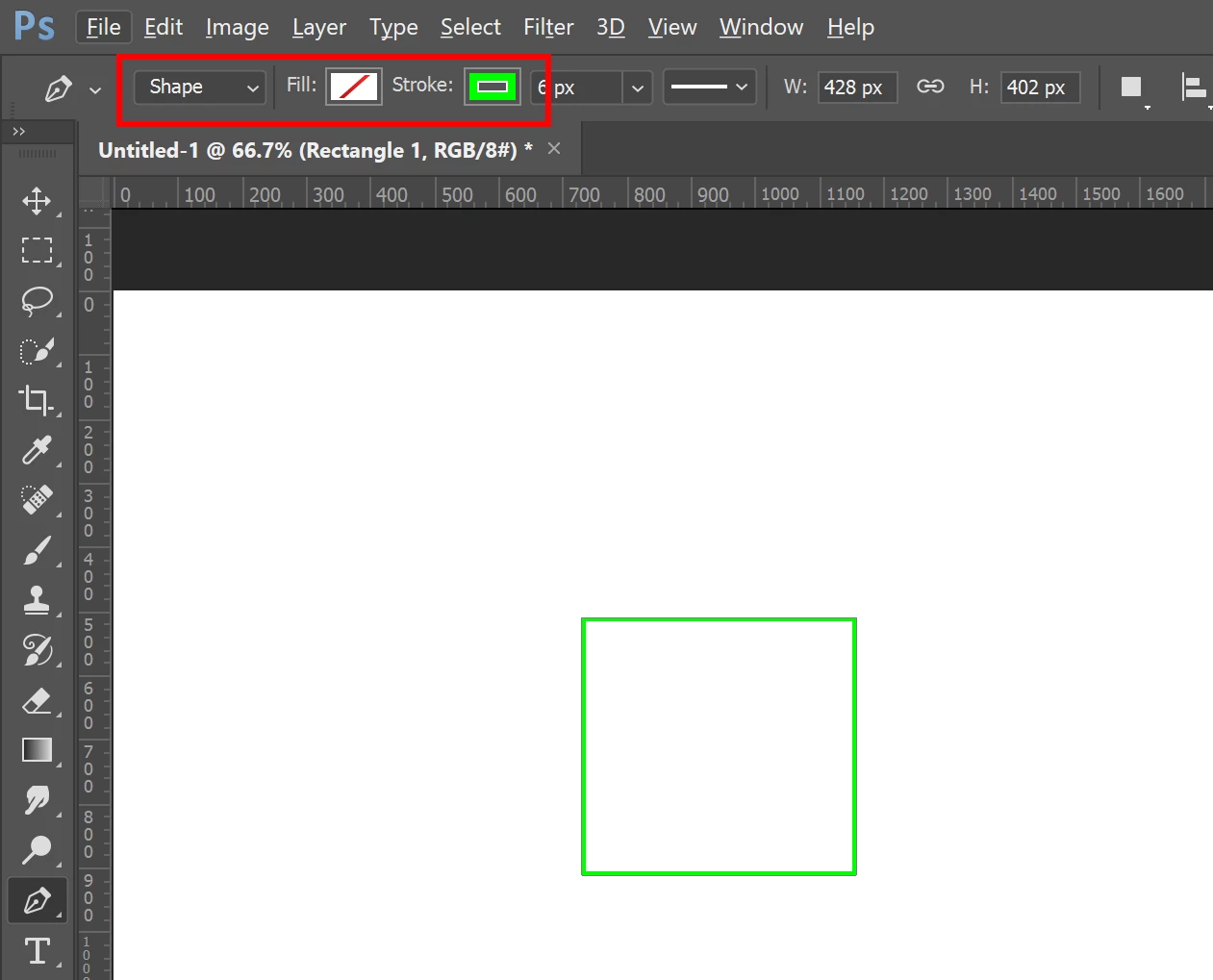
Use the shape selection rather than the path when using the pen tool, and set either or both the stroke and fill colors.

Translate
Adobe
Guide ,
Feb 11, 2017 Feb 11, 2017

With the pen tool you draw "virtual" paths only, not real strokes.

A path is meant for example

- to lead a brush stroke along its way

- or to serve as a clipping path for irregular objects in other programs

- or as a base line for rendering trees, flames and other stuff from the filter menu.

You can activate and manipulate paths in the path panel, but you'll have not many  options.

To draw a guitar fretboard you should use Illustrator instead. Or another vector based program like Corel Draw or the free Inkscape.

There you not only can see what you draw, but also you'll have the possibility for nearly endless modifications because every line/circle is an object of its own.

Fenja

Translate
Report
Community guidelines
Be kind and respectful, give credit to the original source of content, and search for duplicates before posting. Learn more
community guidelines
Community Expert ,
Feb 11, 2017 Feb 11, 2017

Use the shape selection rather than the path when using the pen tool, and set either or both the stroke and fill colors.

Translate
Report
Community guidelines
Be kind and respectful, give credit to the original source of content, and search for duplicates before posting. Learn more
community guidelines
Community Beginner ,
Dec 12, 2018 Dec 12, 2018

I'm having the same issue.  I'm trying to create an arc in Photoshop and the Pen Tool is what I started with as a shape.  But when I click on any other drawing icon on any other layer, these lines disappear.  So, I want these lines to stay; I don't have illustrator.  Very frustrating.

Translate
Report
Community guidelines
Be kind and respectful, give credit to the original source of content, and search for duplicates before posting. Learn more
community guidelines
Community Expert ,
Dec 12, 2018 Dec 12, 2018

Can you show a screen shot of before the shape disappears and one after? Are you sure you have shape selected, and if you do, do you have a stroke fill selected also?

Translate
Report
Community guidelines
Be kind and respectful, give credit to the original source of content, and search for duplicates before posting. Learn more
community guidelines
Community Expert ,
Feb 11, 2017 Feb 11, 2017

Supporting the answers you have already received...

When you are using the vector tools, there are three drawing modes to choose from:

  • Paths
  • Shape Layers
  • Fill Pixels

They all have their uses, but for your use, follow Chuck Uebele​'s advice and use Shape Layers in Photoshop, or fenjas29325284's and switch over to Illustrator.

As a trainer, here's my issue with the link you provided. Adobe mentions the drawing modes in a single sentence, and if you didn't follow the link they provided then you missed the discussion of the three modes and when to use each one. And while I'm critiquing Adobe's help files, the link they offer is to an older version of Photoshop. The info is still correct, but the modes now appear in a list (see Chuck's outline above) and not as the three linear buttons.

Safariss_001.png

Translate
Report
Community guidelines
Be kind and respectful, give credit to the original source of content, and search for duplicates before posting. Learn more
community guidelines
New Here ,
Apr 18, 2020 Apr 18, 2020

Can you mention here steps which we need to follow to avoid objects disappearing?

Translate
Report
Community guidelines
Be kind and respectful, give credit to the original source of content, and search for duplicates before posting. Learn more
community guidelines
New Here ,
Aug 12, 2020 Aug 12, 2020

Here is an imperfect way to get the lines not disappear - as soon as you draw a new line or shape, merge it with the previous shapes. Awkard and does not solve everything, still I think it's a better anwser than the one from the Adobe-community professional.

Translate
Report
Community guidelines
Be kind and respectful, give credit to the original source of content, and search for duplicates before posting. Learn more
community guidelines
New Here ,
Aug 12, 2020 Aug 12, 2020

I can only repeat the reply from Krishna_Singh. You ahve written a long para without actually answering the question.

Translate
Report
Community guidelines
Be kind and respectful, give credit to the original source of content, and search for duplicates before posting. Learn more
community guidelines
New Here ,
Jul 04, 2020 Jul 04, 2020

I have changed my selection to shape but still the moment I choose another layer or change the tool it disappears i have tried everything i knew i try with changing layer order,locking layers but it didn't work at all... Please help...

Translate
Report
Community guidelines
Be kind and respectful, give credit to the original source of content, and search for duplicates before posting. Learn more
community guidelines
New Here ,
Dec 14, 2020 Dec 14, 2020

I found that my issue was that Align Edges was checked. 
No idea why that was doing it but once I unchecked it my lines (arrows) didn't disappear.

Translate
Report
Community guidelines
Be kind and respectful, give credit to the original source of content, and search for duplicates before posting. Learn more
community guidelines
New Here ,
May 22, 2021 May 22, 2021

I too was like What in the [removed]?!!! Somehow I clicked ctrl+h to hide edges.... A lot of the time the language in the program does not match the language in my head! Like, Red means stop, and Green means go... definitely not that simple!!

Translate
Report
Community guidelines
Be kind and respectful, give credit to the original source of content, and search for duplicates before posting. Learn more
community guidelines
Community Beginner ,
Dec 05, 2021 Dec 05, 2021

For me, this disappearance problem occurred with the line tool -- the actual line between two arrowheads would not show up except when the shape was selected. The solution was to align the center of the stroke -- an obscure setting under the Stroke option in the Line tool menu bar.


Translate
Report
Community guidelines
Be kind and respectful, give credit to the original source of content, and search for duplicates before posting. Learn more
community guidelines
New Here ,
Feb 01, 2024 Feb 01, 2024
LATEST

You can use paths but if you do you have to go to the "Paths" tab by "Layers" and rename the original path. For some reason if you dont rename it after you trace something (make a path) it will get over-written. If you rename it then you can add shapes to your hearts desire and your original tracing wont dissapear. Very weird but it works!

Translate
Report
Community guidelines
Be kind and respectful, give credit to the original source of content, and search for duplicates before posting. Learn more
community guidelines