
scotwllm
Inspiring
July 29, 2021
Answered

Why does Photoshop change paths created with pen tool?
  • July 29, 2021
  • 3 replies
  • 1854 views

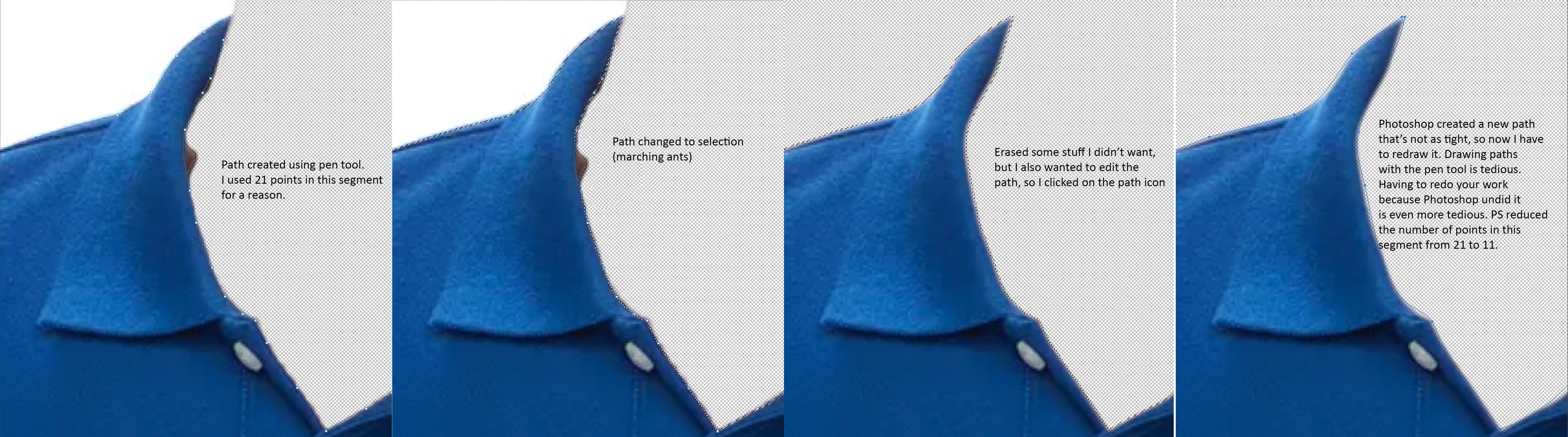
 I created a path (and saved it). When I tried to use it again, Photoshop left out about half of the points I used and the path does not tightly fit the image anymore. 

This topic has been closed for replies.
Correct answer D Fosse

Thanks, D. The thing is, you can get it back as it was. It's in the History panel. The information is there. You can make a quick selection, turn it into a path, save it, tweak it, turn it into a selection again and convert it back into the same path. You can stroke the path, and you can fill the path. You can do all kinds of things with the path, but you can't save it after you have edited it. Maybe you can, but I can't find any buttons or menu options that do it.


It just seems ludicrous that Adobe would let us create so much value (edited paths are more valuable than unedited), and then throw it away. I must be missing something.


You still misunderstand. Going back in history is a completely different matter. That's undoing the change you made. That's going back in time, precisely my point (and c.p's).


Look, there's a very simple solution to all this: save your paths. That's all it takes. Just save the path, and you can do whatever you want with it later. But once you convert the vector information into pixel data, it's gone. Unless you saved it.

3 replies

melissapiccone
Community Expert
Community Expert
August 4, 2021

As has been explained, you need to save your path to get back to your original. Simply name your path and it will be saved. Based on your screenshots you did not save your path, made a selection, then you messed with your selection by erasing and turned your new selction into another, different path.

Melissa Piccone | Adobe Trainer | Online Courses Author | Fine Artist
scotwllm
scotwllmAuthor
Inspiring
August 7, 2021

I actually did both. I saved the path, converted it to a selection, decided I needed to adjust the selection, and clicked the path button. They're right next to each other. It doesn't say anywhere that if you click a different button such as fill or stroke that Photoshop would forget the information you just gave it. The way the dialog box is configured makes it look like fill, stroke, selection, and path are four different views or uses of the same information. 

c.pfaffenbichler
Community Expert
Community Expert
August 7, 2021

I actually did both. I saved the path, converted it to a selection, decided I needed to adjust the selection, and clicked the path button. 

Which button are you talking about? 

Could you please post screenshots with the pertinent Panels (Toolbar, Layers, Paths, Properties, Options Bar, …) visible? 


If you edit the Selection that has nothing to do with a Path. 

To give you a simple example that Paths and Selections cannot be »the same thing« consider these screenshots of an image with a Selection (once in QuickMask Mode so one can actually see the whole Selection): 

Photoshop Paths are just Paths, they have no Stroke, no Fill and no Opacity or Transparency. 

They cannot represent the varying degrees a Selection can encompass. 

(Shape Layers are not just Paths so they can have Strokes, Fills, …) 


It doesn't say anywhere that if you click a different button such as fill or stroke that Photoshop would forget the information you just gave it. The way the dialog box is configured makes it look like fill, stroke, selection, and path are four different views or uses of the same information. 

Does it say anywhere that those are »different views or uses of the same information«? 

The »Fill path with foreground color«- and the »Stroke path with brush«-buttons create pixel data (on a Layer or in a Channel), the »Load path as a selction« creates a Selection (which is also pixel data), the »Make work path from selection«-button creates a Work Path which obviously destroys any previously existing Work Path but does not affect existing named Paths. 

c.pfaffenbichler
Community Expert
Community Expert
July 29, 2021

Could you please post screenshots with the pertinent Panels (Toolbar, Layers, Paths, Options Bar, …) visible? 

scotwllm
scotwllmAuthor
Inspiring
August 3, 2021

Can you not just tell me how to get back to the path I created? I just want to create a path, change it to a selection, and if necessary go back to the path to tweek it.


Legend
August 3, 2021

After you have made your path, and before turning to to a selection, go into the Paths menu and choose Save Path. You will be prompted to give the path a name. Once you have done that, you can make a selection from the Path, and the Path as you drew it will remain in the Paths pallet. 

c.pfaffenbichler
Community Expert
Community Expert
July 29, 2021

It looks like you clicked the »Make work path from selection«-button. 

Did you save the Path before creating a new Work Path?