
Participant
December 3, 2020
Answered

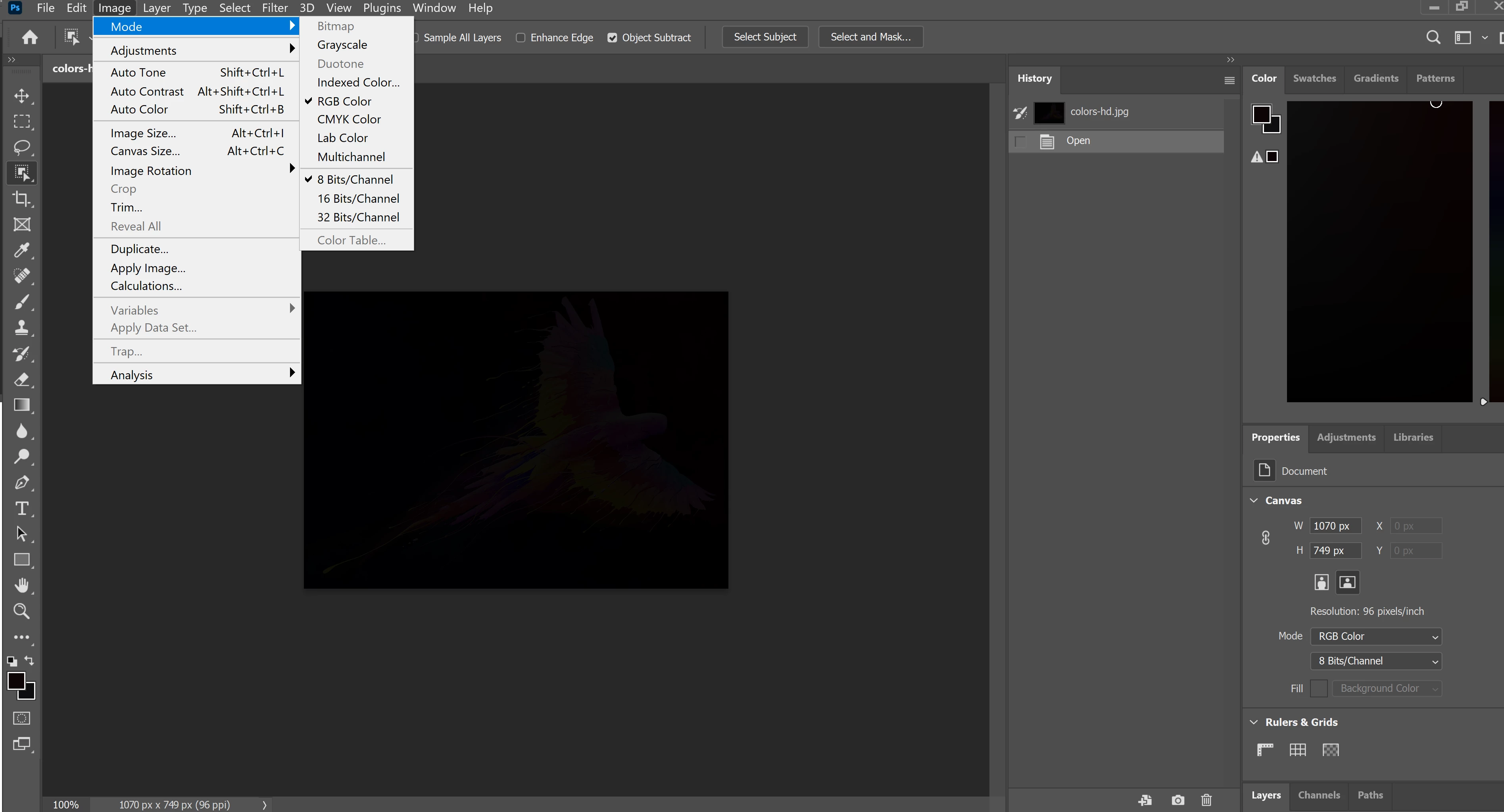
Why is photoshop colors bar only black and when i open an image its has a grey filter

  • December 3, 2020
  • 5 replies
  • 3274 views

Hi! 

I just installed phothosop to my computer an when i wanted to make a new project all the pictures i used that has color gets a grey filter on it and also my colors are only black. 

I have read about similar question and i know that my program has Image> Mode>RBG Color so it has to be something else. 
This topic has been closed for replies.
Correct answer davescm

That looks like it may be a broken monitor profile, which is set in the operating system.


Type colour management into the Windows search bar and then choose colour management. In the dialogue set the monitor profile to sRGB IEC61966-2.1 After closing - restart Photoshop.

If that "resolves" the issue then you  really need to make a proper profile for your monitor with a hardware device such as the i1Display.   If it does not resolve then restore it to the previous setting.


Dave

5 replies

Laura5E47Author
Participant
December 4, 2020

UPDATE: 

My laptop has two screens (Asus Zenbook Duo) and actually in my second screen phoshop seems to work fine, so is still a problem with phoshop or  do you think is somehting else causin the problem? 

davescm
Community Expert
Community Expert
December 4, 2020

See above comments on the monitor profile, but use it for the screen with the issues

Dave

davescm
Community Expert
davescmCommunity ExpertCorrect answer
Community Expert
December 4, 2020

That looks like it may be a broken monitor profile, which is set in the operating system.


Type colour management into the Windows search bar and then choose colour management. In the dialogue set the monitor profile to sRGB IEC61966-2.1 After closing - restart Photoshop.

If that "resolves" the issue then you  really need to make a proper profile for your monitor with a hardware device such as the i1Display.   If it does not resolve then restore it to the previous setting.


Dave

Laura5E47Author
Participant
December 4, 2020

Thank you!

davescm
Community Expert
Community Expert
December 4, 2020

You're welcome

Dave

Inspiring
December 4, 2020

What do your layers look like? I am not sure why your images should open this way. I do not see anything done in your history. Try opening the image up in another application. If it looks fine, then try opening up the file under Photoshop with another user. If that works then reset your preferences. If it does not open in Photoshop under another user then it is Photoshop causing the problem. Adobe should have no problem opening up any image in any set of Channels. If you just want to reset your preferences, go to Preferences> General> Reset Preferences on Quit.

Mohammad.Harb
Community Expert
Community Expert
December 4, 2020

From Edit -> preferences -> Performance

Turn on " use legacy compositing "  then restart photoshop.


if that does not work, try resetting photoshop preferences .

S_Gans
Community Expert
Community Expert
December 4, 2020

I am not sure - but this looks like it may be a GPU issue (graphics card). I don't know how to suggest checking the GPU on a Windows machine - but to find out which versions of card work with PS, please review this page: https://helpx.adobe.com/photoshop/kb/photoshop-cc-gpu-card-faq.html

Adobe Community Expert / Adobe Certified Instructor