
f30055449
Known Participant
October 23, 2017
Answered

Why is PS showing different colors when exporting ?

  • October 23, 2017
  • 2 replies
  • 98438 views

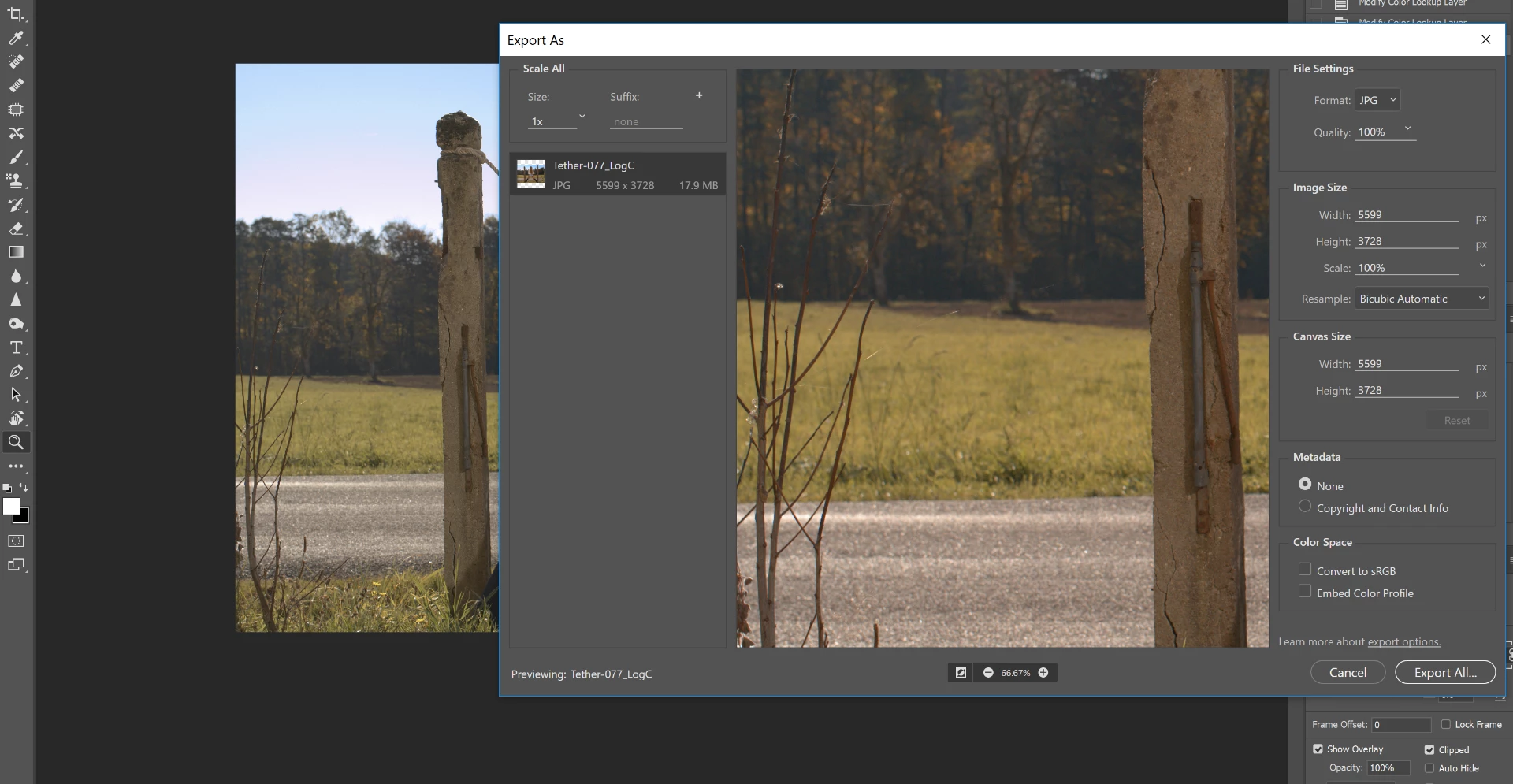
Here is a screenshot of the Export dialog, which colors shifted to warmer / red in comparison with the TIFF file opened in PS (visible in the background here)

This is before I even save the JPEG file.

How can I make PS use the right colors when saving to JPEG ?

Thanks for any help
This topic has been closed for replies.
Correct answer D Fosse

You need to check "embed color profile" in the Export dialog.

With this checked, you see the color managed image. Unchecked, it displays without color management.

2 replies

Legend
October 29, 2017

Yes, you're completely wrong.

Participating Frequently
October 23, 2017

do you use the correct color profile ? try to export in jpeg selecting the color profile, probably srgb, from the export window

f30055449
f30055449Author
Known Participant
October 24, 2017

If I choose "convert to sRGB" in the export preferences, it shows the same behaviour. Also, ticking "convert to sRGB" in the above.window has no effect on the colors of the preview.

The preview window defaults to PNG for some reason, even if I set the export preferences to JPG in the export preferences menu.

My image is in RGB mode, 16 bits per channel,

Here are my color settings:

D Fosse
Community Expert
Community Expert
October 29, 2017

OK, thank you for the explanation, very useful !

So I am trying to guess the issue with wide gamut now: a wide gamut monitor has a green that is more green, a red that is more red and a blue that is more blue than a normal monitor, so this results in an image that looks oversaturated  compared to a normal monitor, correct ?

But then on the same wide-gamut monitor, how come the same jpeg looks good when read by photoshop, and looks bad when read by Windows 7 Photo Viewer (which is color managed) ? The jpeg is sRGB with embedded color profile

I must be doing something wrong somewhere.

So to sum up I have just one JPEG file that I exported from a Photoshop TIFF in sRGB mode, with embedded color profile (actually is there a way I can check the color profile is correctly embedded ?}

- Wide-gamut monitor, jpeg opened into photoshop CC 2018 : looks good

- Wide-gamut monitor, jpeg opened into other apps: looks oversaturated

- Normal monitor, jpeg opened into Photoshop CC 2018 looks good

- Normal monitor: jpeg opened into other apps looks good


What we haven't asked here is whether you actually have a valid and accurate monitor profile. Are you using a calibrator to make it?

The issue of wide gamut monitors sort of slipped into the conversation unnoticed, but let me be very clear on this: a wide gamut monitor can only be used in a fully color managed environment, and you must have a valid monitor profile for it.

No exceptions. This is the deal you implicitly accept when you purchase one of these units. If you have software that isn't fully color managed - stop using it. Find something else.