
SRenee
Known Participant
June 1, 2018
Answered

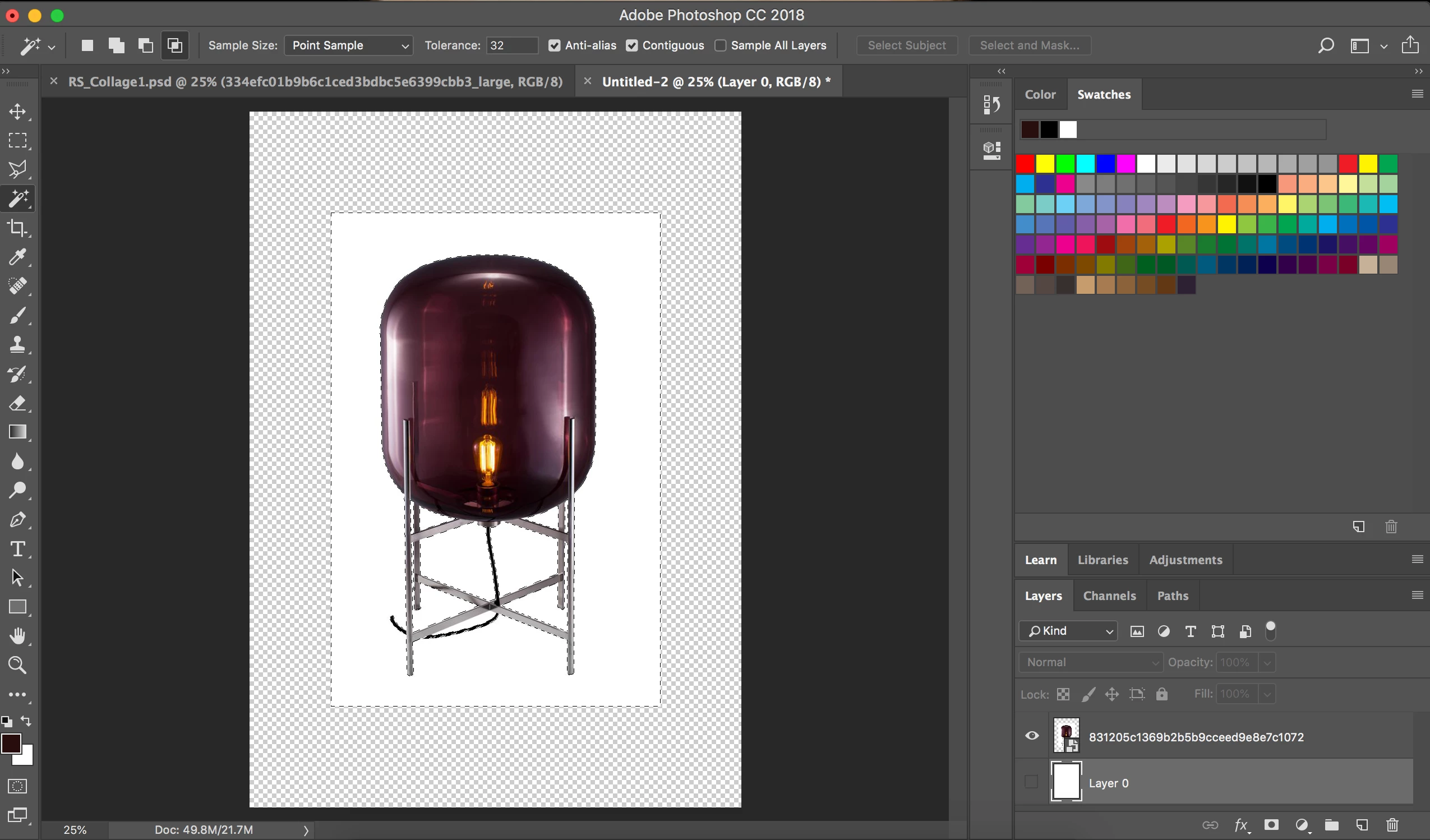
Why is the checkered pattern not appearing when I cut out a picture with Magic Wand?

  • June 1, 2018
  • 4 replies
  • 5444 views

Initially I am pressing Layer Mask and a light grey line is appearing around my cut out. And then I go back where I pressed Layer Mask and it is now saying Vector Mask. I am confused and for the life of me can not get my checkered patterns to complete the process and move it into a different document! Can you help me please??
    This topic has been closed for replies.
    Correct answer davescm

    Great Turned off the Lock and Visibility. However, my image still has a white boarder, I only want the image itself.

    I haven't inverted yet or fixed the edge of the pixels. Are you able to help me in this process please?


    Hi

    A couple of principles that may help you

    Where a mask is white the pixels on the associated layer will be visible

    Where a mask is black the pixels on the associated layer will be hidden, allowing the layer(s) below to show through

    So if you make a selection of the object then use - Layer>Layer Mask >Reveal Selection to add a mask

    If you make a selection of the background that you want to hide, use Layer >Layer Mask>Hide Selection to add a mask

    You can adjust a mask later by clicking on it and painting on the mask with black/white

    Dave

    4 replies

    SMOk3420
    Inspiring
    June 1, 2018

    Or you could use "Blend If"

    Go to fx and select Blending Options

    Then where it says Blend If press Alt and click on the slider to the right to separate them and adjust accordingly.

    This should give you your desired effect.

    SRenee
    SReneeAuthor
    Known Participant
    June 1, 2018

    Thank you. I will get back to this in the next 2 hours...

    Again, thank you!!

    SRenee
    SReneeAuthor
    Known Participant
    June 1, 2018

    Ok, got to the first part cropping and this is the result... It won't allow me to crop like you have cropped it on your image... If I pull in sides in the middle it pulls in every side. Its weird. Any suggestions...

    SRenee
    SReneeAuthor
    Known Participant
    June 1, 2018

    SRenee
    SReneeAuthor
    Known Participant
    June 1, 2018

    June 1, 2018

    Is this what you want to achieve

    SRenee
    SReneeAuthor
    Known Participant
    June 1, 2018

    I just now have tried not deleting. I have my magic want on white or does this need to happen before layer mask?

    June 1, 2018

    Hi

    Take a look at these tutorials, it will help you understand about Layer Mask

    Use masks to hide layers in Photoshop

    c.pfaffenbichler
    Community Expert
    Community Expert
    June 1, 2018

    Could you please post a screenshot taken at View > 100% with the pertinent Panels (Layers, Channels, Options Bar, …) visible?

    And then I go back where I pressed Layer Mask and it is now saying Vector Mask.

    If a Layer already has a Layer Mask the »Add Layer Mask«-button at the bottom of the Layers Panel become the »Add Vector Mask«-button.

    SRenee
    SReneeAuthor
    Known Participant
    June 1, 2018

    Im sorry, thank you for your reply. How do I send a screenshot off through this forum? I am new to forums.

    davescm
    Community Expert
    davescmCommunity ExpertCorrect answer
    Community Expert
    June 1, 2018

    Great Turned off the Lock and Visibility. However, my image still has a white boarder, I only want the image itself.

    I haven't inverted yet or fixed the edge of the pixels. Are you able to help me in this process please?


    Hi

    A couple of principles that may help you

    Where a mask is white the pixels on the associated layer will be visible

    Where a mask is black the pixels on the associated layer will be hidden, allowing the layer(s) below to show through

    So if you make a selection of the object then use - Layer>Layer Mask >Reveal Selection to add a mask

    If you make a selection of the background that you want to hide, use Layer >Layer Mask>Hide Selection to add a mask

    You can adjust a mask later by clicking on it and painting on the mask with black/white

    Dave