
Participant
August 9, 2020
Answered

Why is this pixelation occurring in Photoshop CS6?

  • August 9, 2020
  • 5 replies
  • 1534 views
 
I've recently been messing around a bit in Photoshop CS6 (after being gifted it by a family member) with various shapes, to come across a slight pixelation issue.
Shown in this image, I am taking a solid rectangle background and then using the ellipse tool to make a circle to which I will rasterize, and cut from the rectangle.
When I rasterize that circle, select it with the magic wand tool, and delete it from the rectangle and the circle layer itself, it comes out with a product that has obviously pixelation.
https://imgur.com/a/EtbfqAA (You will most likely have to zoom in to see the full image)
 
I am using an 8bit RGB mode on a 4x4 inch canvas with a resolution of 300. As I am new to photoshop, any tips or solutions on resolving this issue would be greatly appreciated. Thank you. 
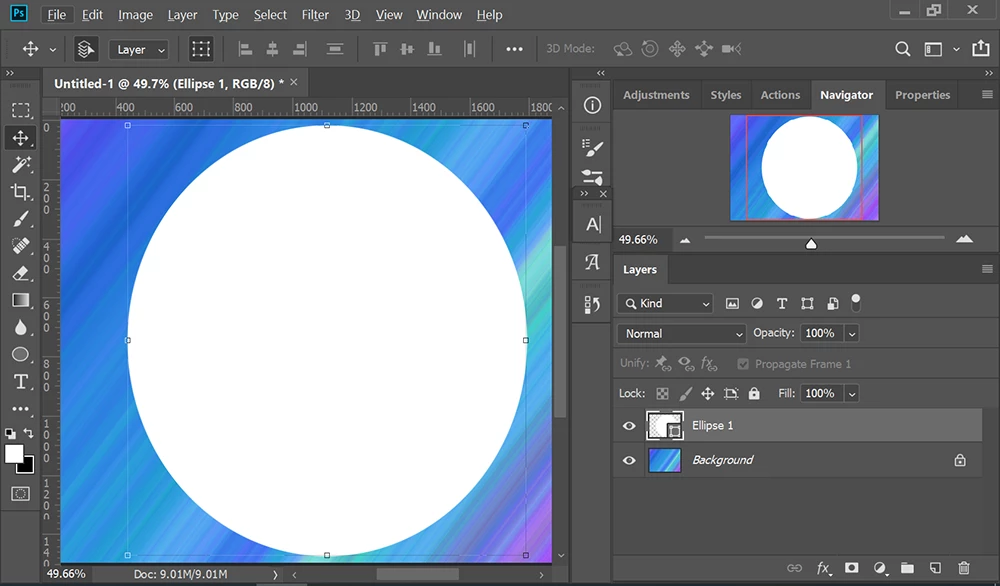
This topic has been closed for replies.
Correct answer Nancy OShea

To avoid the problem, don't rasterize your shape.  Put your background on a separate layer.  Add a vector shape above it with white fill and no border.   Look ma, no pixels.


5 replies

Participant
August 10, 2020

Thanks to everyone for the great help and suggestions. 

Conrad_C
Community Expert
Community Expert
August 9, 2020

As you are new to Photoshop, you may not realize that would be considered the long way around (rasterize circle, select with Magic Wand, delete from rectangle).


You could minimize rasterization by keeping everything vector, for example taking the path of the ellipse and pasting it on the solid layer to use the ellipse as a vector mask. Then, the only cause of pixelization would be the fact that the image is only 1200 pixels on a side.


Also, using the Magic Wand means the quality of the resulting border depends on both the Tolerance and Select > Modify > Feather values. The side trip into rasterization adds more variables and less flexibility, so keeping it all vector when possible keeps everything simpler and cleaner.


If the circle started out as a ellipse pixel layer with a transparent background, the Magic Wand would still be avoided, because it would be simpler and cleaner to apply that layer as a layer mask to the solid color (for example by adding a layer mask to the solid color and pasting the entire ellipse layer contents into the mask).

Nancy OShea
Community Expert
Nancy OSheaCommunity ExpertCorrect answer
Community Expert
August 9, 2020

To avoid the problem, don't rasterize your shape.  Put your background on a separate layer.  Add a vector shape above it with white fill and no border.   Look ma, no pixels.


Nancy O'Shea— Product User & Community Expert
Nancy OShea
Community Expert
Community Expert
August 9, 2020

I'm afraid this is normal and expected behavior.   Shapes are vectors.  Vectors are not-pixel based, they are math-based.  Rasterizing converts vector shapes to pixel-based images.   See screenshot.


Nancy O'Shea— Product User & Community Expert
Participant
August 9, 2020

Thank you for the response. Is there any other way to preform the shape process I did without using shapes that will generate this pixelation? 

JJMack
Community Expert
Community Expert
August 9, 2020

At what zoom percentage  100%?

JJMack
Participant
August 9, 2020

Standard 66.67%

JJMack
Community Expert
Community Expert
August 9, 2020

It is best to judge at 100%  where the image actual pixel are displayed.  Photoshop uses  anti-alias to make thing look smooth, pixelation is usual when too few pixels are used and are then blown up.  Stair casing is always there for pixels are  square and at high magnification you can see pixels are square and see the steps and see the anti-aliasing toning feathering.  Photoshop zooming is done for  speed good performance not  the best image quality and there is rounding at some zoom percentages image quality is very poor. 

JJMack