
zolanis76924855
Participant
February 24, 2022
Question

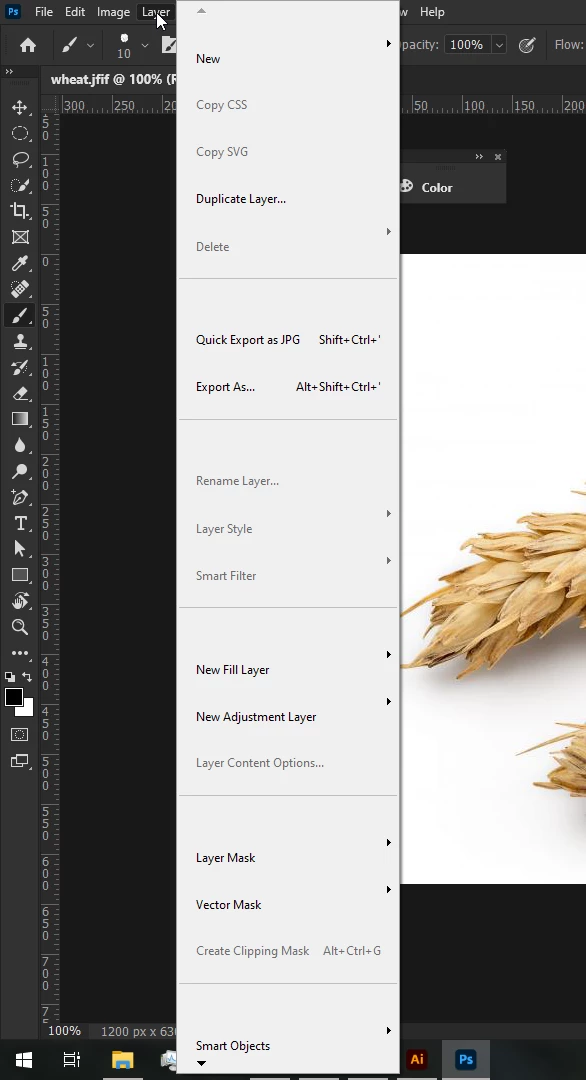
Windows Menu Boxes Too Large
  • February 24, 2022
  • 1 reply
  • 360 views


I've had this problem for some time and have had trouble finding information about it. I think this is unrelated to the Photoshop UI settings since changing the scaling in the settings doesn't fix the problem. I'm wondering if anyone else has encountered this and have suggestions on what to do.


Photoshop's Windows context menu is supposed to be a lot smaller than this, as if each box take up too much space, definitely it's not normal to have to scroll because the boxes are this large. 

This topic has been closed for replies.

1 reply

Ranjisha Sengupta
Legend
February 25, 2022

Hi there,

Thanks for reaching out. We're here to help.

Which version of Windows and Photoshop are you using? How many displays do you have?
What is the screen resolution? Is it happening after any update?
Please check this forum discussion on a similar topic: https://community.adobe.com/t5/photoshop-ecosystem-discussions/photoshop-scaling-issues/m-p/8925182#M80642.


Let us know how it goes.


Regards,

Ranjisha

zolanis76924855
Participant
February 25, 2022

Hi Ranjisha,


I just updated to the newest Photoshop version but it hasn't changed the issue. I have one 1920x1080 display, and I use Windows 10 Home.


Thanks,


Zolani

Participant
December 16, 2023

Thanks for the update.

Please try the registry editing solution once. Also, check once what is the current UI preferences set for Photoshop. Press Ctrl+ k ( General Setting) > Go to Interface Option> Presentation area - UI Scaling> Set as 100%> Restart your Photoshop


Let us know if this helps.


Hello, I tried this but it didn't help. Do you have any other solution? Thanks in advance.