Wobbly lines in Photoshop CC 2017
Hey guys and gals!
First time posting - 'cause I'm simply getting frustrated.
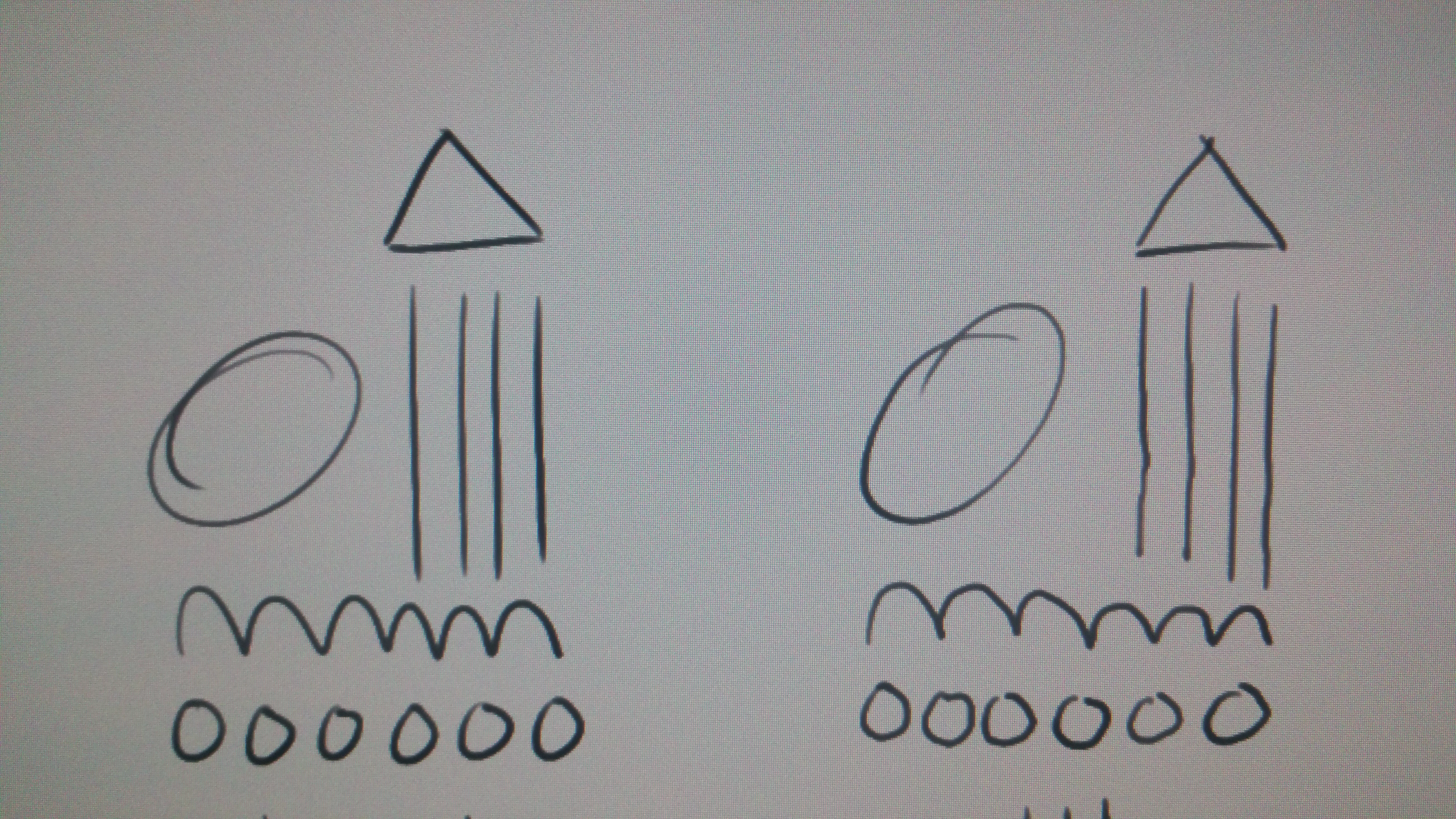
So in Photoshop I'll start getting wobbly lines after a few minutes of work. After a bit of trial and error, I realized that going into the display settings and moving one of the monitors (not physically) a little and apply it - I'd not longer have wobbly lines in Photoshop. Though the problem would show itself again after a few minutes of work. So that's my (hopefully) temporary solution that doesn't really fix the problem.
Things I've done to try and fix the problem:
- I've unplugged all monitors except for my 24HD Wacom Cintiq, then reset the computer, but the problem persisted.
- All drivers are up to date and working.
- Reverted back to legacy drivers.
- Deleted drivers and reinstalled them.
- Moved other monitors away from the 24HD Wacom Cintiq
- Turned off Windows Ink.
- Deleted all native windows drivers for tablets.
- Adjusted the performance and scratch disk settings in Photoshop - included turning on/off OpenCL
- Moved scratch disk to a 1TB external hard drive.
- Reverted to an old saved state for windows.
- Tested other programs - they work great and without wobbly lines, including; Manga Studio, Illustrator, Animate, SAI, and online drawing pads.
- I may have done more - but that's all I remember.
I know that maybe to other people it wobble doesn't seem glaringly apparent - but trust me when I say it's definitely there!
This is severely messing with my work flow - as a professional artist, this is torture! Please help. I've added a photo, video, and computer specs below.
Link to system specs:
https://justpaste.it/14ch8
Smooth lines on left, wobbly lines on right.
Video of the problem and my temp solution:
Thanks everyone.

 AdChoices