
kouzelnik3
Participating Frequently
January 28, 2017
Answered

Workspace doesn't show the entire content

  • January 28, 2017
  • 1 reply
  • 771 views

Hi guys,

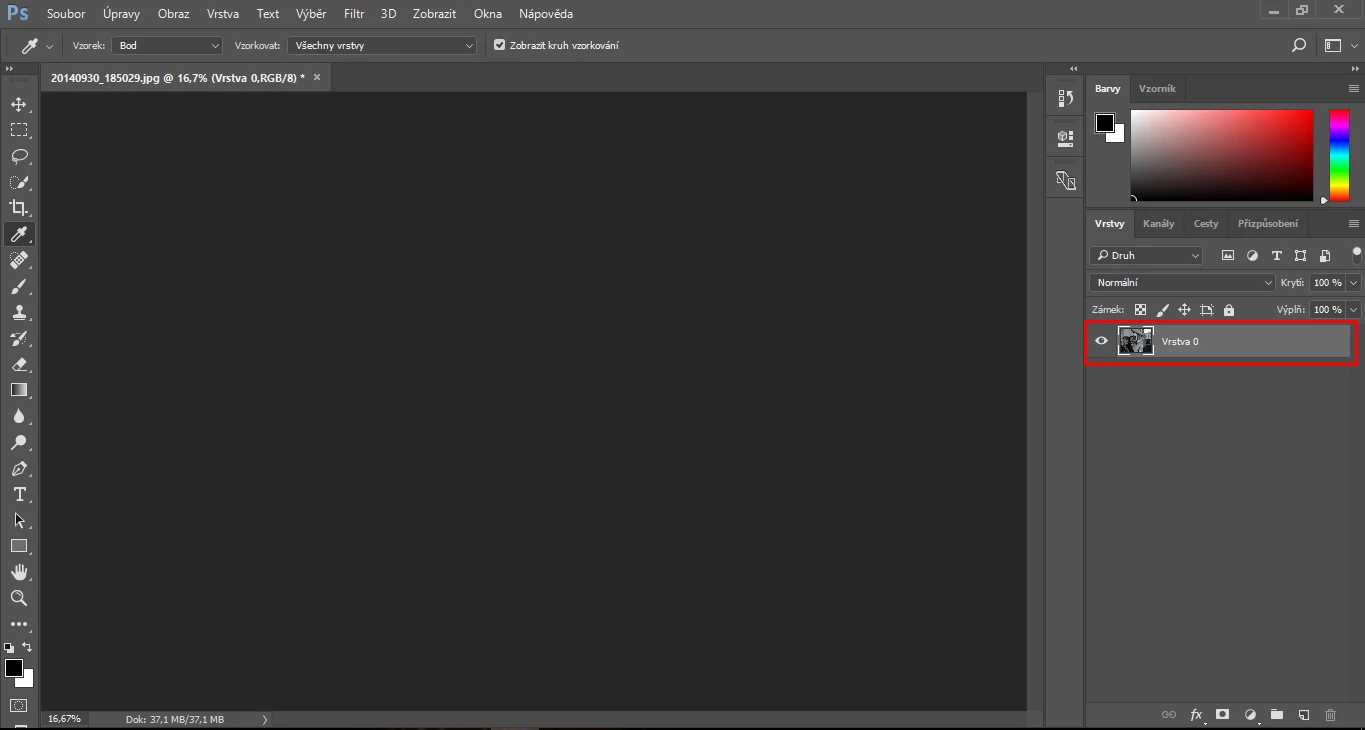
I have a problem which I dont know how to solve. If I open any photo or picture or even if I open a new project with blank space, it won't show it. I can see in layers that there is something. It looks like I can use any tool, but I cannot see the content. I have tried many times reset preferences and reinstall photoshop, but nothing changed. Would you please help me?
    This topic has been closed for replies.
    Correct answer davescm

    I've tried this option twice without any results. Same for now. And that Cleaner did not offer me uninstall photoshop cc 2017 so it looks like it was uninstalled properly via Creative Cloud uninstaller.


    A couple of things to try:

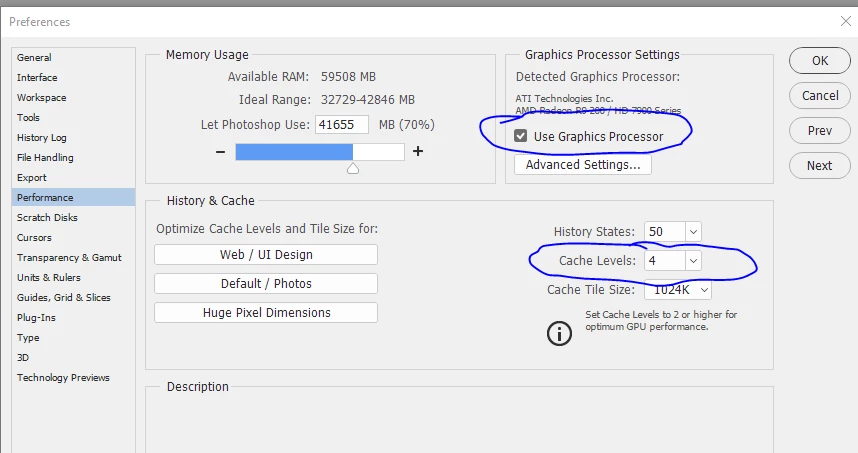
    Can you go to preferences Performance and set Cache levels to at least 4.

    If already set that way try unchecking "Use Graphics Processor"

    You will need to restart after each

    Dave

    1 reply

    Derek Cross
    Community Expert
    Community Expert
    January 28, 2017

    What happens to the image when you select ctrl/cmd 0 (the image should fit the screen)?

    kouzelnik3
    Participating Frequently
    January 28, 2017

    Nothing. It shows the function, but image doesn't fit to the screen. There are now centered side sliders but there is still a blank space.

    Derek Cross
    Community Expert
    Community Expert
    January 28, 2017

    Try resetting your Photoshop preferences using this technique:

    Close and relaunch Photoshop, and IMMEDIATELY hold down Ctrl + Alt + Shift (Windows) or Cmd + Ctrl + Opt + Shift (Mac), and respond in the affirmative to the dialog asking if you really want to replace the preferences. you must be extremely fast on the keyboard (if you don’t see the confirmation prompt, you were too slow)

    You may have to do it a couple of times before you get the hang of it!