

Ivan Zajats
Inspiring
December 10, 2022
Open for Voting

Add a Color Overlay view option for Blend if

  • December 10, 2022
  • 10 replies
  • 2660 views

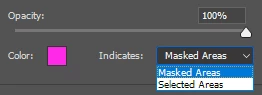
I'd like to have a Color Overlay view of the Blend if (like we've got for regular masks).


Certainly, we can do it manually by adding a Color fill layer beneath the active layer.

But creating and deleting this check layer are additional unnecessary steps.

Why not to have a default option inside the Blend if panel?
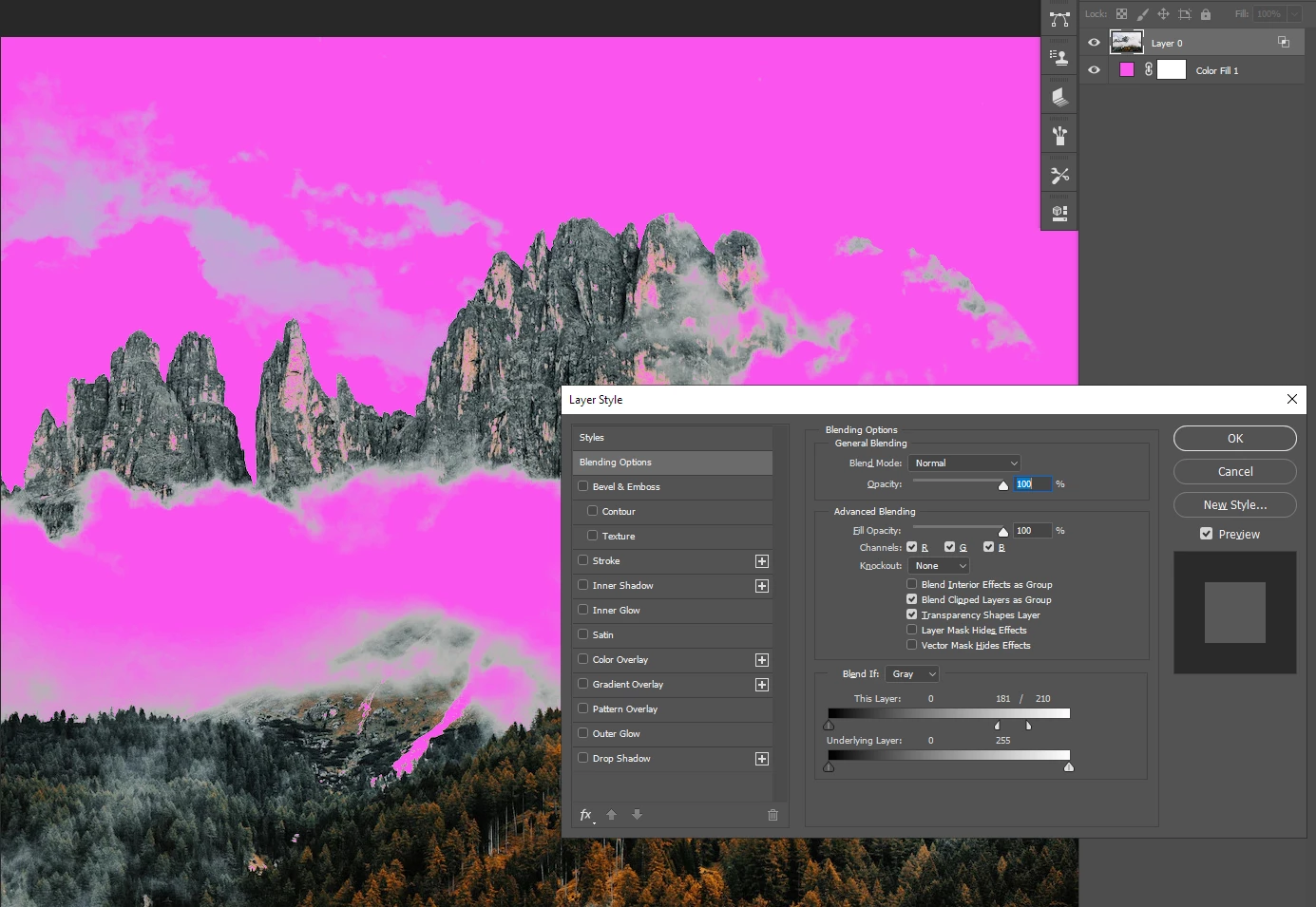
 

(sample image from freepik.com)


This option in Select & Mask window:
10 replies

Known Participant
April 11, 2023

Studying is something I like and I like to push the limits far. Yes at the end it come back to your initial statement, but additionnaly it's kind of explaination and observations that can be usefull for someone coming here 😊


Ivan Zajats
Inspiring
April 11, 2023
quote

About what you need :
The only work around about "showing the masked area in red" is to put a "solid red color" under your layer (the flowers), and when you play with "this layer" blendif sliders, the red is showing what is "masked" (turned into transparency).


By @benj_v 


So, we return to my initial post. Do I want to create additional layers?!


Why do you spend so much time for those "scientific" explanations to finally admit that it doesn't work for solving the posted request?

Known Participant
April 10, 2023


A, B, C, D : all originals pixels of the original layer have 100% opacity.
B : Drop Shadow, C : blendif "this layer", D : Color Overlay (computed from A not from B+C).

E, F, G, H : all originals pixels doesn't have 100% opacity
F : Drop Shadow (take account of opacity of originals pixels), G : Blendif "this layer" doesn't work here ! Transparent pixel are not using luminosity but opacity! H : Color Overlay (computed from E : take opacity in account : originals pixels of the layer)


Tell me if I'm wrong somewhere !

Known Participant
April 10, 2023

Layer Style is one, or a combination of Effects.
Each effect is computed using the originals pixels of the layer. They don't have interraction between each other (except fusion mode used in effects of course).
Example :
When using "blendif this layer" you are computing one layer with one effect.
When you use "color overlay" you are computing another layer with another effect.

When you use "drop shadow" you are computing another layer with another effect.

Finally there is a stack of these effects (they have a specific order !). Effects are like layers applied on the original layer.

About what you need :
The only work around about "showing the masked area in red" is to put a "solid red color" under your layer (the flowers), and when you play with "this layer" blendif sliders, the red is showing what is "masked" (turned into transparency).

Color Overlay is not intended to "show masked / visible area" but is just a "put a color on top of the originals pixels".

Sorry if I explained not so well 😊

Ivan Zajats
Inspiring
April 10, 2023

I know how the Blend if works. We're discussing the Color overlay inside it as the mask representation.

I repeated your steps from the first video, it kinda works (with the Underlying layer slider + Color overlay style) though inverted. It colors not the part of the image that is hidden, but the opposite.


With "This layer" slider it doesn't work. Take a photo (not that **ing Gradient), one single layer. And try to color the hidden part with that layer style.


Here's the image.


Known Participant
April 10, 2023

Blender If sliders :
Current Layer : take in account the actual layers's luminosity

Underlaying Layer : take in account the luminosity from all visible layers under the actual one.

If you want to mask specific areas of the actual layer : use Current Layer for Blend If sliders.

Here is the example : https://1drv.ms/u/s!Ak5vIZqwJCnXkLNatR0vO82XiUNM0w?e=bqg8O7
On this PSD :
- How to remove Highlights from actual layer
- How to remove Shadows from actual layer
- How to remove Midtones from actual layer
- How to remove HL + SH from actual layer

The red is just to help to see where the BlendIf sliders works.

Vidéo that shows the "thing" : https://youtu.be/VMnBEODp51A

Ivan Zajats
Inspiring
April 10, 2023

Can you take an image (single layer) and remove highlights or shadows? Seems, we're doing it a bit differently.

Known Participant
April 10, 2023

Color Overlay FX + Blend Mode "Normal" + Blend If sliders works fine actually to show where the effect is applied, atleast on my side.

Exemple if you want :
https://1drv.ms/u/s!Ak5vIZqwJCnXkLNYVe5zlJ3MRZwD9g?e=gNtZL8
The purpose is to make a curve adjustments in the highlights areas, and the red overlay let me setup the blendif sliders correctly. The PSD shows two methods, with the same idea. And the red color overlay is shown exactly in the same way. 


You can see a video I just  made to show these two examples : https://youtu.be/BmEMRfT6KT0
It can answer tasks like "How to Add blue in Shadows" with Blend If sliders.

Ivan Zajats
Inspiring
April 10, 2023

@benj_v I thought you were right, until I've tested it. I can't get accurate representation of the hidden areas.

Color Overlay style requires choosing a Blend mode. In Normal it's just a Solid color fill.


Let's choose Darken. White flowers became colored, though I haven't even moved any Blend if sliders yet.


None of the blend modes work as I need. It's just a visual effect, not the mask representation.


Known Participant
December 27, 2022

In the panel itself, tick "Color Overlay", tweak the color to "purple-pink". When you change your Blend If sliders, it does the "thing". When you are pleased with the blendIfs sliders positions, untick Color Overlay.