

Ivan Zajats
Inspiring
March 26, 2021
Open for Voting

Creating Adjustment layers below the active one
  • March 26, 2021
  • 6 replies
  • 1218 views

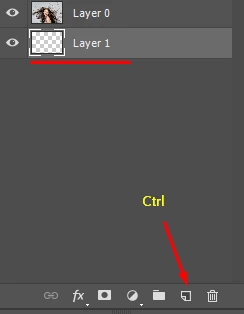
Recently I've learnt that a new layer can be created below the active one by holding the Ctrl button while clicking the icon. But for some reason it doesn't work with the Adj. layers


Why? Is there any other key for them? Just curious (don't suggest to make custom actions as I was told on facebook, lol; actually I don't need this at all, just explore PS features)

6 replies

PECourtejoie
Community Expert
Community Expert
October 3, 2022

@Stephen Marsh 

quote
P.S. the modifier key works directly on an icon, however adjustment layers are selected from a drop down list, perhaps that also affect key modifiers.


I'd like to posit the following: what about the ALT+click shortcut to the adjustment layers to create them with a menu that lets you name, adjust blending modes, etc: (AND that Windows renders almost impossible to acheive without a right-click workarounds, as ALT now closes dropdowns in windows)

quote

What would happen if there was a single backgroundLayet?


What would happen if there was a single pixel layer?


If I may interfere: I'd expect the same behavior as for the CTRL+Click on the new layer button: on a Bg, creation on top, on a single layer, creation below. It could be argued that the first case might be use to demote the Bg into a layer, but there are enough ways to do so.


PECourtejoie
Community Expert
Community Expert
October 3, 2022

Hello, I'm converting this discussion to a feature request.

Such a function would be helpful to easily tweak elements/backgrounds situated below the current layer, in order to emphasize it. 

Bojan Živković11378569
Community Expert
Community Expert
March 26, 2021

"Is there any other key for them?"


I do not think so, it would be nice to learn new shortcut.

Trevor.Dennis
Community Expert
Community Expert
March 26, 2021

I have thought about this in the past when clipping an adjustment layer.  If you add another adjustment layer it is not clipped, so I was wondering if it was possible to add the new adjusment layer beneath the current one, and that would keep both adjustment layers clipped?  Pure lazyness, but we are forever looking for ways to save a keystroke or two.

Ivan Zajats
Inspiring
March 26, 2021

that's a good example why we need this!

Stephen Marsh
Community Expert
Community Expert
March 26, 2021

What would happen if there was a single backgroundLayer?


What would happen if there was a single pixel layer?


An adjustment layer logically has to be above a layer to adjust it.

Ivan Zajats
Inspiring
March 26, 2021

yep, but a file can have many layers and masks!

besides, it may be useful for creating clipping layers (as mentioned in the comment BELOW, lol 🙂

Stephen Marsh
Community Expert
Community Expert
March 26, 2021

Yes a file may or may not have many layers.


Why is there no modifier key? Only Adobe knows.


The lowest common denominator is a flattened image, which can't have anything below the Backround layer. Therefore by default an adjustment layer has to go above.


I'm not saying that such a feature has no merit, I'm just stating why it only does what it does and why I think it works that way.


P.S. the modifier key works directly on an icon, however adjustment layers are selected from a drop down list, perhaps that also affect key modifiers.

Michael Bullo
Community Expert
Community Expert
March 26, 2021

This won't do what you are asking, but it could speed things up. Having created the adjustment layer, hold down Command/Control and tap the left square bracket key ( [ ). This is the keyboard shortcut to move a layer down one level within the layer stack.