



Ivan Zajats
Inspiring
February 27, 2023
Open for Voting

Layers workflow (hide layers, show selected)

  • February 27, 2023
  • 6 replies
  • 2922 views

I'm working on a document which has 100+ layers in 10+ groups. Though I've got a large monitor and my Layers panel is scaled to its full height, still it's rather complicated to manage. I've found an option to hide some layers (never used it before). So, I've got a question.


Sample document.
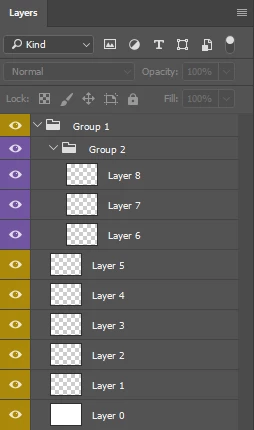
When I select a group and choose Selected, only its content is visible. Perfect!
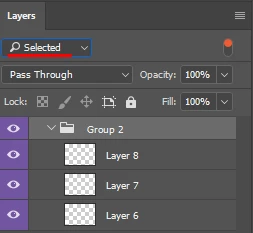
 

BUT! If a group contains other group(s) and they were closed, I can't open and see their content.

(Layers 6,7,8 are invisible, though their group is inside Group 1).
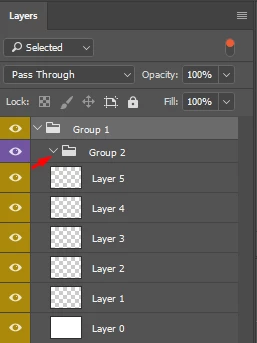
Is it a bug or is this how it's supposed to work?! I don't see the logic and convenience.

Why do I have to open all the groups before selecting the main one?


Make it work properly with the groups & subgroups.

6 replies

Stephen Marsh
Community Expert
Community Expert
February 28, 2023

Voted!

Ivan Zajats
Inspiring
February 28, 2023

@melissapiccone thanks 🙂 I don't see any reason why it can't work properly with the groups

@Stephen Marsh you can vote now

melissapiccone
Community Expert
Community Expert
February 28, 2023

I made it an idea 🙂

Melissa Piccone | Adobe Trainer | Online Courses Author | Fine Artist
jane-e
Community Expert
Community Expert
February 28, 2023

When I select a group and choose Selected, only its content is visible. 

By @Ivan Zajats


When you apply a Layer Filter of "Selected", then only the selected layers are visible. That's how filters for layers work, and it is not a bug.


Have you tried multiple selecting layers before applying the filter?


Jane


Ivan Zajats
Inspiring
February 28, 2023

Am I discussing single layers? With layers it works fine. The problem occurs with groups & subgroups.

melissapiccone
Community Expert
Community Expert
February 28, 2023

Exactly - it's meant for layers, not groups.

Melissa Piccone | Adobe Trainer | Online Courses Author | Fine Artist
melissapiccone
Community Expert
Community Expert
February 27, 2023

This is how it's supposed to work. It's not really for working on your file. It's more for finding your layer that is burried somewhere in groups (especially when they don't have actual names). I don't recommend using it for what you are trying to do. I often have a mess of layers and lots of groups as well and wind up making larger groups to hold the smaller ones. My example: I do 2 page digital scrapbooking spreads. I'll have a group for left page and one for right page. Inside of those groups I have groups for the background, photos and embellishments. Maybe you can map something like that onto your workflow. I'm hoping your screenshot is just an example... YOU NEED TO NAME YOUR LAYERS! Yes, I'm shouting. 

Melissa Piccone | Adobe Trainer | Online Courses Author | Fine Artist
Ivan Zajats
Inspiring
February 28, 2023

I DO NAME, don't worry. The problem is not in the naming or grouping, but in the NUMBER of layers. If I preserve all of them visible, I have to scroll too much. As I remember, there's a similar feature in After Effects ("shy" layers) which hides them for SAVING SPACE, not for search or smth. I don't see any logic behind NOT showing the contents of the subgroups. So it looks like a bug, IMHO.

Ivan Zajats
Inspiring
February 27, 2023

I didn't find this setting. If it doesn't exist, the topic should be moved to the Ideas section.

Stephen Marsh
Community Expert
Community Expert
February 27, 2023
quote

I didn't find this setting. If it doesn't exist, the topic should be moved to the Ideas section.


By @Ivan Zajats


Please do make a separate "ideas" feature request post, linking back to this topic.


I'll add my vote!

Ivan Zajats
Inspiring
February 28, 2023

... and then a moderator will wake up, merge them both and make a mess 🙂 I've seen this many times here.