Participating Frequently
October 23, 2018
Resuelto

Color Overlay and paint bucket not working!

  • October 23, 2018
  • 3 respuestas
  • 5533 visualizaciones

I'm trying to put a rectangle on top of an image in PS and either color it with paint bucket or the color overlay option but neither are working.  The paint bucket puts color where ever it likes and the color overlay just doesn't work at all.  I'm doing my head in.  This is Photoshop 20.0.  I had the older version of PS on my old computer and could do what ever I wanted with it.  Please help.
Este tema ha sido cerrado para respuestas.
Mejor respuesta de gener7

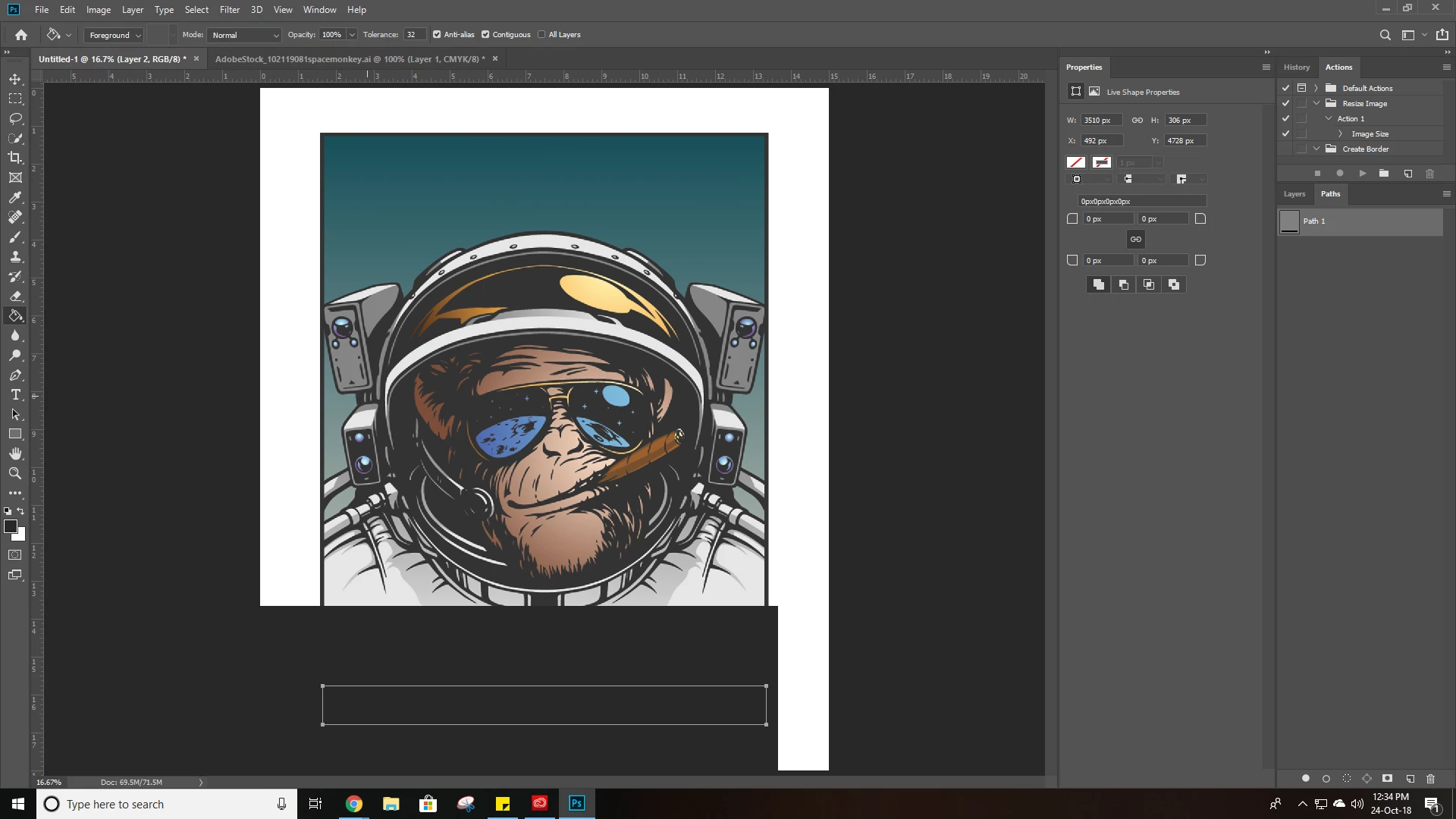
This has got to be more simpler.  I still can't get this right. This is getting really frustrating for me, I'm really starting to regret updating PS. Appreciate your responses. Would you mind explaining exactly how to fill in the transparent layer that you suggested previously? As below the grey is still way out of my rectangle.


1. Create the New Layer. Select that layer.

2. Use the Marquee Tool to make a selection.

3. Choose a color from the Swatches or Color Panel.

4. Alt + Backspace to fill the Selection with that color.  Deselect and use the Move Tool to position it over your drawing or Ctrl + T to adjust the size. Press Shift to adjust it non-proportionally.

3 respuestas

Participant
September 11, 2023

My problem why I couldn't use the paintbucket was because my Image Mode was in Greyscale. (slaps forehead)


Bojan Živković11378569
Community Expert
Community Expert
October 23, 2018

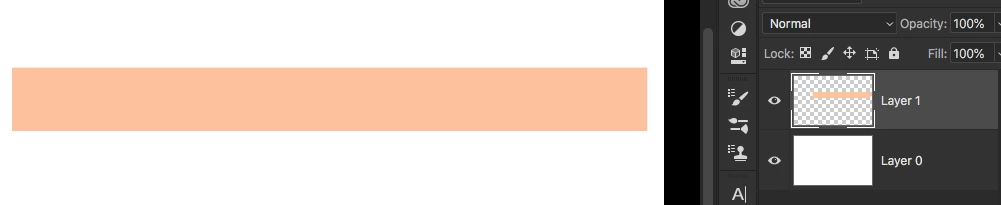
From you screenshot I see that you have applied Color Overlay effect. It will override fill color on layer which must have pixel fill in order to see Color Overlay effect although you can use Fill Opacity to set layer fill to 0 and to allow only effects to be visible (this is said, by the way, it is not crucial in your case). Can you open Layer Style > Color Overlay and take a screenshot with Layers panel visible?

The last screenshot is what you can expect to see. You do not have blend mode applied, it is set to Normal and Opacity / Fill are set to 100% and what you see is absolutely normal and expected.

Try this: turn off Color Overlay by clicking on eyeball on the left side to hide effect. Drag Opacity slider for layer to lower it to 30%, for example, and you will see some changes.

Participating Frequently
October 23, 2018

Hi, thank you for your response.  I have had no luck with your suggestions.  I have shown you a screen shot of the Layer style > Color Overlay as requested.  Basically what I need to do it place a rectangle at the bottom of the image > fill with grey > place type in the rectangle.  I've never ever had this problem before until the new PS update and it's really bugging me.

Chuck Uebele
Community Expert
Community Expert
October 23, 2018

After looking at your screen shots. The layer that you're trying to fill has no transparency, so color overlay will not show. There is also no selection for the paint bucket to fill to, so it's going to fill the entire canvas. There are some paths, but you need a selection to fill with the paint bucket. You can go to the paths panel and use the fill there to fill the paths.

Participating Frequently
October 23, 2018

Blank rectangle below on top of image.

Participating Frequently
October 23, 2018

This is with the paint bucket applied (grey color)  It doesn't go inside the rectangle and goes wherever it likes.  The color overlay option doesn't work at all.

Chuck Uebele
Community Expert
Community Expert
October 23, 2018

I would try checking the "Use Legacy Compositing" in the preferences under performance.