Answered
How do I hide the transform gizmo?
When I use the transform tool (CTRL-T), a blue gizmo surrounds the current object layer.
How do I hide this blue gizmo when resizing the object?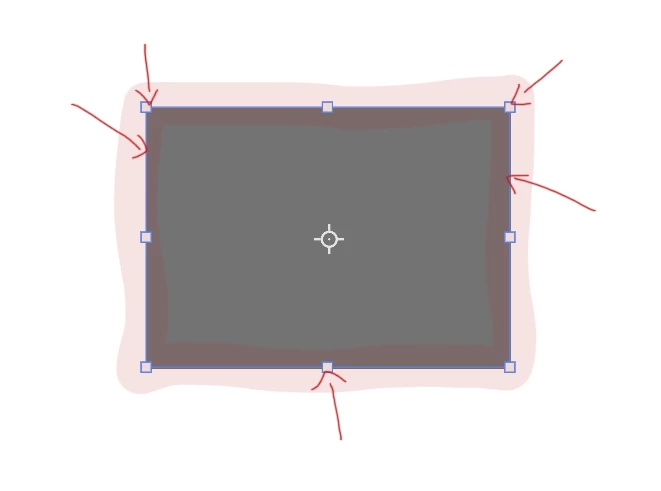

When I use the transform tool (CTRL-T), a blue gizmo surrounds the current object layer.
How do I hide this blue gizmo when resizing the object?
The gizmo gets in the way when I'm trying to align GUI elements to the exact pixel. With some color variations, it can be difficult with the Gizmo's 1 pixel border getting in the way.
It's not a big deal, I just have to do 2-3 transforms instead of a single one to get it right.
Hi @hen5FD8
I just played with this and Cmd+H will turn off the Transform Handles. I could set the X, Y, W, & H, but not the rotation or skew in the options bar. Cmd+H will hide/show everything that is currently checked in View > Show, but this control appears to not be there.
If it were in "Show" you could turn it off permanently without having to use Cmd+H each time.
Play with this and see if it works the same for you. We are users like you and do not work for Adobe. You can make a feature request to the product developers at Adobe here:
https://feedback.photoshop.com/
~ Jane
Already have an account? Login
Enter your E-mail address. We'll send you an e-mail with instructions to reset your password.
 AdChoices