
Known Participant
February 17, 2017
Question

How to get rid of stray pixels?

  • February 17, 2017
  • 2 replies
  • 12635 views

So I'm working on this huge scan of a map, about 15.000 x 15.000 pixels. The background is cleared, so most of the file is transparent pixels as in the attached (very small) sample, and inbetween the lines and text of the map.
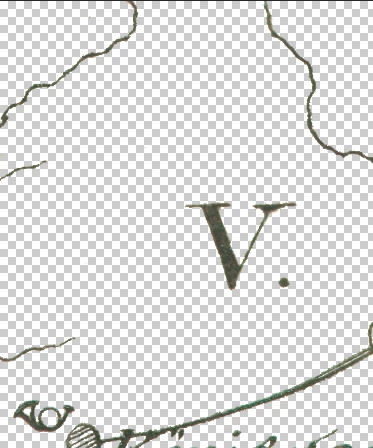
Problem is, I got countless stray pixels of all colors left (not on the sample image, at least not visible ones). While I can make them visible easily enough with Curves or other means, they are just way too many to delete manually with such a huge file.

I would imagine there is a way to select only objects in an image of a certain size, say, nothing larger than 1x1, 2x2, 3x3, 5x5 pixels, is there? With an option like that, I could just select all of the tiny stuff and delete it with one stroke of a key without affecting the larger structures at all. I've been trying different tools to achieve that but haven't found a way yet. Does something like that exist?

This topic has been closed for replies.

2 replies

c.pfaffenbichler
Community Expert
Community Expert
February 17, 2017

Can you provide an affected segment of the (layered) image for testing?

RauPPAuthor
Known Participant
February 17, 2017

I tried it on the Layer Mask but didn't get it to work (maybe I just applied it wrong, though). If you apply Dust & Scratches to the map layer itself it does not work due to the stray pixels being surrounded by transparent pixels. When I merge the map layer with a monochrome (i.e., white) background layer, Dust & Scratches actually works pretty well in getting rid of the stray pixels, however it affects the rest of the elements too.

Thanks a lot for your advice, your method is similar to the one I've been using up to now! Visibility is not the main issue however; it's more that there are just so many of the stray pixels that it takes forever to remove them manually.

Link to a sample PSD file, layered (2.2 MB):

https://www.file-upload.net/download-12318677/StrayPixels01.psd.html

RauPPAuthor
Known Participant
February 27, 2017

Dust and scratches does a pretty good job when set to radius 1 and threshold 0. If you then follow it by a threshold layer you can sharpen up the wanted pixels.
You are right in that there is a small impact on the edge of the wanted areas - but it will always be a balance.

If you do want to put in a feature request, for the filter you described, you can do so at the link below:

Photoshop Family Customer Community

Dave


Thanks a lot, Dave ^_^ These results look very good, so it's just my lack of skill at masking. Got to train that now. I'll probably make the feature request, indeed!

c.pfaffenbichler
Community Expert
Community Expert
February 17, 2017
I would imagine there is a way to select only objects in an image of a certain size, say, nothing larger than 1x1, 2x2, 3x3, 5x5 pixels, is there?

Have you tried the Filter Dust & Scratches on the Layer Mask?

I would recommend something else first, though.

Layer > Layer Mask > From Transparency (if you actually deleted instead of using a Layer Mask)

Layer > Layer Style > Stroke (Outer) to make the stray pixels more noticable

then use the Burn Tool set to Shadows to brush out the stray pixels at View > 100%

remove the Stroke