Participating Frequently
May 28, 2017
Beantwortet

How to retouch real estate photos?

  • May 28, 2017
  • 5 Antworten
  • 4871 Ansichten

I am new here on this forum. I know how to use photoshop pretty wel, but I wonder if anybody has some advanced tips for real estate retouching....especially that white look these retouchers achieve. I have been playing with photoshop for a while and I can not get it right....

for example this example

if somebody can give me few tips, please do so......

    Dieses Thema wurde für Antworten geschlossen.
    Beste Antwort von barbara_a7746676

    The white look is probably achieved by using gray point eyedropper which can be found in Camera Raw, in the Levels, or Curves panel.

    First select the Eyedropper in the Tools panel. It is usually helpful to set it to 3 x 3 or 5 x 5 to get better averaging. The setting of the regular Eyedropper will affect all eyedroppers.

    Then open Levels or Curves or Camera Raw and select the gray point Eyedropper.
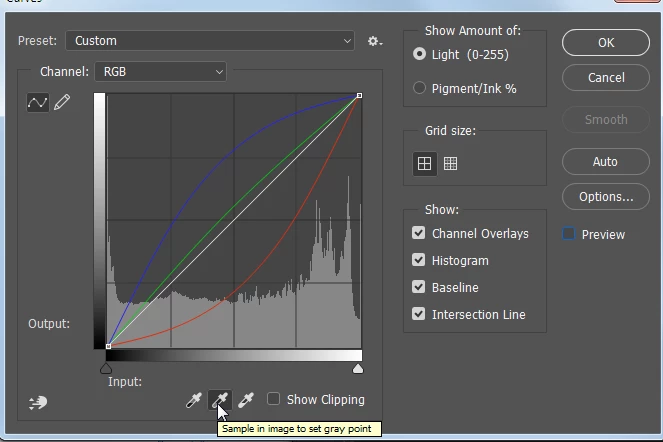
    With that eyedropper, click on a pixel that you think should be neutral You may need to click on a few different pixels before finding the best area.

    On the image below, I clicked on the sofa
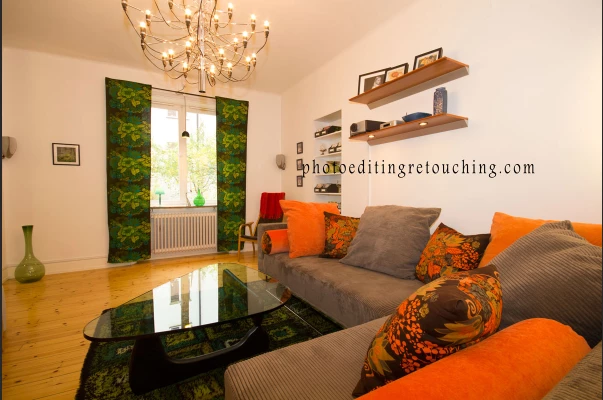
    Unfortunately, there are multiple color casts on the wall, so to make the wall more neutral, I chose Select > Color range and targeted the highlights.

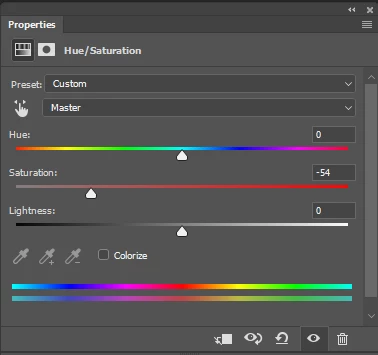
    Then in the Hue/Saturation panel, desaturated the selected areas to make them more neutral.

    ... and came up with this:

    I would suggest making all of your edits on Adjustment layers so that you can easily change them afterwards.

    Each image is different and therefore needs to be treated somewhat differently, but these techniques should get you started in the right direction.

    5 Antworten

    Participant
    January 8, 2018

    Did you find your own way to do it?

    December 8, 2017

    Thank you for sharing this!

    Chuck Uebele
    Community Expert
    Community Expert
    May 29, 2017

    If you not shooting the images, then Barbara had some very good tips. Basically Masking and neutralizing various areas of the image.

    If you're shooting the photos, one trick you can use is to flood the room with strobe light. You can either do this with one exposure or multiple exposures and combine them using lightness mode. Then you can shoot an ambient light shot or an HDR to get full dynamic range. Take the flash shot and put that above the ambient shot and set the blend mode to color. Thus you get the clean color of the flash, but the light shading of the ambient lighting. You can also adjust the opacity to bring back some of the original color of the ambient light For example, the below images had soft white bulbs, which were very yellow, combined with the blue light from outside. I shot multiple flash shots and used the above technique to balance the interior and exterior lights, and make the light look cleaner and whiter. (Note the paint in the family room was yellow, so I didn't want to make it look white.)

    Image may contain: indoor

    Image may contain: living room, table and indoor

    Inspiring
    May 29, 2017
    barbara_a7746676
    Community Expert
    Community Expert
    May 29, 2017

    The white look is probably achieved by using gray point eyedropper which can be found in Camera Raw, in the Levels, or Curves panel.

    First select the Eyedropper in the Tools panel. It is usually helpful to set it to 3 x 3 or 5 x 5 to get better averaging. The setting of the regular Eyedropper will affect all eyedroppers.

    Then open Levels or Curves or Camera Raw and select the gray point Eyedropper.

    With that eyedropper, click on a pixel that you think should be neutral You may need to click on a few different pixels before finding the best area.

    On the image below, I clicked on the sofa
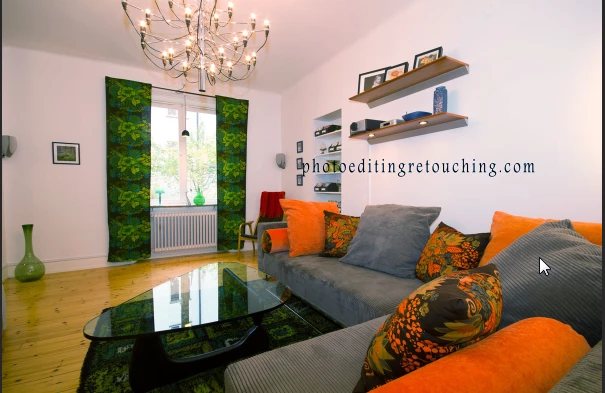
    Unfortunately, there are multiple color casts on the wall, so to make the wall more neutral, I chose Select > Color range and targeted the highlights.
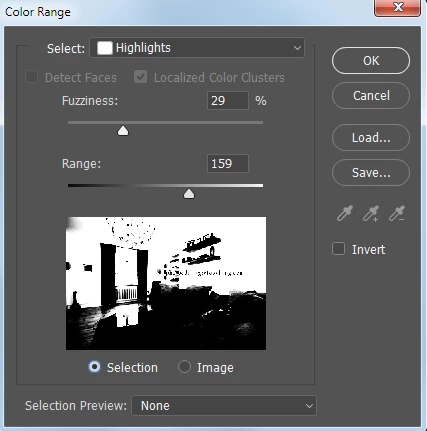
    Then in the Hue/Saturation panel, desaturated the selected areas to make them more neutral.
    ... and came up with this:
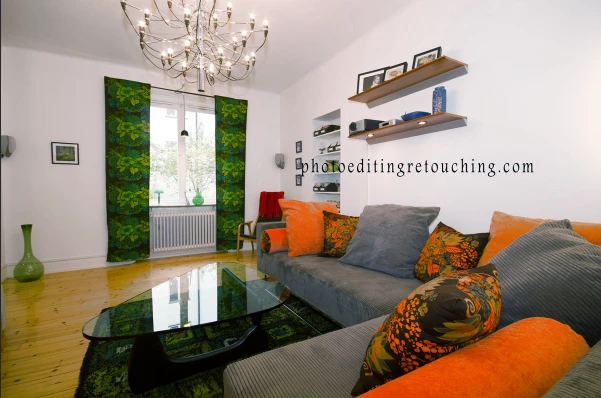
    I would suggest making all of your edits on Adjustment layers so that you can easily change them afterwards.

    Each image is different and therefore needs to be treated somewhat differently, but these techniques should get you started in the right direction.
