You can use Apple’s ColorSync Utility to browse all profiles available from the system, and get their location.
The utility will also tell you whether an RGB profile is an output or display class profile. Normally the best practice is to choose a preferred RGB display class profile as your image editing space (i.e., AdobeRGB, ProPhoto RGB, but not your system’s monitor profile). If you have settled on an editing RGB space there would be no need to keep other display class profiles in the system folders and the Photoshop menus.
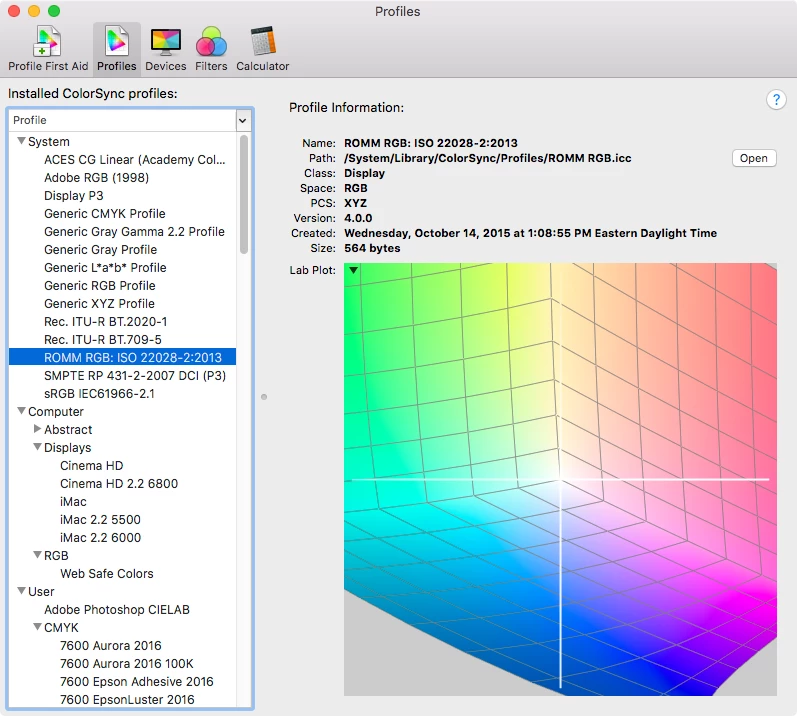
One thing to note is some printers install their output profiles in the OSX Libraries Printer folder where they are available to the OS’s Print Settings... dialog, but not the CC application’s Print dialog.
My large format Epson printer’s output profiles are stored in /Library/Printers/EPSON/InkjetPrinter2/ICCProfiles/Pro7600.profiles and not in one of the system’s ColorSync folders. To get at them I would have to open the .profiles package:
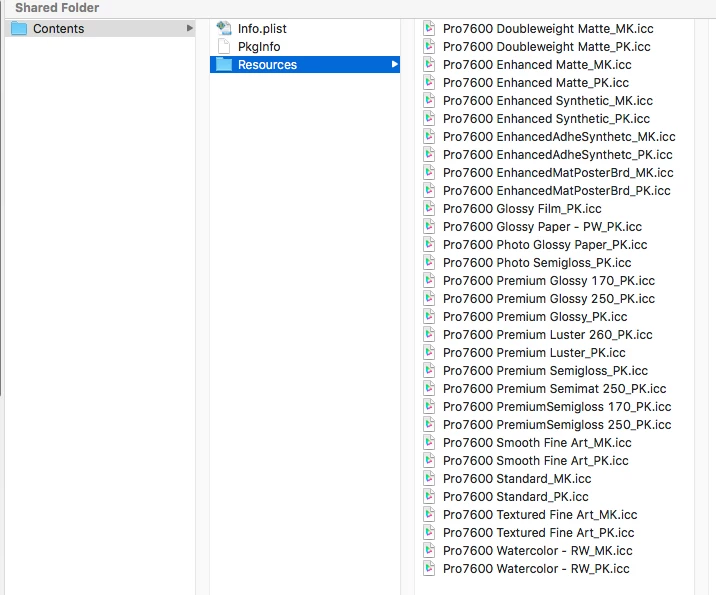
The above profiles are available from the OS Print Settings, but not Photoshop’s Print dialog:
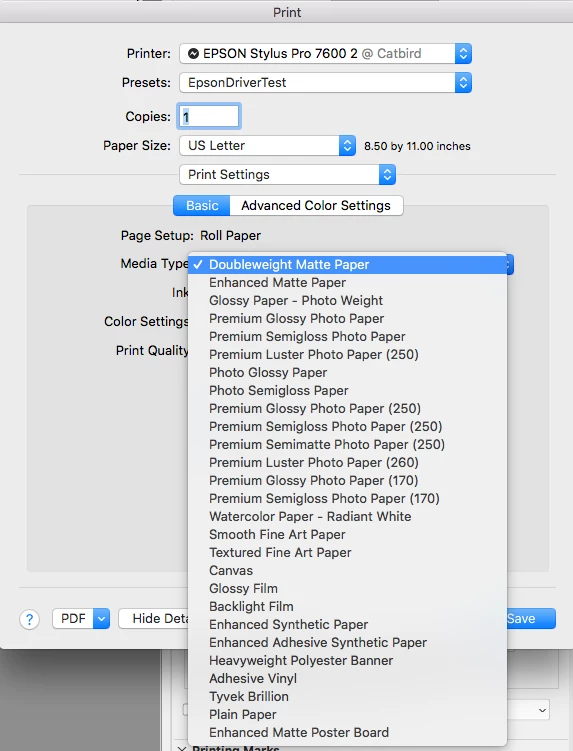
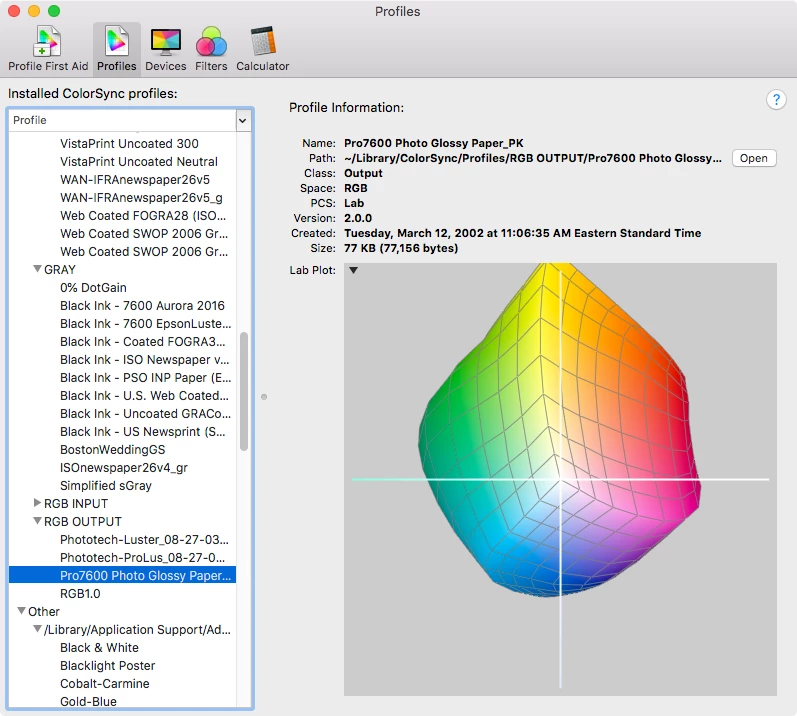
If I pull one of the Epson output profiles out of the package, and install it in one of the System profiile folders, the ColorSync utility will show it as an RGB Output profile. The profile for Photo Glossy Paper, which can be chosen in the OS print dialog via Media Type:


 AdChoices