
Participant
August 26, 2021
Question

Restoration vintage posters

  • August 26, 2021
  • 1 reply
  • 773 views

Hi,

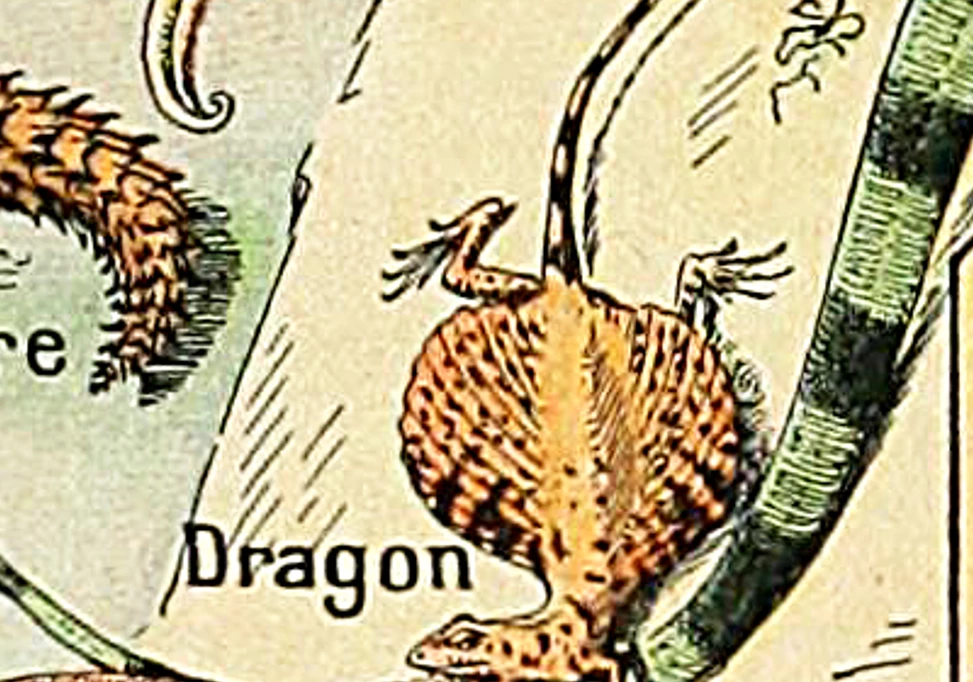
I am new at restoring vintage posters in Photoshop. I've worked with the heal and clone brush. That works great. The only thing that's not workin yet is to sharpen the illustration smoothly. The image still looks pixalised when I zoom in (see attachment). I am going to print this poster. Can you provide me with some tips or maybe some interesting links? I would really appreciate it. Have a great day.
This topic has been closed for replies.

1 reply

D Fosse
Community Expert
Community Expert
August 26, 2021

This is all about pixels. You need to have enough of them in the original file.


So the question is, how many pixels w x h is your original? That puts a limit to how big you can print it.


Also, "zoom in" is a relative term. What you need to do to properly assess image quality, is to view at 100%. That's a significant number because it means each image pixel is represented by exactly one screen pixel. That's what 100% means, it has nothing to do with size.


In other words, at 100% you see the file accurately represented on screen, pixel for pixel. There is no scaling.


Sharpening is a big subject. There really are no strict rules - if it looks right, it is right. Generally, you want to avoid very obvious halos. I personally prefer the ACR filter for sharpening, precisely because you can control halos very effectively there, but opinions vary. Again, view at 100%.


One more thing: The jpeg file format is not good for this. Jpeg compression will introduce artifacts. If you can get an original in an uncompressed format like e.g. TIFF, that's vastly preferable.

Participant
August 26, 2021

Thank you D. Fosse,

You made it very clear to me. I always think there's something I can do, but I understand it's all about pixels. So no enlarging for this file. I'll print it in the original size. I'll try the ACR filter and work with the 100% zoom.
I really appreciate your help.

Thanks,

Chris