
Inspiring
August 16, 2019
Answered

Uploading save for web JPEG vs regular JPEG to my web site

  • August 16, 2019
  • 2 replies
  • 815 views

Hi, I uploaded a dozen JPEG to my web site which has a theme that supports large files like 5500px  approx. The images uploaded, the save button was active for hours but they never got saved and never made it to publish. I  uploaded on this popular platform last time 2 years ago, always with this connection and no problem posting.

I tried both my 5GHz and a 2 GHz, I don't have high speed. Tomorrow I will try save for web JEPEG, (original), as opposed to regular JEPEG, it would be nice to wake up with your opinion, thank you
This topic has been closed for replies.
Correct answer davescm

Even if precisely prescribed to preserve it like in the menu above?

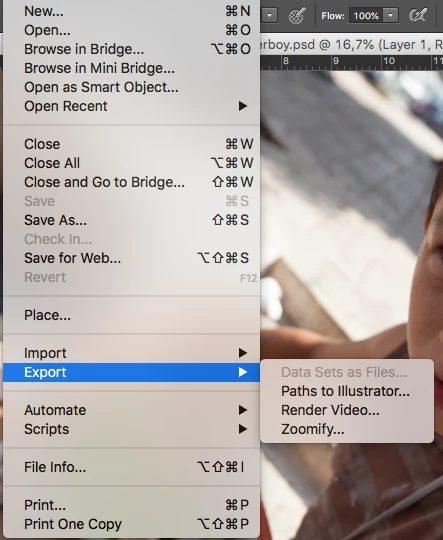
Kindly confirm that I have - or don't have - "export as" in PS CS6.


Hi

No you don't have Export As in CS6 - use Save for Web

My screenshot shows preserve only Copyright details. All other metadata is stripped out. There is a section in an image called ancestor metatadata that can grow quite large. Whether that is your issue or not I cannot see - but if you see a significant difference in file size between Save for Web and Save As, using similar quality settings, then metadata is likely to be the reason.

Dave

2 replies

chanaart
Community Expert
Community Expert
August 16, 2019

Save As will not allow you to change the file size while you saving and not allowing you to change the color space.

Export As will allow you to do so much more: Resize the original. Have different sizes plus copy right, Etc.

Save for the Web: allows you to create one saved image at a time (I use this one for Gif animation(

For more info:

Export layers and artboards in Photoshop

Photoshop CC 2015 Export As vs Save for Web for Jpegs - YouTube

Inspiring
August 17, 2019

Thank you all, I don't have export as in CS6

davescm
Community Expert
Community Expert
August 17, 2019

The big difference between "Export > Save for Web" and "Save As" is that Save for Web can take out the metadata stored alongside the image. This metadata can in certain cases be large and contribute significantly to the file size. So for web use, the Export functions are better

Dave

Nancy OShea
Community Expert
Community Expert
August 16, 2019

Contact your web host to ensure your server has ample space for more images.

Excessive file size makes your server slower for everyone.  It slows down page load.  And it wreaks havoc for people on limited and slow data plans.

  1. Use File > Export > Export As. 
  2. Select format:  JPG, PNG, GIF or SVG.
  3. Adjust quality to reduce bandwith.
  4. Scroll down and select the sRGB color space.

Nancy O'Shea— Product User & Community Expert