Daleg94
Known Participant
July 21, 2017
Answered

What's the best way of setting up a .Tiff for print?

  • July 21, 2017
  • 3 replies
  • 23570 views

I’m trying to set up an image for print & wasn’t 100% sure about the best way to do it, especially at such a large print size

Specs of the Working file

  • .psb
  • 4016px x 6016px
  • 300ppi
  • Adobe RGB
  • 16bit

Specs of what the printer needs

  • .tiff
  • 762mm x 1016mm
  • 200dpi
  • Adobe RGB
  • 8bit
Correct answer gener7

4016 px x 6016 px is 510mm x 764mm @ 200 ppi

Go to Image > Duplicate to make a copy of your master file and prepare that for Tiff. It will stay at Adobe RGB.

Flatten that duplicate to remove layers and and go to Image > Mode and checkmark 8 bits under RGB.

Then you would go to Image > Image Size and uncheck Resample first and replace 300 with 200 in your resolution field.

You get 510 x762 mm as the print size. You have to resample up for that larger size.

Check resample and increase 510 mm to 762 mm which is a decent upsample, (Use Automatic) but keeping the aspect ratio,

you get 762 mm by 1141 mm. You would to have crop down to 1016 mm.

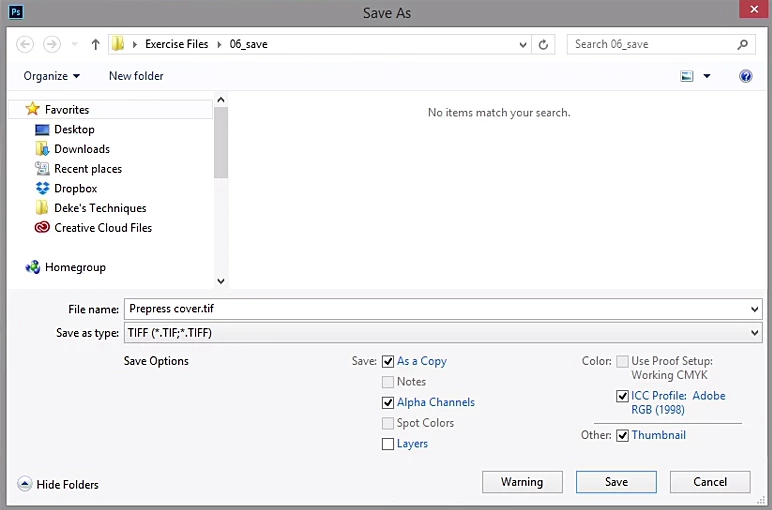
Then File > Save As... and choose Tiff

These are basically the settings you want:
3 replies

richardh4765760
Participant
August 31, 2020

Would these settings be the same on a Mac for a 16" x 20" print @ 300DPI? Would you usually convert your files from RAW to TIFF before focus stacking?

Trevor.Dennis
Community Expert
Community Expert
July 24, 2017

Jeff Schewe is the master when it comes to making the best possible prints.  Check out some of his videos on youtube

Google

gener7
Community Expert
gener7Community ExpertCorrect answer
Community Expert
July 21, 2017

4016 px x 6016 px is 510mm x 764mm @ 200 ppi

Go to Image > Duplicate to make a copy of your master file and prepare that for Tiff. It will stay at Adobe RGB.

Flatten that duplicate to remove layers and and go to Image > Mode and checkmark 8 bits under RGB.

Then you would go to Image > Image Size and uncheck Resample first and replace 300 with 200 in your resolution field.

You get 510 x762 mm as the print size. You have to resample up for that larger size.

Check resample and increase 510 mm to 762 mm which is a decent upsample, (Use Automatic) but keeping the aspect ratio,

you get 762 mm by 1141 mm. You would to have crop down to 1016 mm.

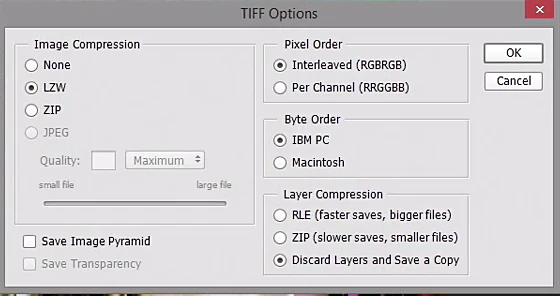
Then File > Save As... and choose Tiff

These are basically the settings you want:
D Fosse
Community Expert
Community Expert
July 21, 2017

And I say what I usually say: people always overestimate the resolution requirements for large format print. Printers do it too.

6000 pixels long side is still a high resolution file, and it will work splendidly as-is. You'd probably get much better results leaving the file as it is without upsampling it, just give it a careful round of sharpening. By careful I mean don't overdo it, and try to avoid halos and artifacts.

The bigger the print, the further away you'll stand to take it all in. So it's not really about pixels per inch, it's about degrees of arc in your total field of vision. A poster at, say, 100 ppi may have the same optical resolution as a magazine spread at 300. And a wall-sized banner at 20 ppi ditto.

There are tables to calculate this (which I can never remember), but the basic rule of thumb is that any high-resolution file will work at any size.

Danny Whitehead.
Legend
July 21, 2017

I have a friend who works in TV graphics. He told me that he's created graphics that go on the back wall behind the presenters of a sports show, and the printer has insisted on 1:1 @ 300ppi. I had to laugh at that one! You never know when the camera will zoom right in on the wall during an 8K broadcast, and ruin someone's day with that pixelation...
