Participating Frequently
June 27, 2019
Question

101. The Two Brush Opacity Hotkeys

  • June 27, 2019
  • 4 replies
  • 2927 views

Although brush opacity has many variants of keyboard shortcuts, these settings have no two keys combination for the fasters changing. In this post, I’ll show you how to fix it.

Inability to use two key combinations makes work uncomfortable: no capability to assign opacity on touch rings in graphics tablet or keyboard buttons. So was created scripts to adjust the opacity by two keys and I want to share them. These scripts make you able to set up hotkeys for changing the opacity. One decreases opacity setting on 5% and another one increase it in the same amount.

Compatibility with Adobe Photoshop CC 2014 and above on Windows and Mac
Download by link and read the instruction below.

Installation

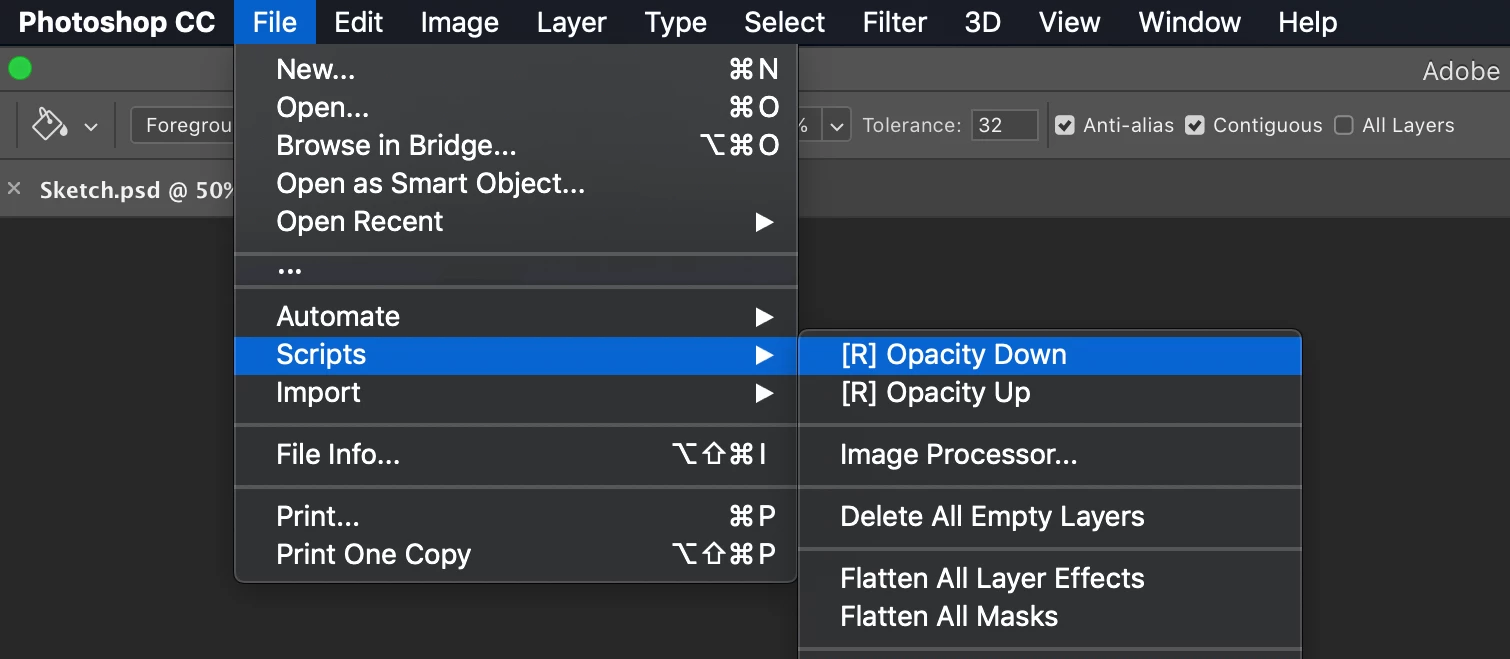
There are two script files in the archive: Opacity Up.jsx and Opacity Down.jsx. Put them into photoshop path to the scripts Photoshop/Presets/Scripts/. After restarting Photoshop, the scripts are available in FileScripts.

Scripts are on top of the list

Assign custom hotkeys

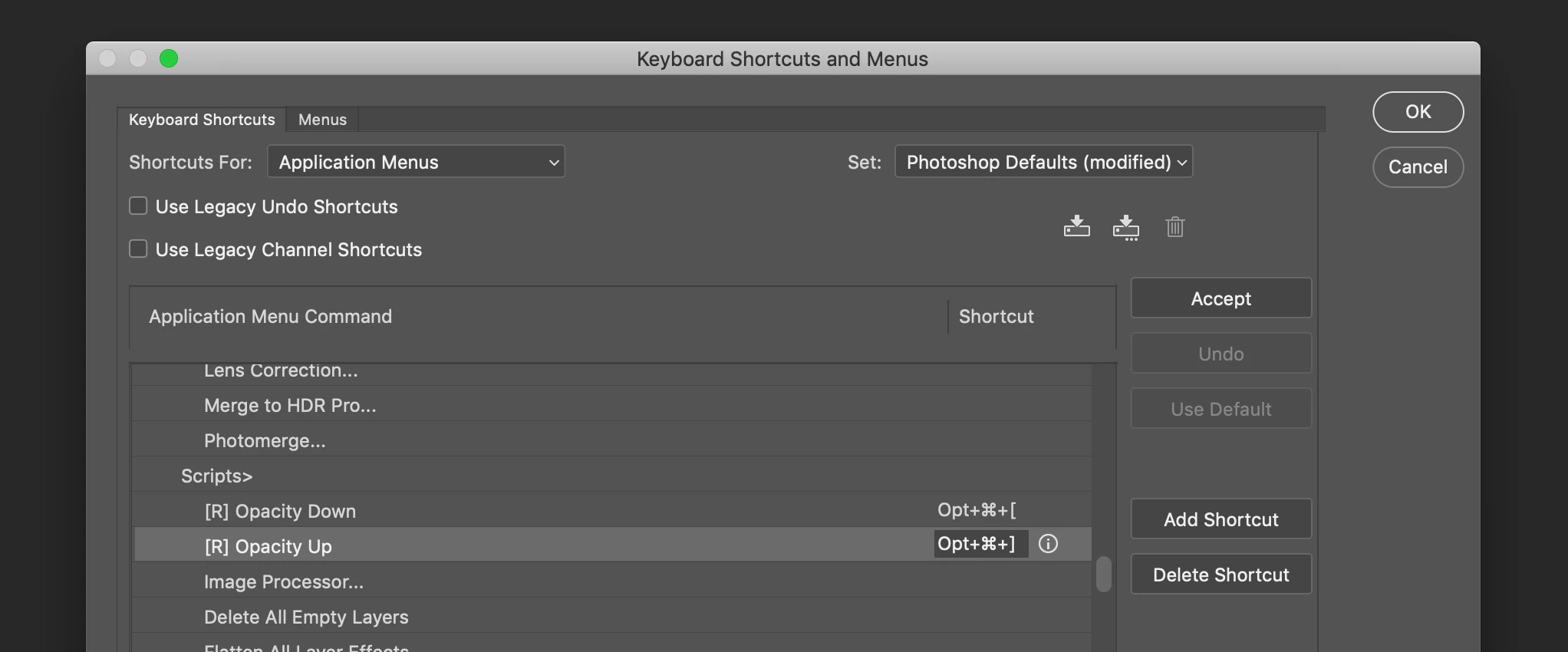
Open keyboard shortcuts preference choosing EditKeyboard Shortcuts.... In the list of command, go to File > Scripts, find out installed scripts names and define your shortcuts for them. For example, this one:

  • opt+cmd+[ to decrease
  • opt+cmd+] to increase

The Application command shortcuts

After all steps, new custom hotkeys are ready to use for speed up your work!

Additionally-

You can set up your percentage amount of opacity in the script files. Replace var Amount count:

var Amount = 5; // Replace on your adjusted percentage

4 replies

Participant
August 25, 2023

Hi, thank you about this.

For many people it doesn't make sense but for me this was a good solution for my dials it worked on my macro keys and i solved the problem of increasing or decreasing the brush opacity without Use shortcuts from 1-9.

Best regards!


June 27, 2019

"So was created scripts to adjust the opacity by two keys and I want to share them"

  • opt+cmd+[ to decrease
  • opt+cmd+] to increase

Seems to me you have to hit 3 keys

RadigojAuthor
Participating Frequently
June 27, 2019

You can change it for any key combination. It is the only example. For me it is consistency with size to [ , ]  hardness  shift [,shift ] 

JJMack
Community Expert
Community Expert
June 27, 2019

My policy is not to install jsxbin scripts. No thanks.

JJMack
c.pfaffenbichler
Community Expert
Community Expert
June 27, 2019
My policy is not to install jsxbin scripts.

Valid point.

Over on the Scripting Forum it seems no problem for a lot of people to provide their Scripts in plain script.

RadigojAuthor
Participating Frequently
June 27, 2019

My post in Photoshop forum (not Photoshop scripting). And it about how adding one more way to change opacity and no about how the script is inside. Sorry about that.

Maybe a little bit later I will add script without binary.

c.pfaffenbichler
Community Expert
Community Expert
June 27, 2019
Inability to use two key combinations makes work uncomfortable

Maybe I misunderstand, but hitting 1 and 5 quickly in succession does work to set the Opacity to 15%.

Or what do you mean by »two key combinations« exactly?

RadigojAuthor
Participating Frequently
June 27, 2019

Yes, the brush opacity has several variants of changed: by number keys, by brush HUD. But for me, it is an important have a way to change opacity like brush size ( [ , ] ) or hardness (shift [,shift ]). Maybe it is useful for somebody else.