Known Participant
August 27, 2018
Answered

Actions: is there a way to change layers without using absolute layer names?

  • August 27, 2018
  • 4 replies
  • 11010 views

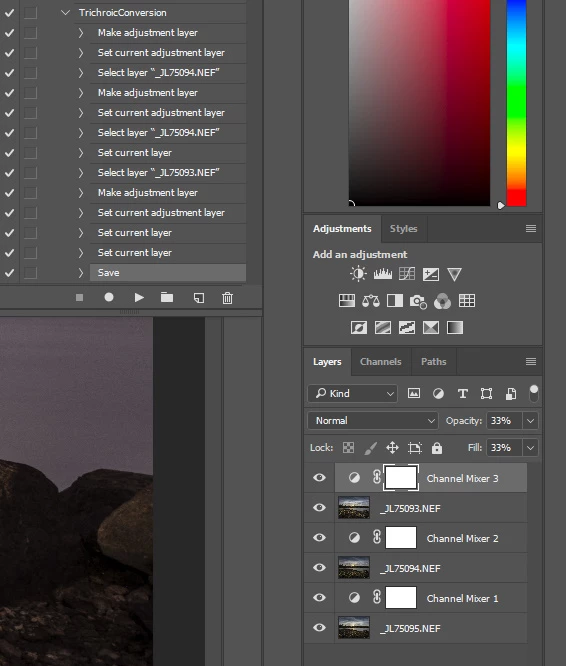
I am using an action to apply the channel mixer to each of three layers. When I do this manually, I start with the top layer, apply a color change, then click on the middle layer, do the same, then click on the bottom layer, do the same. When I record this as an Action, it records the click as selecting the absolute layer (=file) names. If I want to apply that action to a different set of three layers, it doesn't work, because it is expecting the prior layer/file names. Is there a way to change layers without using the absolute names? Something along the lines of "go down/up one in the layer list", then proceed. My work-around is that I stop the action with a prompt to select the next layer, but this is awkward and takes five times as long.

Thank you - Jurgen
    This topic has been closed for replies.
    Correct answer Stephen Marsh

    Mostly what Chuck said!

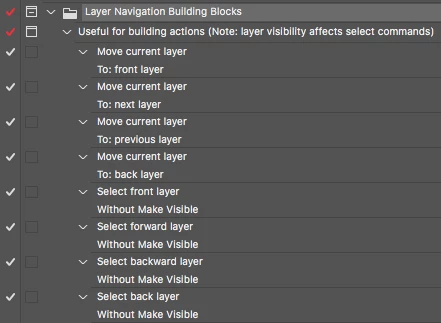
    As I no longer use Photoshop everyday for production, my memory of keycuts gets a little rusty, so I built a “library” of commands that I can duplicate and drag from the library into the new action. Relative layer commands that are useful to me are selection and move commands:

    Here are the relative position keycuts, as per usual, Windows swaps Control and Alt instead of Command and Option (ignore the + symbol and spaces). Note that layer visibility will affect the expected behaviour of the select commands.

    Move current target layer to front (top) layerCommand + Shift + ]
    Move current target layer upCommand + ]
    Move current target layer downCommand + [
    Move current target layer to back (bottom) layerCommand + Shift + [
    Select/target front (top) layerOption + .
    Select/target next layer upOption + ]
    Select/target next layer downOption + [
    Select/target back (bottom) layerOption + ,

    4 replies

    JLobertAuthor
    Known Participant
    August 28, 2018

    Stephen, quick follow-up question: how do you copy a command from your building block repository to the action where you need it? I tried CTRL/CMD-drag, but that moved it.

    Stephen Marsh
    Community Expert
    Community Expert
    August 28, 2018

    You need to hold down the opt/alt modifier when dragging from the repository into the new action to dupe on the fly… Or drag the step to the new action icon to dupe it in the repository, then move it to the new action (more steps):

    JLobertAuthor
    Known Participant
    August 28, 2018

    Thank you both Chuck and Stephen! Awesome shortcuts. It is actually the Option/ALT-[ / ] that I needed, which moves the cursor to the next layer. The CMD/CTRL version moves the layer itself.

    Much faster, I'm happy!

    Chuck Uebele
    Community Expert
    Community Expert
    August 28, 2018

    Oh, yea, mine was to move the layer.

    Stephen Marsh
    Community Expert
    Stephen MarshCommunity ExpertCorrect answer
    Community Expert
    August 28, 2018

    Mostly what Chuck said!

    As I no longer use Photoshop everyday for production, my memory of keycuts gets a little rusty, so I built a “library” of commands that I can duplicate and drag from the library into the new action. Relative layer commands that are useful to me are selection and move commands:

    Here are the relative position keycuts, as per usual, Windows swaps Control and Alt instead of Command and Option (ignore the + symbol and spaces). Note that layer visibility will affect the expected behaviour of the select commands.

    Move current target layer to front (top) layerCommand + Shift + ]
    Move current target layer upCommand + ]
    Move current target layer downCommand + [
    Move current target layer to back (bottom) layerCommand + Shift + [
    Select/target front (top) layerOption + .
    Select/target next layer upOption + ]
    Select/target next layer downOption + [
    Select/target back (bottom) layerOption + ,
    Chuck Uebele
    Community Expert
    Community Expert
    August 28, 2018

    Use ctrl/cmd-] or [ to move to the next layer. it will record just moving up and down and not the layer name.