
Participant
February 27, 2017
Answered

add a 1px border to a selection in a existing image

  • February 27, 2017
  • 3 replies
  • 1704 views

Hey everbody,

I'm working on this huge image, about 4608*3072 pixels, i want to add a tiny red(#FF0000) border(1px) to a selection, those are the steps i did:
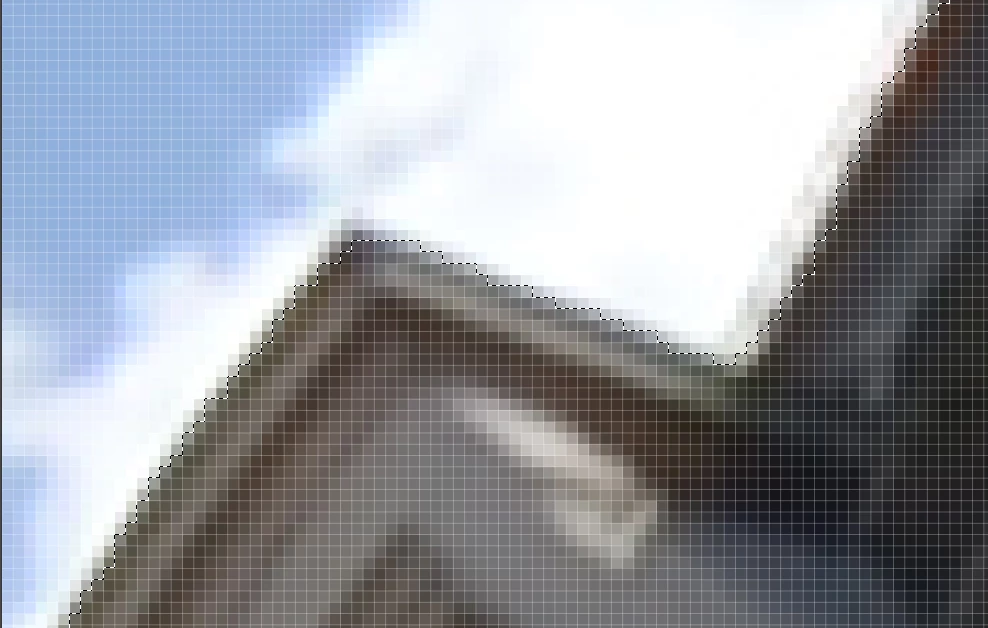
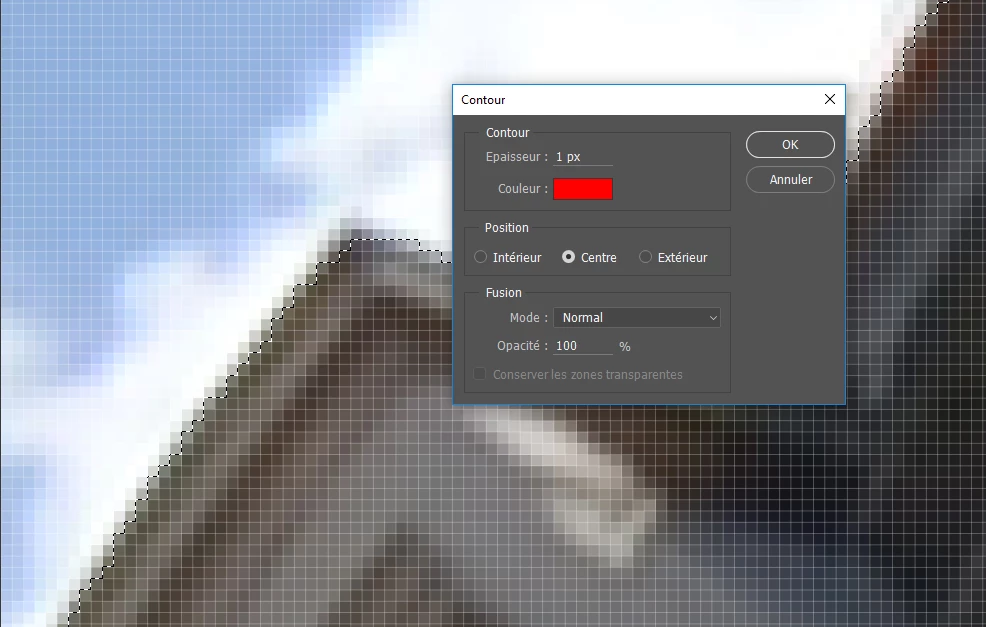
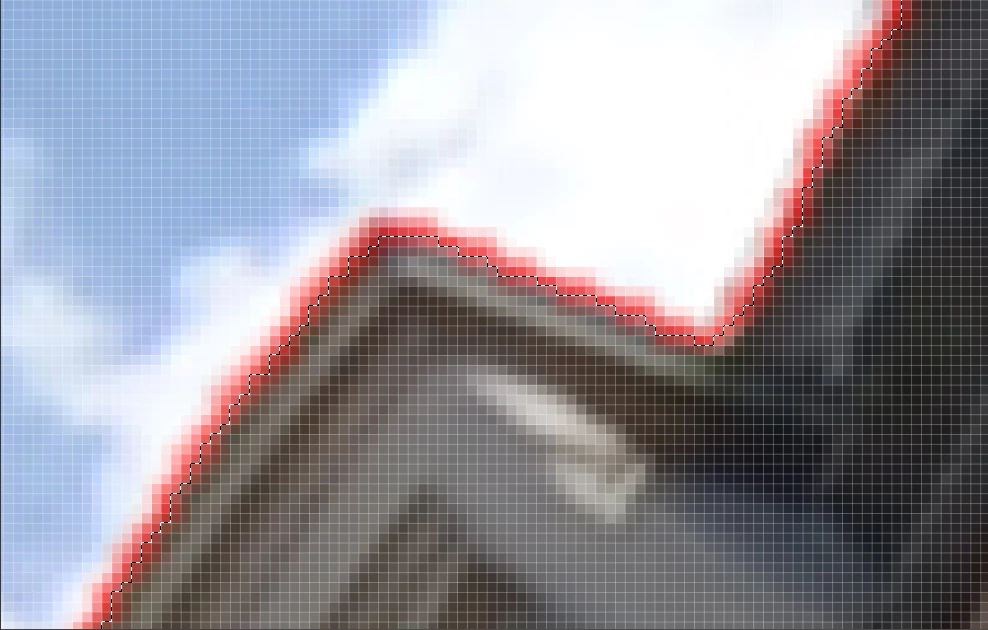
But doesn't work, photoshop draw also other pixels with a shade of red, there seem no obvious to cause something like this...and it's not the case of my objective
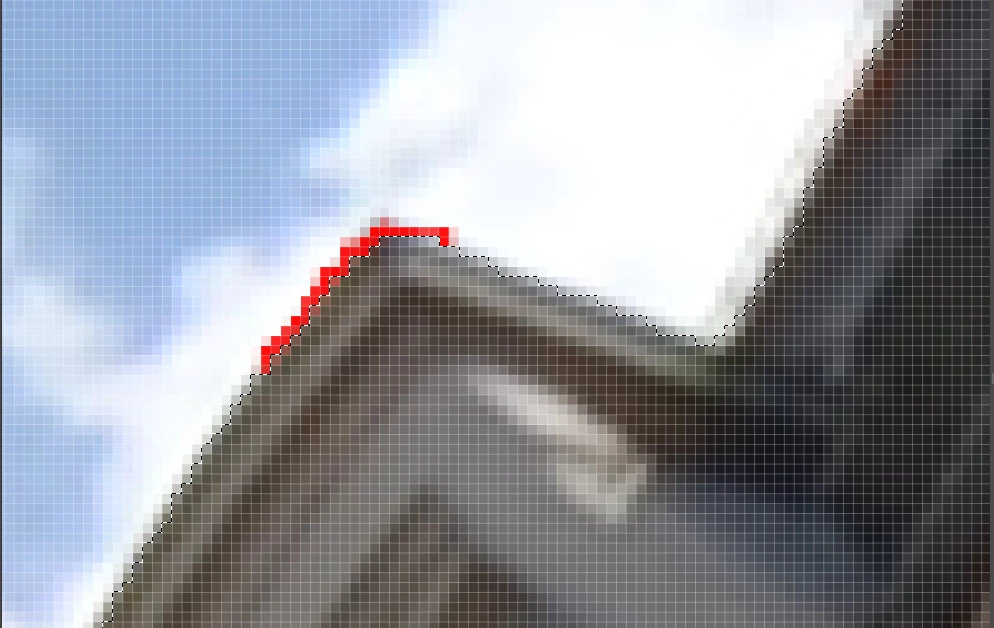
I've been trying different tools to achieve that but haven't found a way yet. Does something like that exist? i need something like this
PS: the image size: 4608*3072, type : JPG
    This topic has been closed for replies.
    Correct answer Barb Binder

    That's anti-aliasing—Photoshop is softening the transition from the red to the background. If you zoom back to 100%, it probably looks just fine.

    That said, with the marching ants selection active as in the first screen shot:

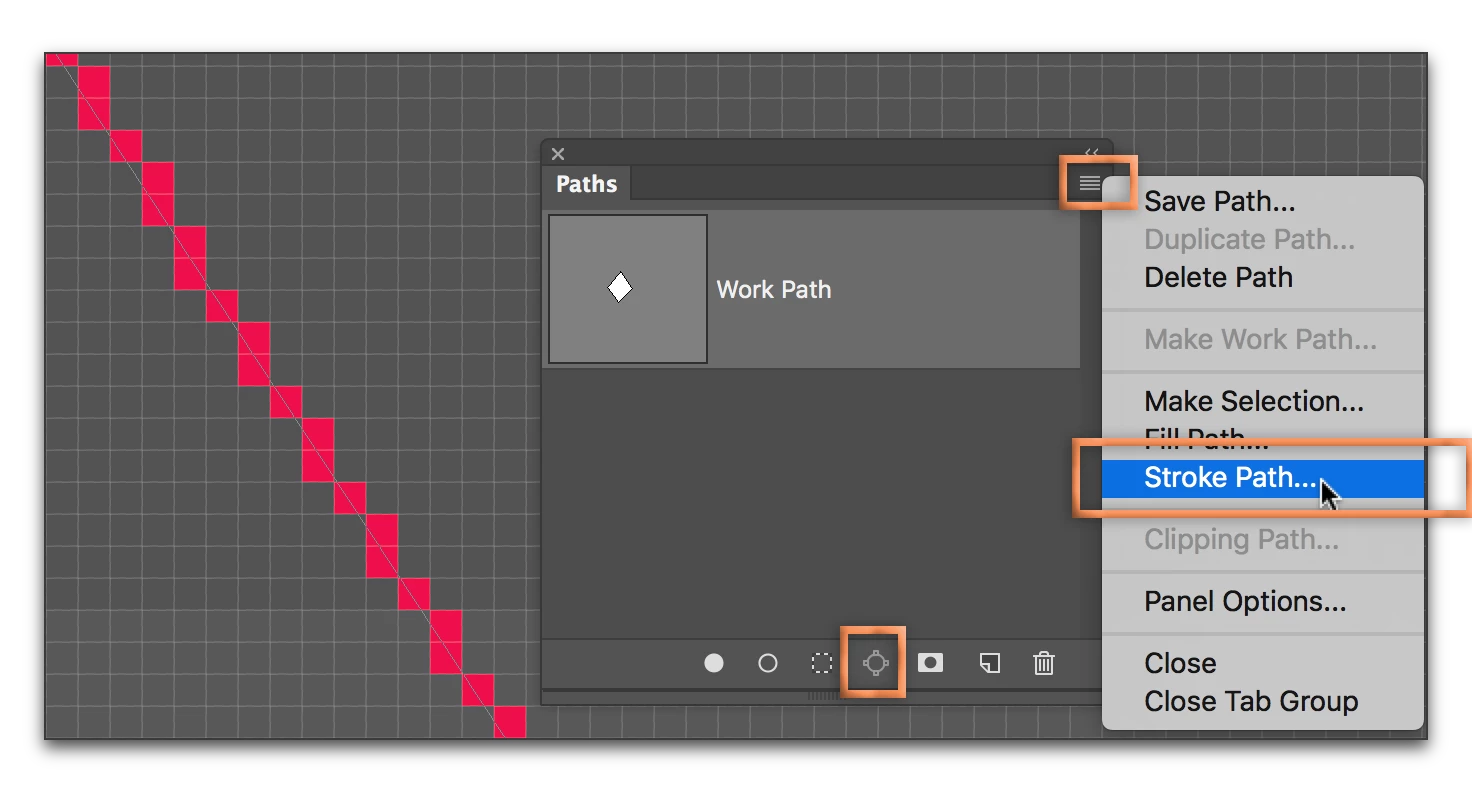
    • Window > Paths
    • Click Make Work Path from Selection button
    • Click to select the new Work Path
    • Pick Stroke Path from the panel menu
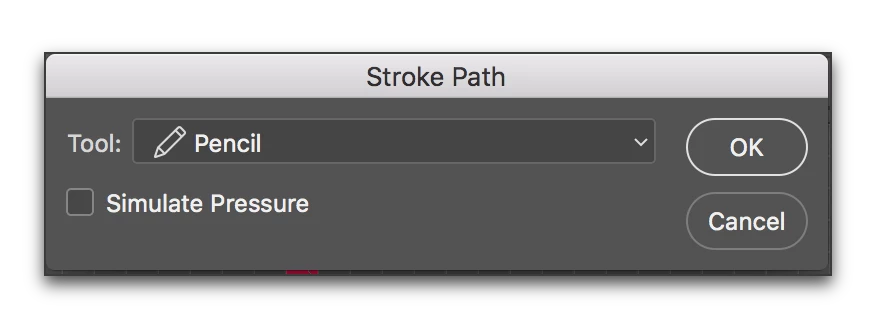
    • Change the Stroke Path tool to Pencil
    • OK

    3 replies

    JJMack
    Community Expert
    Community Expert
    February 27, 2017

    It is also very easy to draw straight lines with a brush using the  Click and a shift click method...

    JJMack
    davescm
    Community Expert
    Community Expert
    February 27, 2017

    You are seeing the impact of anti-aliasing - which is there to prevent jagged lines.

    To get a 1px wide line round your selection that is not anti-aliased:

    Either make your selection with the pen tool (or convert your existing selection to a path)

    Then with the pencil tool selected and set at one pixel wide - stroke the path (click on the symbol at the bottom of the paths panel)

    Dave

    Edit to add : Answers round here are like buses. You wait a while then several come at once - well done Barbara for getting in quicker and with screenshots !

    Barb Binder
    Community Expert
    Barb BinderCommunity ExpertCorrect answer
    Community Expert
    February 27, 2017

    That's anti-aliasing—Photoshop is softening the transition from the red to the background. If you zoom back to 100%, it probably looks just fine.

    That said, with the marching ants selection active as in the first screen shot:

    • Window > Paths
    • Click Make Work Path from Selection button
    • Click to select the new Work Path
    • Pick Stroke Path from the panel menu
    • Change the Stroke Path tool to Pencil
    • OK

    ~Barb at Rocky Mountain Training