Participant
November 4, 2016
Answered

Adobe Photoshop issue regarding artboards when saving for web

  • November 4, 2016
  • 1 reply
  • 3606 views

Hi guys,

          I'm having a problem you might help me

I've updated my photoshop to the new version (2017) in which artboard was introduced (I think so because I've never noticed this feature before, my apologises if it had been there).

When I was saving for web I came across that - when I add a new artboard and delete it, the image size is changed, even if you keep just the original artboard (the first artboard created I mean).

I took some screenshots for reference only.

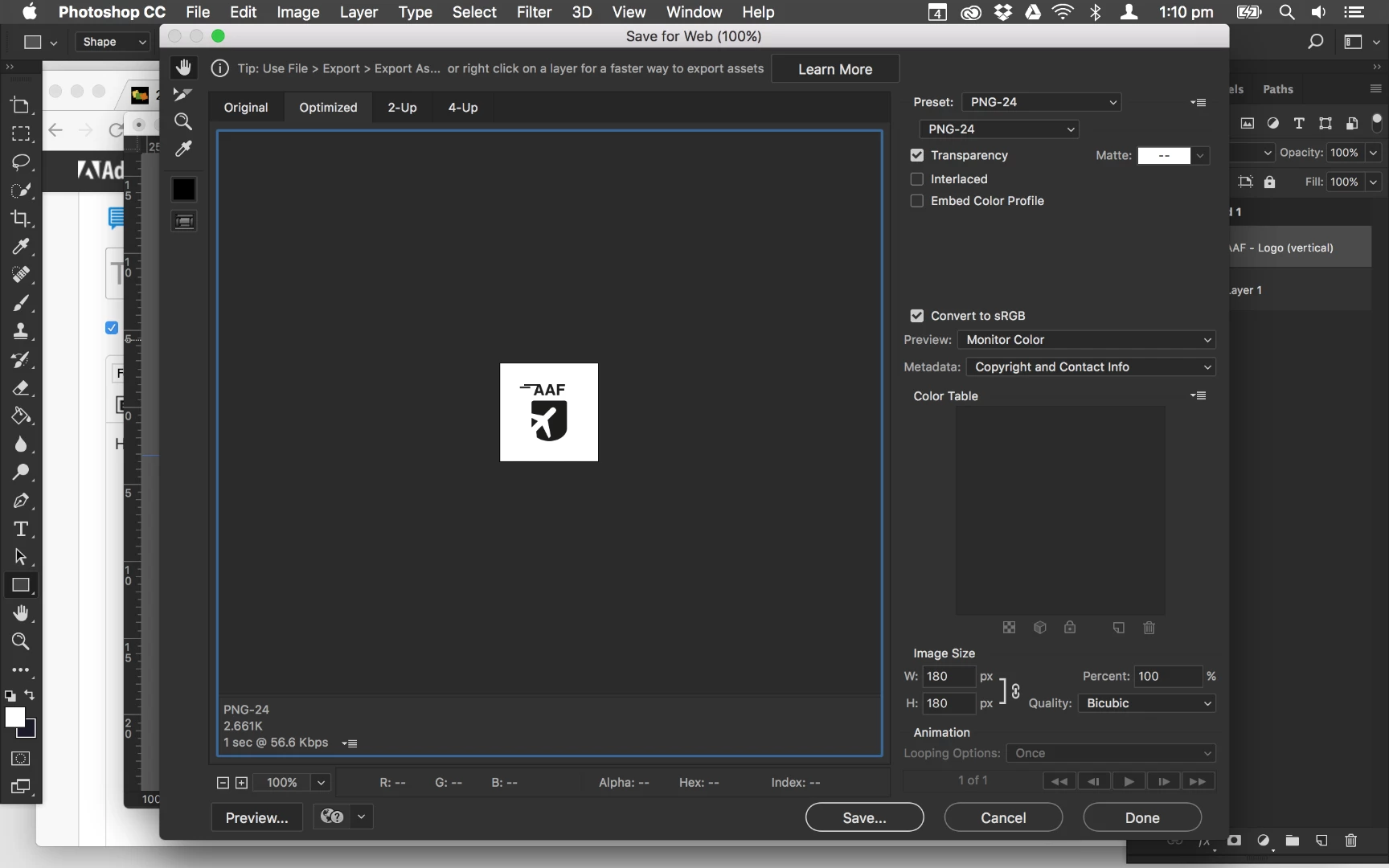
1) Save for Web window containing the first artboard only. It's ok here.
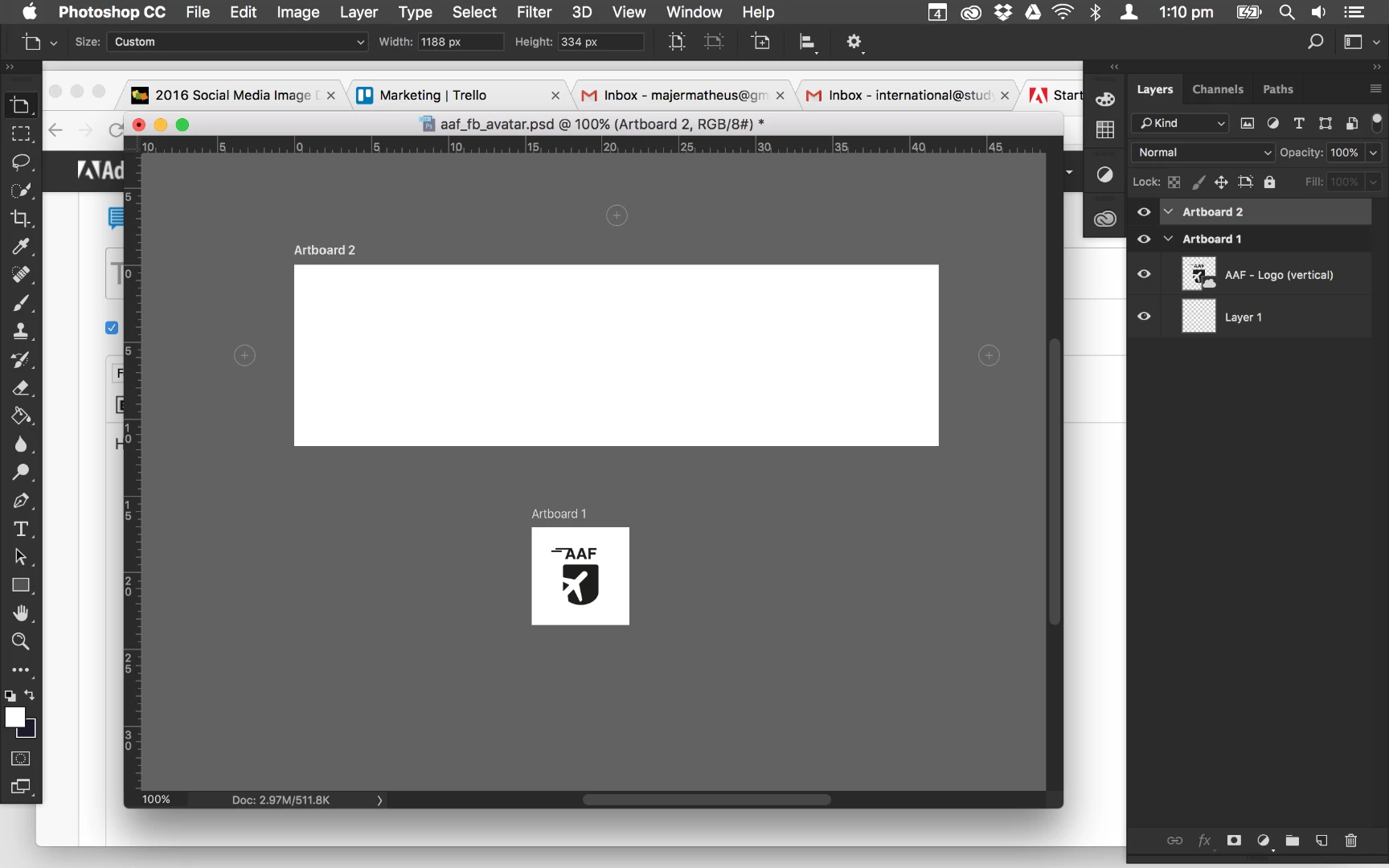
2) A new artboard was added.
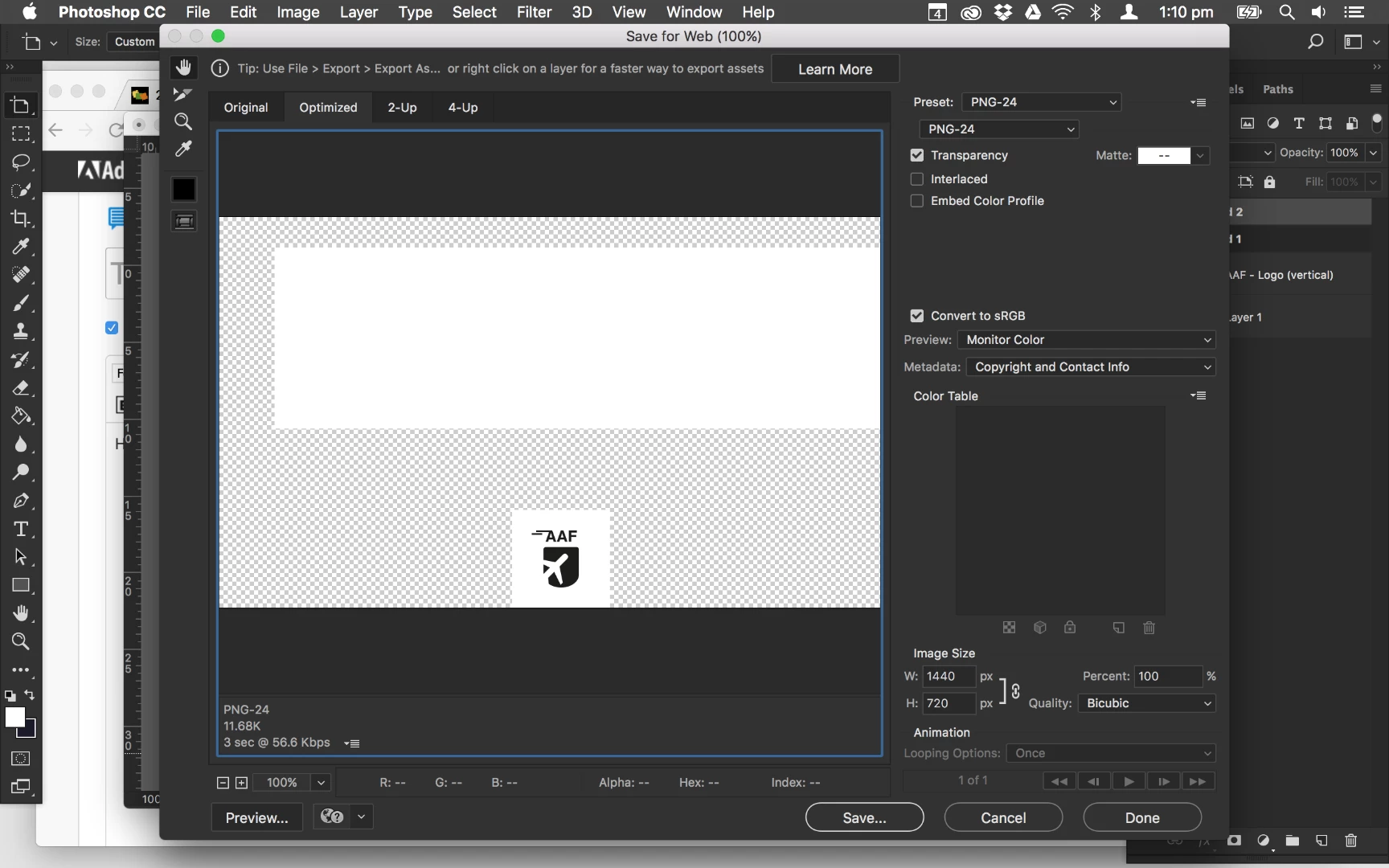
3) Save for Web window displaying the preview.
4) The new artboard was deleted.
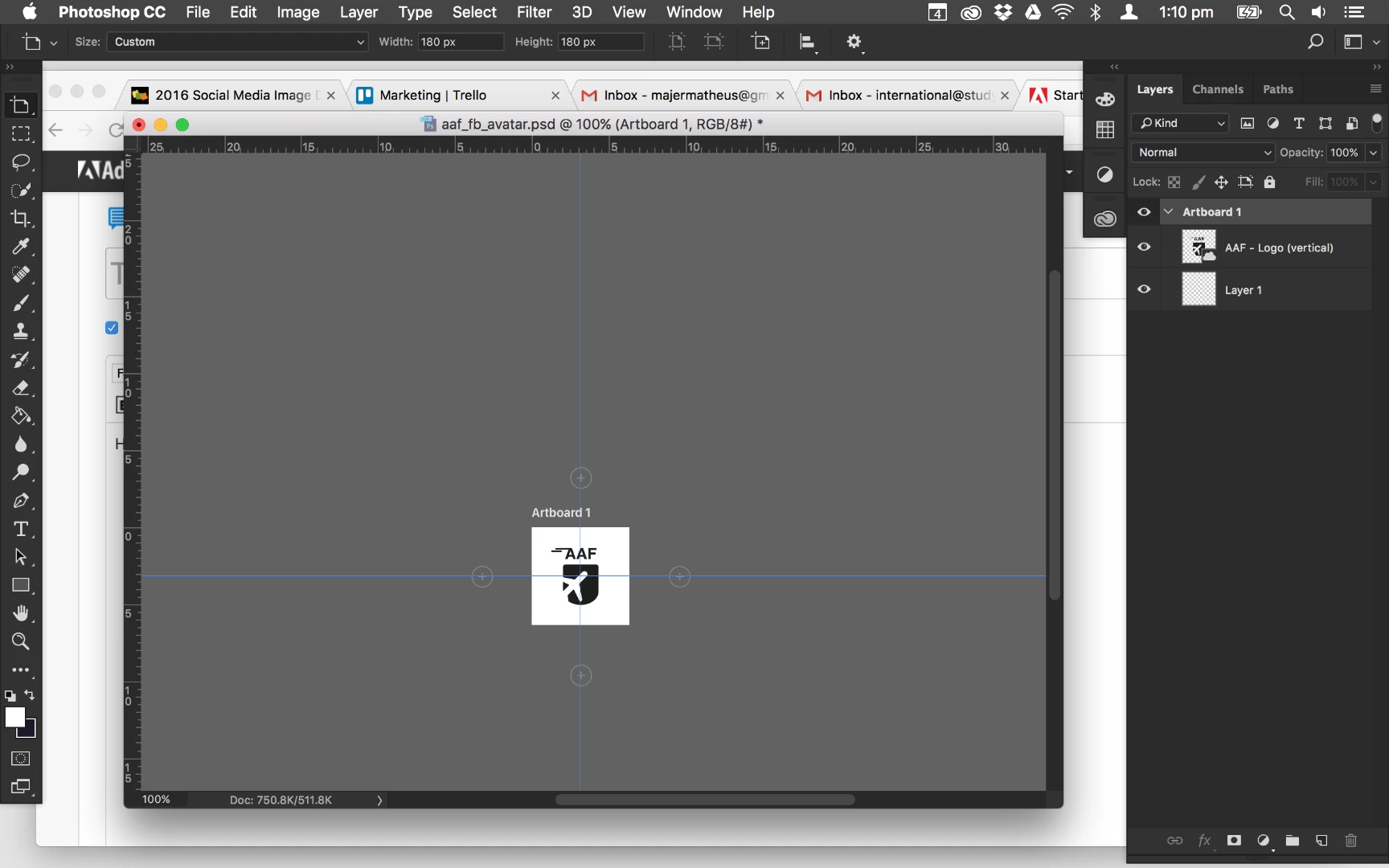
5) Save for Web window showing the first artboard just, however this transparent space is displayed as well.
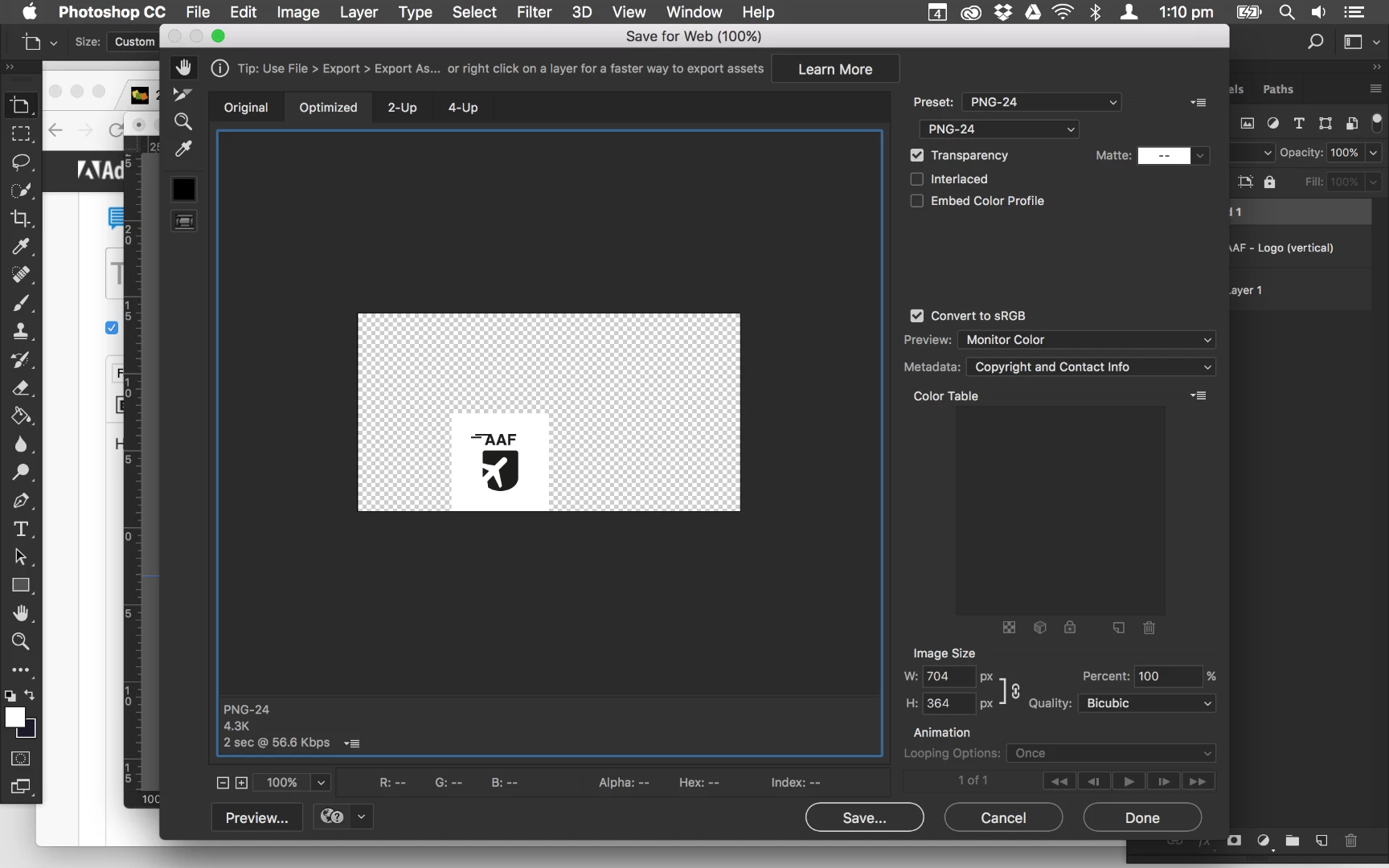
Do someone have an idea about why is this happening? How can I fix it? The image size was supposed to be as the same as the only artboard's size you have on the document, wasn't it?

Many thanks in advance

Kind Regards,

Matheus Majer

Correct answer tom attix

Matheus-

When you create an artboard the overall image size and the artboard are roughly the same size, when you create a second artboard the overall image size expands to be roughly the size of both artboards and some padding space around the artboards. As you create more artboards your overall image size expands to encompass all the artboards. Whats not clear to most users is that every layer in every artboard is really the same size as the overall image size. We trick Photoshop into treating artboards like separate docs but it is important to know that they aren't. This is why artboard files may seem disproportionately large, what appears to be many small layers can add up to a very large file.

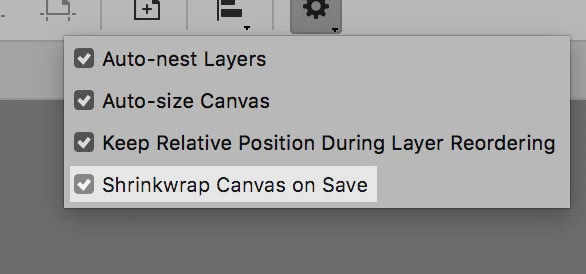
The work around for the problem you've run into is to Save the file as a PSD and then check the Shrink Canvas on Save in the Artboard Behavior Options (the little gear icon). This forces Photoshop to update the canvas size to only fit the current contents of the file. This only applies to Save, so you'll have to save the file and then Export to Save For Web.

Hope that helps

-Tom Attix

1 reply

tom attix
Adobe Employee
tom attixCorrect answer
Adobe Employee
November 16, 2016

Matheus-

When you create an artboard the overall image size and the artboard are roughly the same size, when you create a second artboard the overall image size expands to be roughly the size of both artboards and some padding space around the artboards. As you create more artboards your overall image size expands to encompass all the artboards. Whats not clear to most users is that every layer in every artboard is really the same size as the overall image size. We trick Photoshop into treating artboards like separate docs but it is important to know that they aren't. This is why artboard files may seem disproportionately large, what appears to be many small layers can add up to a very large file.

The work around for the problem you've run into is to Save the file as a PSD and then check the Shrink Canvas on Save in the Artboard Behavior Options (the little gear icon). This forces Photoshop to update the canvas size to only fit the current contents of the file. This only applies to Save, so you'll have to save the file and then Export to Save For Web.

Hope that helps

-Tom Attix

Participant
November 21, 2016

Hi Tom,

Thank you very much for taking the time to helping me out with this issue, it's really appreciated.

Your answer is perfectly right, the problem has been resolved

Many thanks again,

Matheus Majer