victoriavanpatten
Known Participant
August 6, 2018
Answered

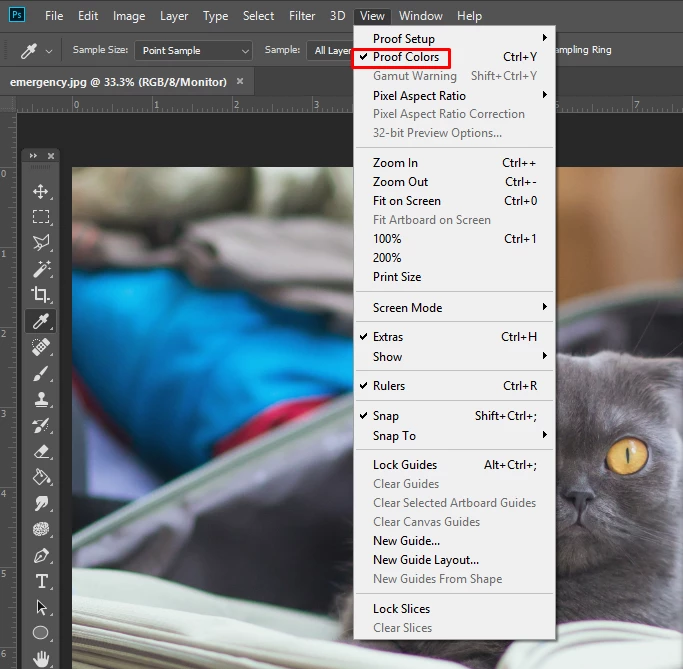
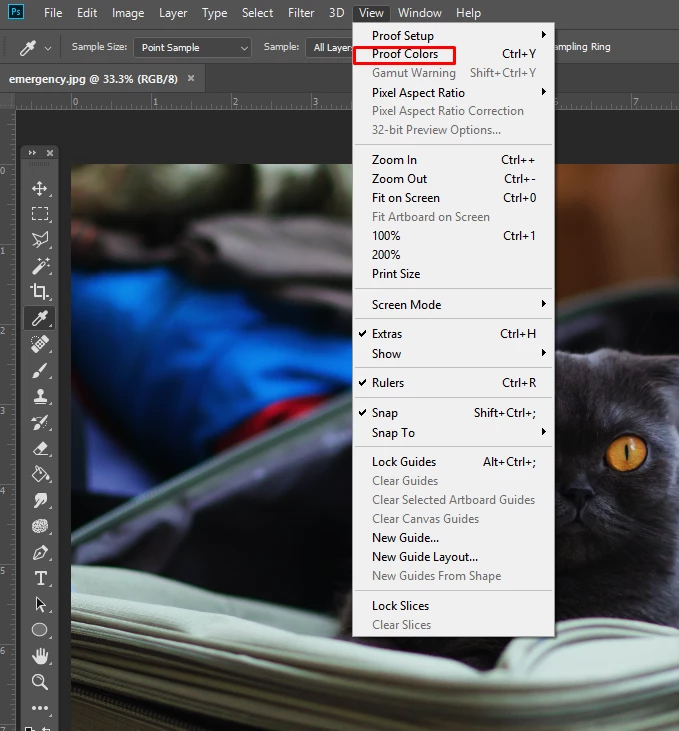
Always have to enable "Proof Colors"

  • August 6, 2018
  • 2 replies
  • 9535 views

A few updates ago, every single image I open in Photoshop, no matter what the format, appears darker than it does in other applications. I always have to enable proof colors for every document to get it looking accurate, not just when I open Photoshop.


Can anyone  tell me a quick remedy for this? I've tried changing my color settings, restored everything back to default, and I can't get any reprieve. This was definitely not something I've ever had to do before, and not something I see people actively complaining about a lot, so I don't know what is happening. These are mostly RGB files, too. If I convert them to CMYK they get EXTREMELY dark, not just a little bit of color shifting as I am used to.

Thing is, I think some sort of color profile update must have happened and I was just not up to date with what was happening, because all of my old illustrator files now open darker too, and the colors themselves are actually altered. That's a discussion, though, for another time. This has just been extremely frustrating for me since quite a few client files have been ruined.

For now, can someone please tell me how to get web images to open properly?
This topic has been closed for replies.
Correct answer Per Berntsen

This looks like a defective monitor profile, possibly delivered by a Windows update (you seem to be on Windows).

When you use Proof colors > Monitor color, Photoshop bypasses the monitor profile, and behaves like any other non-color managed application. And changing to another version of Photoshop will not fix the problem if the monitor profile is defective.

Try setting the monitor profile to sRGB (use Adobe RGB if you have a wide gamut monitor). If this fixes the problem, you should ideally calibrate your monitor with a hardware calibrator.

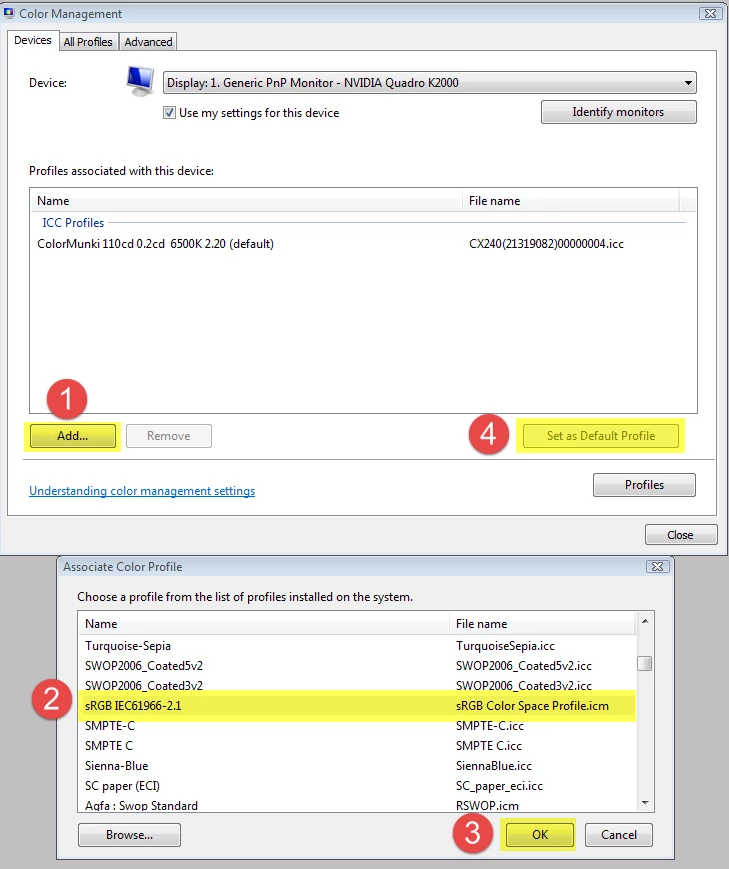
Go to Control panel > Color management, and first make sure Use my settings for this device is checked.

Then add the sRGB profile (sRGB IEC61966-2.1) and set it as default.

2 replies

gener7
Community Expert
Community Expert
August 6, 2018

For the time being, you can install CC 2017 alongside CC 2018 to get work done.

I don't know offhand what to do, but someone might.

victoriavanpatten
Known Participant
August 6, 2018

I've just tried this and don't know why but I'm getting the same issue even in the older version now. It's curious, because it happens with my own photos as well as any images I download.

I just really don't know what to do here. The color picker is also much darker, even if proof mode is on, so I basically have to guess what the color is going to look like. Compare how this bright orange looks in Illustrator versus photoshop. Same color.

ILLUSTRATOR:

PHOTOSHOP:

Hopefully this provides some insight because I feel crazy. All other adobe products are working fine but I can't use photoshop for anything at this rate, no matter the version.

victoriavanpatten
Known Participant
August 8, 2018

Hi again,

Since I've made this change, Photoshop works just fine and my colors display fine, but now I'm having an issue with Illustrator, whereas I wasn't just yesterday. All illustrator files are opening in super high contrast now, and the color in the color picker does not reflect what is shown in the document, basically what Photoshop was doing before. 

Tried switching to my laptop display and back to my monitor, but the issue presents itself on both.

According to Illustrator, these two are the same. Left is the color picker and right is what shows in the document.

If I paste a screenshot of this same document I had from several days ago into the same document now, the colors aren't even on the same planet. Extremely dark. Left is pasted image (now super dark), center is how the image opened in my document (weirdly high contrast), and right is my original screen grab from a few days ago.

I'm just getting really frustrated. I'd really appreciate help on this.

victoriavanpatten
Known Participant
August 6, 2018

tw, the same stock photo as it appears everywhere else on my computer.

Per Berntsen
Community Expert
Per BerntsenCommunity ExpertCorrect answer
Community Expert
August 6, 2018

This looks like a defective monitor profile, possibly delivered by a Windows update (you seem to be on Windows).

When you use Proof colors > Monitor color, Photoshop bypasses the monitor profile, and behaves like any other non-color managed application. And changing to another version of Photoshop will not fix the problem if the monitor profile is defective.

Try setting the monitor profile to sRGB (use Adobe RGB if you have a wide gamut monitor). If this fixes the problem, you should ideally calibrate your monitor with a hardware calibrator.

Go to Control panel > Color management, and first make sure Use my settings for this device is checked.

Then add the sRGB profile (sRGB IEC61966-2.1) and set it as default.

victoriavanpatten
Known Participant
August 6, 2018

Thanks so much for this! I don't know why this is affecting only photoshop but you certainly fixed it.

Do you have any resources on learning more about color profiles/how do you even begin to know what to look for with issues like this? I hate being the dumb one in forums asking questions. I'd much rather learn the whys and hows.