
Barb Binder
Community Expert
Community Expert
March 14, 2017
Answered

Background layers behaving badly

  • March 14, 2017
  • 4 replies
  • 2283 views

I'm confused by the behavior of a background layer in one specific file. Is it me? (probably) The file? The software?

Background: this came up in class yesterday, prompting my student to ask, "What is the point of a locked background layer?" My eloquent response: "ummm".

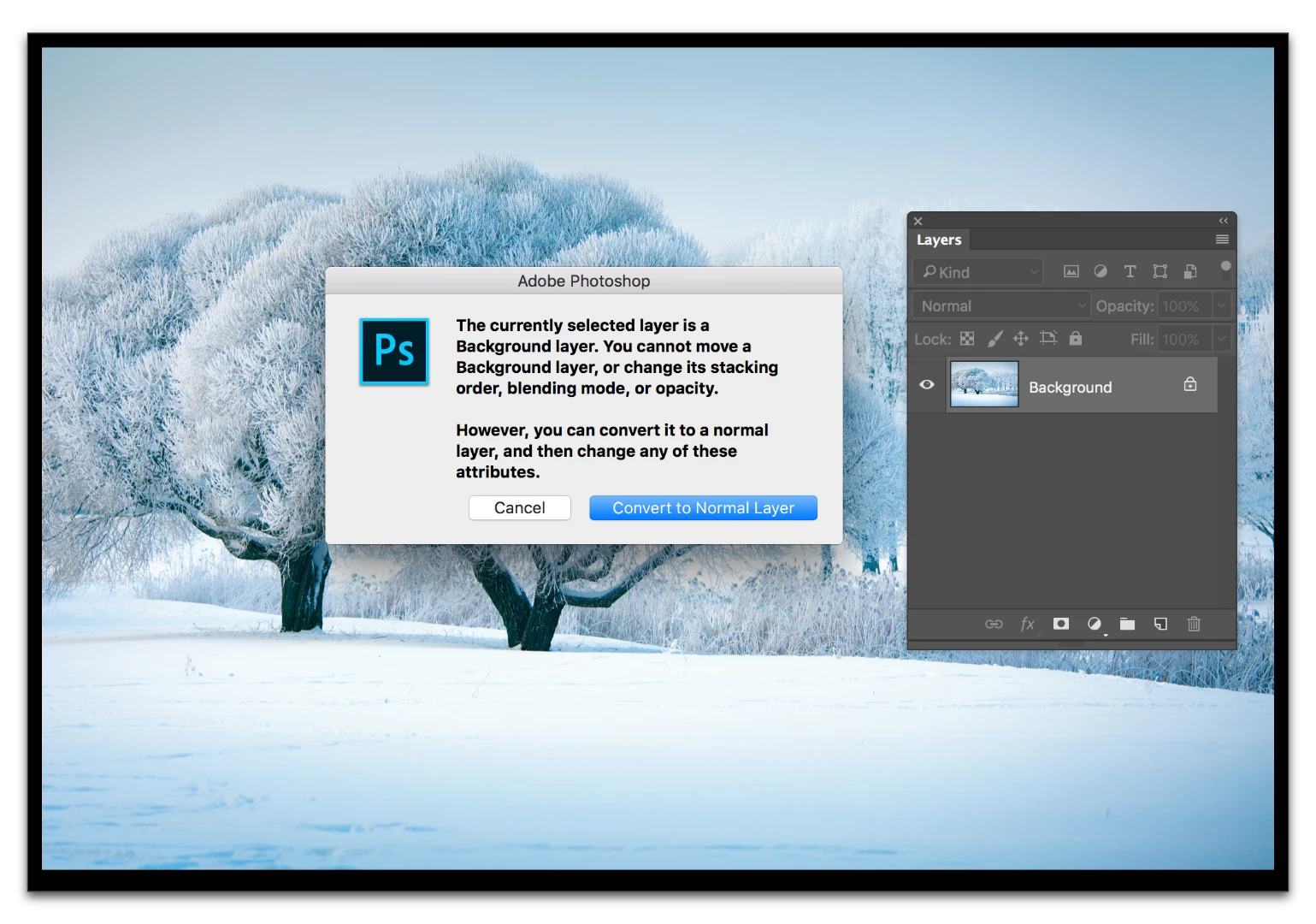
CC 2017.1: normal behavior when you try to move a background layer with the Move tool.
CC 2017.1 with this specific file open. When you drag the background layer, it just moves and renames itself Layer 0.
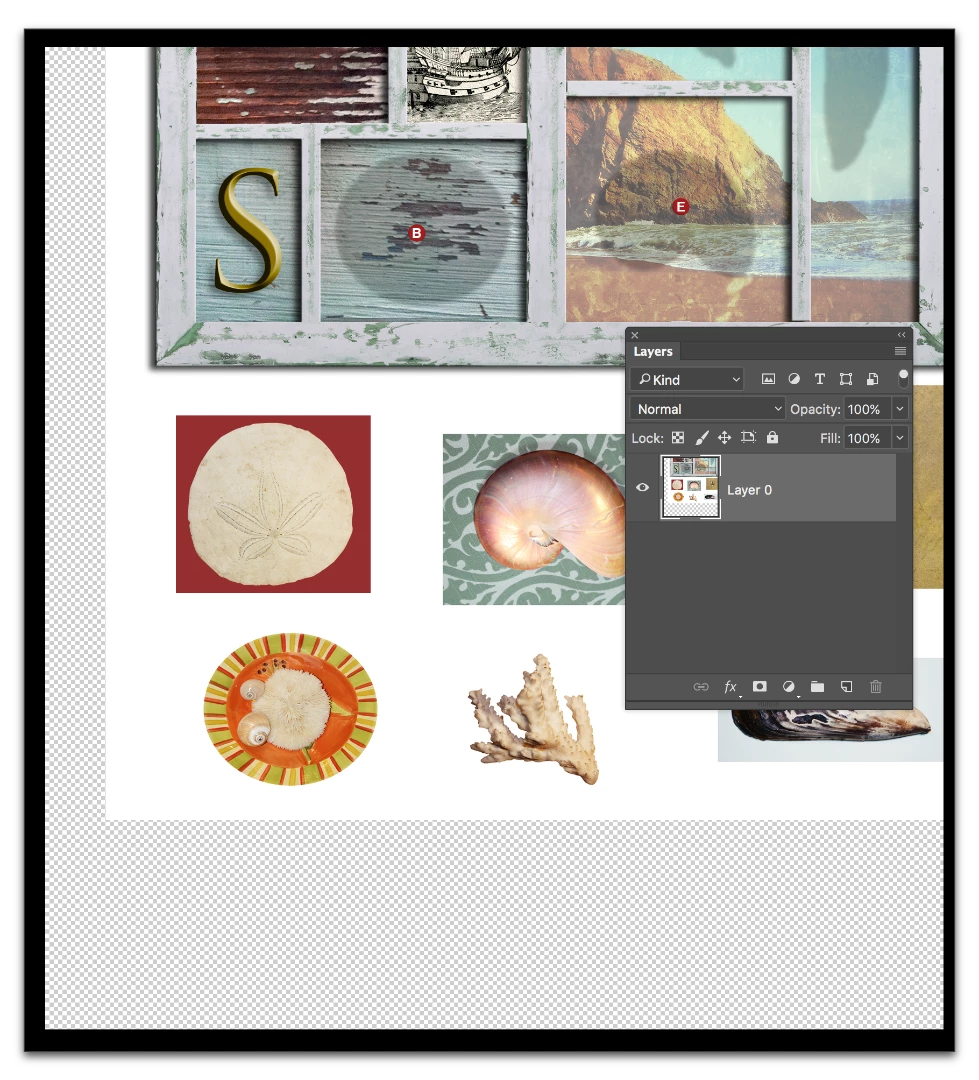
Before you tell me it's not a "real" background layer (I've been tricked before by floating layers renamed "Background" and locked), Photoshop thinks it is. New > Background from Layer and Flatten are not available.

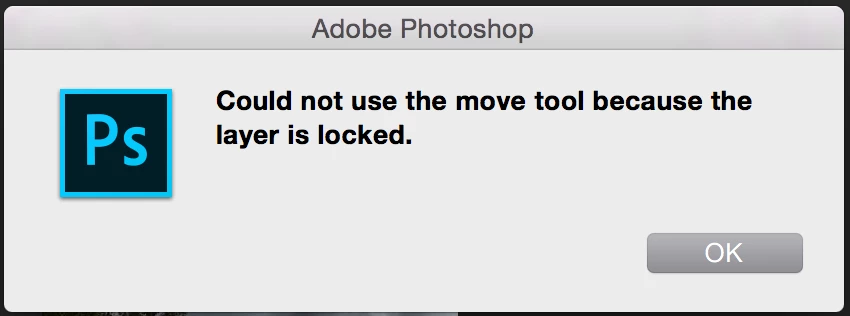
In CC 2015.5 with the same file, I get the same behavior. BUT, in CS6 with the exact same file open, I get the expected message:
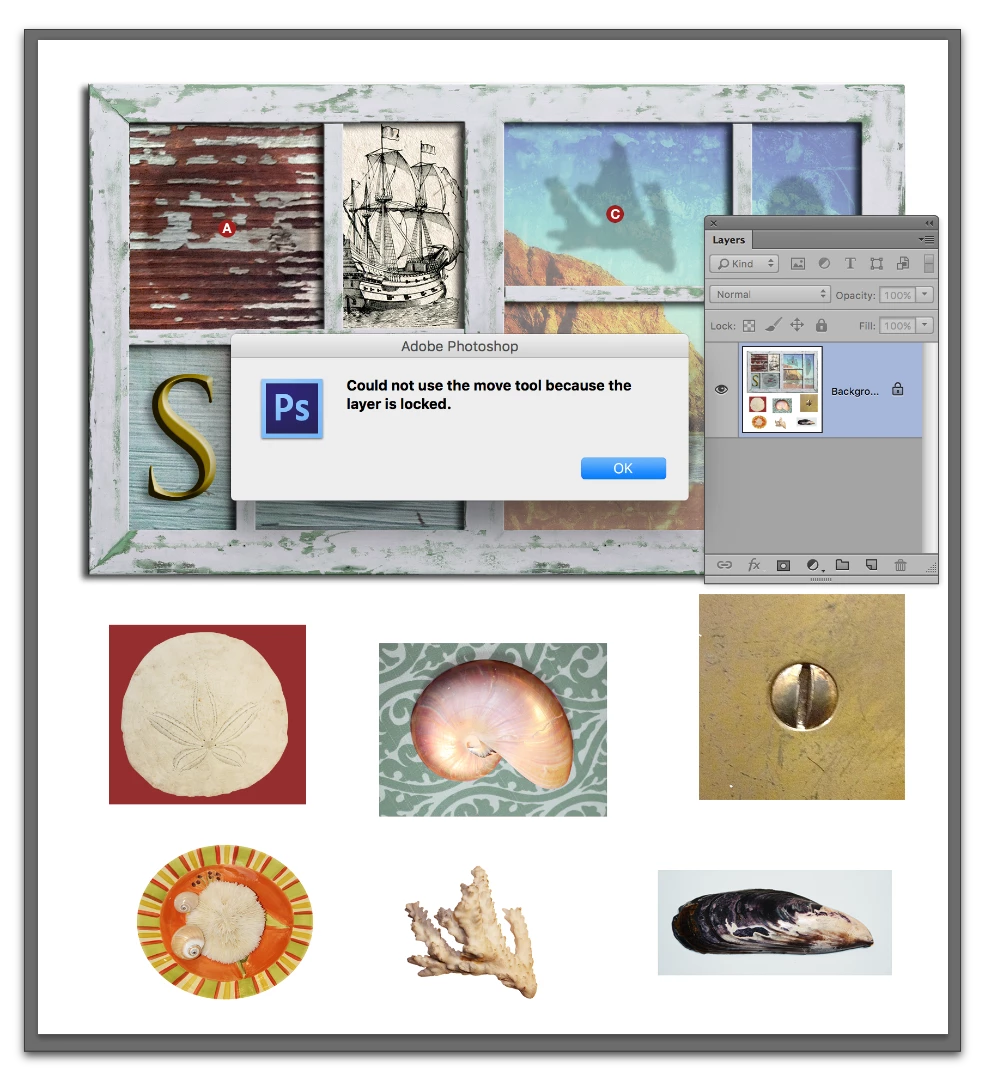
What am I missing here?
    This topic has been closed for replies.
    Correct answer davescm

    I get not need a Background layer—it has not been required since 5.5 (not CS). I don't get not honoring the Lock icon.

    Making it a regular layer and then locking it honors the lock, for what it's worth. Then this message comes up:


    Hi

    Just had some more play with this (including the PSD shared by PM)

    First - forget the comments on italics - I am on Windows and this "problem file" shows in italics also. So that was a red herring.

    However I am seeing the same as Jane. If I open a PSD with a background layer , I can move it.

    If I open a TIFF with a background layer I can't.

    Making the layer a normal layer then a background layer does not alter this behaviour in either case.

    So a bit of testing :

    Starting with a brand new document - I can't move the background layer.

    Save as a TIFF I can't move the background layer.

    Save as a PSB and once again I can't move the background layer.

    Save as a PSD I can move the background layer.

    Resave as PSB or TIFF and I can't move the background layer

    This looks like a bug when the document is a PSD.

    Dave

    4 replies

    Chuck Uebele
    Community Expert
    Community Expert
    March 15, 2017

    You could make a video of background layers Behaving badly, then make another of adjustment layers gone wild. Sorry, couldn't resist.

    Barb Binder
    Community Expert
    Community Expert
    March 15, 2017

    Lol!

    ~Barb at Rocky Mountain Training
    Barb Binder
    Community Expert
    Community Expert
    March 14, 2017

    First of all, CP & Dave, thank you for looking at this. I'll pm a link to the file (it's part of classroom materials so there are licensing issues).

    A couple of thoughts:

    1. I no longer see italics on "real" background layers. Is that a Mac/Windows thing? It used to be consistent. El Capitan—no italics on CS6, CC 2015.5 or 2017.1. Yet in a screen shot in the workbook, the word Background is italicized, as it should be, and as per Dave's response. (Yes, I reset Prefs.)
    2. That snowy image that produced the expected error message? Turns out it was a JPG. As soon as I saved it as .PSD, it did the same thing. (Feature? Bug? Preference?)
    3. Finally—and the crux of the matter—if I lock an element in Ai or In, it stays locked until I figure out to unlock it. It strikes me as odd that a new user can unlock a layer by inadvertently dragging over it.
    ~Barb at Rocky Mountain Training
    jane-e
    Community Expert
    Community Expert
    March 14, 2017

    I tried it on a few more files.

    This message comes up on tiffs and jpegs. If it's a psd, you can whisk it out of sight with the Move tool and it unlocks without asking. It is no longer italicized. I am on Yosemite. So it's not an El Capitan issue.

    It is not supposed to be this way, imho. But then I've only been using Photoshop for 23 years.

    Barb Binder
    Community Expert
    Community Expert
    March 14, 2017

    I booted up my Surface (Win 10) and the italics are back in place, so that must be a Mac thing.

    But yes, even on Windows you can drag a background layer and simultaneously unlock, rename, convert it to a floating layer without any actual intention of doing so—which is a typical new user scenario, and how this came up in the first place.

    ~Barb at Rocky Mountain Training
    davescm
    Community Expert
    Community Expert
    March 14, 2017

    Hi

    There is one thing that looks unusual - but it may be different on your system.

    In the layers panel on mine - a genuine background layer has the title "Background" in italics in the layers panel

    A partially locked layer (e.g transparency only locked) named background has the title in non-italics.

    Yours looks like the latter, but there doesn't appear to be a partial lock set in your layers panel either. It would be good to see the file.

    Dave

    jane-e
    Community Expert
    Community Expert
    March 14, 2017

    I am looking at the same file from Classroom in a Book. Here it is in CC2014

    Opening the exact same file in CC2017 does what Barb says. I am testing with the version that shipped with CC 2014.

    Taking it a step further, going to Layer > New, I can convert this layer from a Background layer to a regular layer. When I do, it becomes a Layer 0 and all of the locks come off.

    Only after it has been converted to a regular layer can it be converted back into a Background layer.

    And doing so puts it into a non-italicized Background layer.

    I noticed this weird behavior last week and meant to explore it to see if I was really seeing what I thought I was seeing.

    c.pfaffenbichler
    Community Expert
    Community Expert
    March 14, 2017

    Can you provide the file?

    "What is the point of a locked background layer?"

    Without a Background Layer a psd file has transparency which may be somewhat of an issue in layout applications.

    Also if a psd-file has only the Background Layer there is no need for a »preview«, so the file size is smaller. (Edit: at least with Maximized Compatibility)