Participant
July 12, 2017
Answered

Can't see the image when I apply the mask

  • July 12, 2017
  • 3 replies
  • 3996 views

Hi. Whenever I apply a mask to an image, I can only see the mask and not the image. I've tried changing preferences to default and can't really find a way to see both the mask and the image. Thanks for helping.

    This topic has been closed for replies.
    Correct answer davescm

    Hi

    Your screenshot shows Photoshop working normally. Where the mask is white the image on the layer is visible. Where the mask is black the image on the layer is transparent.

    If you want the mask to reverse, click once on the mask to highlight it then press Ctrl+I (Cmd+I on Mac). This will invert the mask.

    If you want part of the masked image to show so that you can further develop the mask and are working in a recent version of CC e.g. CC2017, set preferences >Tools and check Double Click Layer Mask Launches Select and Mask Workspace.
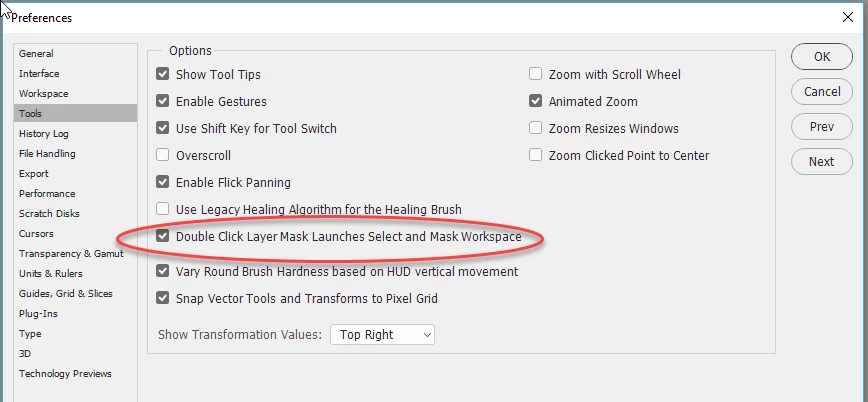
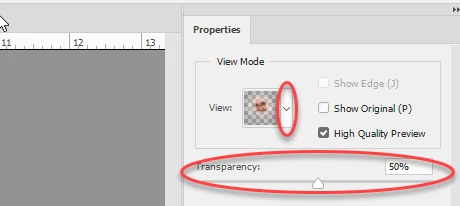
    Then double click the mask which will launch the S&M workspace. You can set view to Onion Skin and transparency to 50% and continue to adjust the mask.
    Dave

    3 replies

    Derek Cross
    Community Expert
    Community Expert
    July 12, 2017

    Does it look like this in your Layers panel (when you apply a layer mask to an image):

    Participant
    July 17, 2017

    Nope. I can see the mask in the thumbnail.

    Here's what I see

    c.pfaffenbichler
    Community Expert
    Community Expert
    July 17, 2017

    c.pfaffenbichler
    Community Expert
    Community Expert
    July 12, 2017

    Please check out the Channels Panel – any Channel there can be hidden or shown by clicking the corresponding visibility-related icon.

    c.pfaffenbichler
    Community Expert
    Community Expert
    July 12, 2017

    Could you please post a screenshot taken at View > 100% and with the pertinent Panels (Layers, Channels, Options Bar, …) visible?

    Participant
    July 17, 2017

    Sorry for the late reply. Here you go. I checked the channels panel. Nothing wrong there

    c.pfaffenbichler
    Community Expert
    Community Expert
    July 17, 2017

    Why did you not include the Channels Panel in the screenshot?

    Turn off the Layer Mask (shift-click its icon in the Layers Panel) then show it by clicking the icon in the Channels Panel if you want to see the Layer Mask as an overlay over the unmasked Layer.