Participating Frequently
June 8, 2017
Answered

Cannot resize textbox sometimes in Photoshop CC 2017

  • June 8, 2017
  • 1 reply
  • 13868 views

Hello,

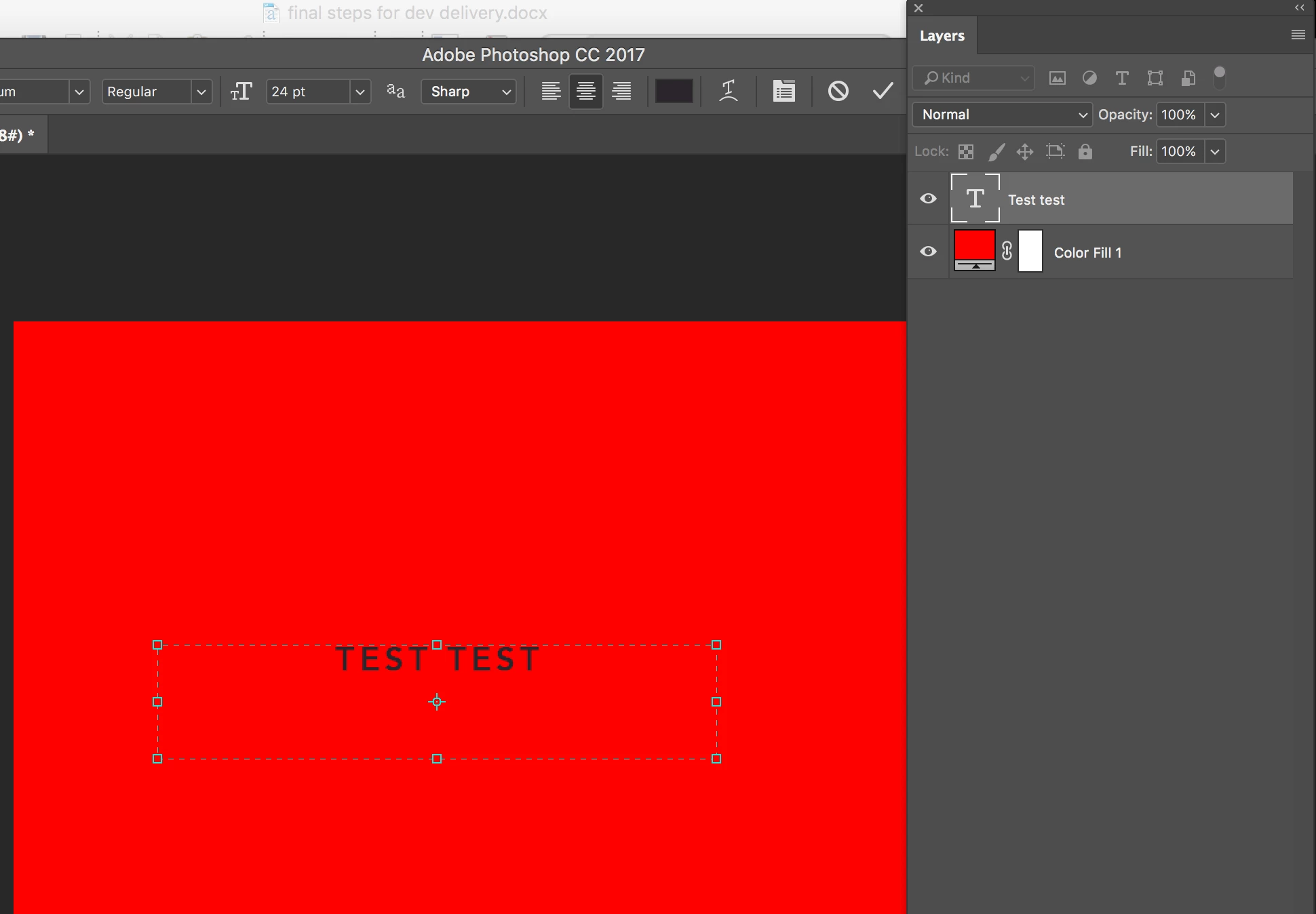
When I am first make a text box layer I am able to resize it (without changing the font size) very easily via double clicking the layer and adjusting the rectangle shown in the screenshot below.

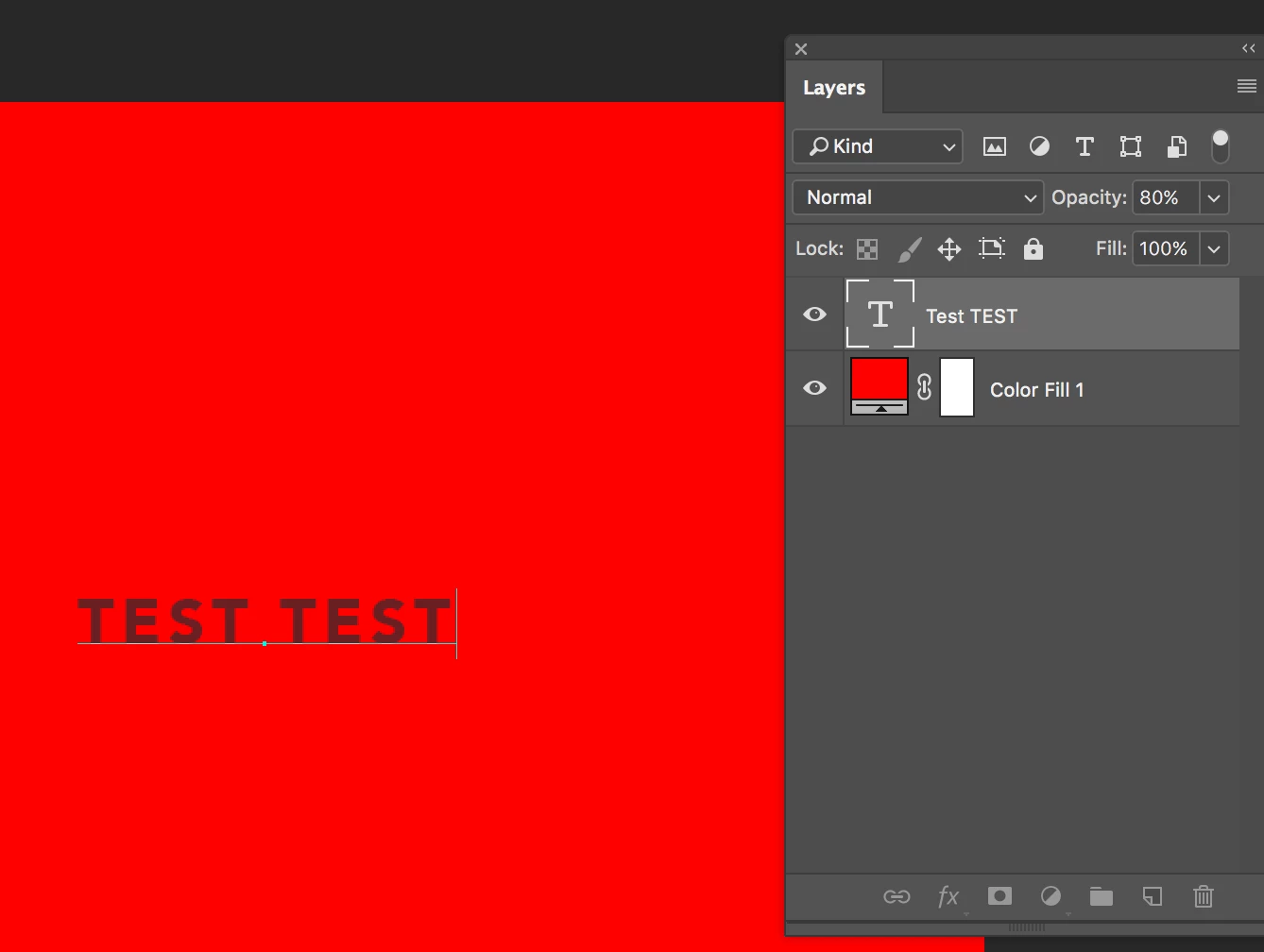
However, sometimes after I've made changes to the text, save the PSD, then reopen the PSD,  I am no longer able to resize the text. When I double click the text layer the rectangle shown in the above screenshot does not show up (ass shown in the screenshot below. Any idea why this is? thanks for the help!

This topic has been closed for replies.
Correct answer Barb Binder

Photoshop supports two types of text: point text and paragraph text.

Point text is used for short lines of text. To add it, you click once on the page and start typing.
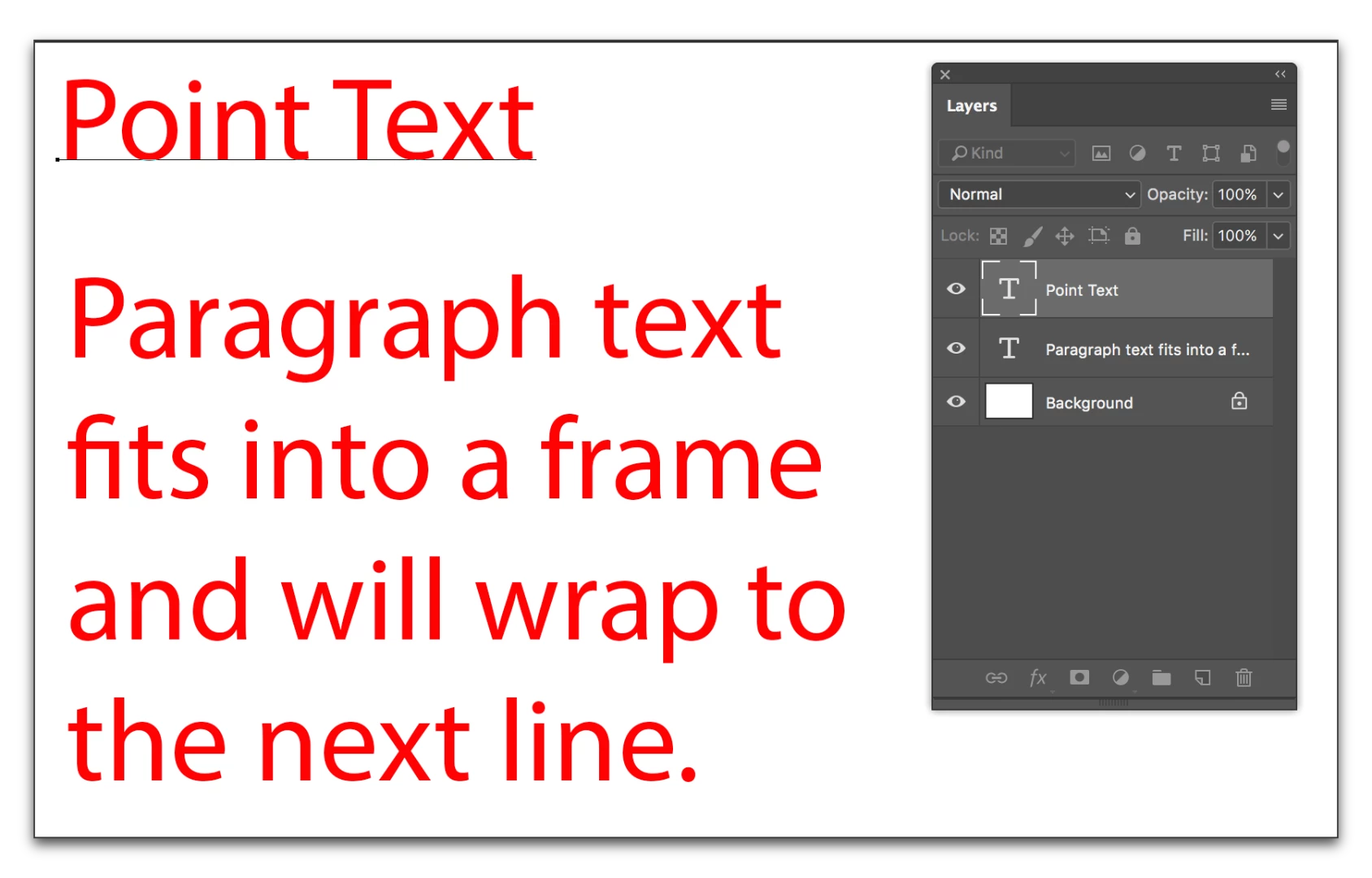
Paragraph text can hold multiple paragraphs in a text frame, and changing the size of the frame, changes the word wrap. To add it, you press your mouse down on the page and drag out a frame, and then start typing.
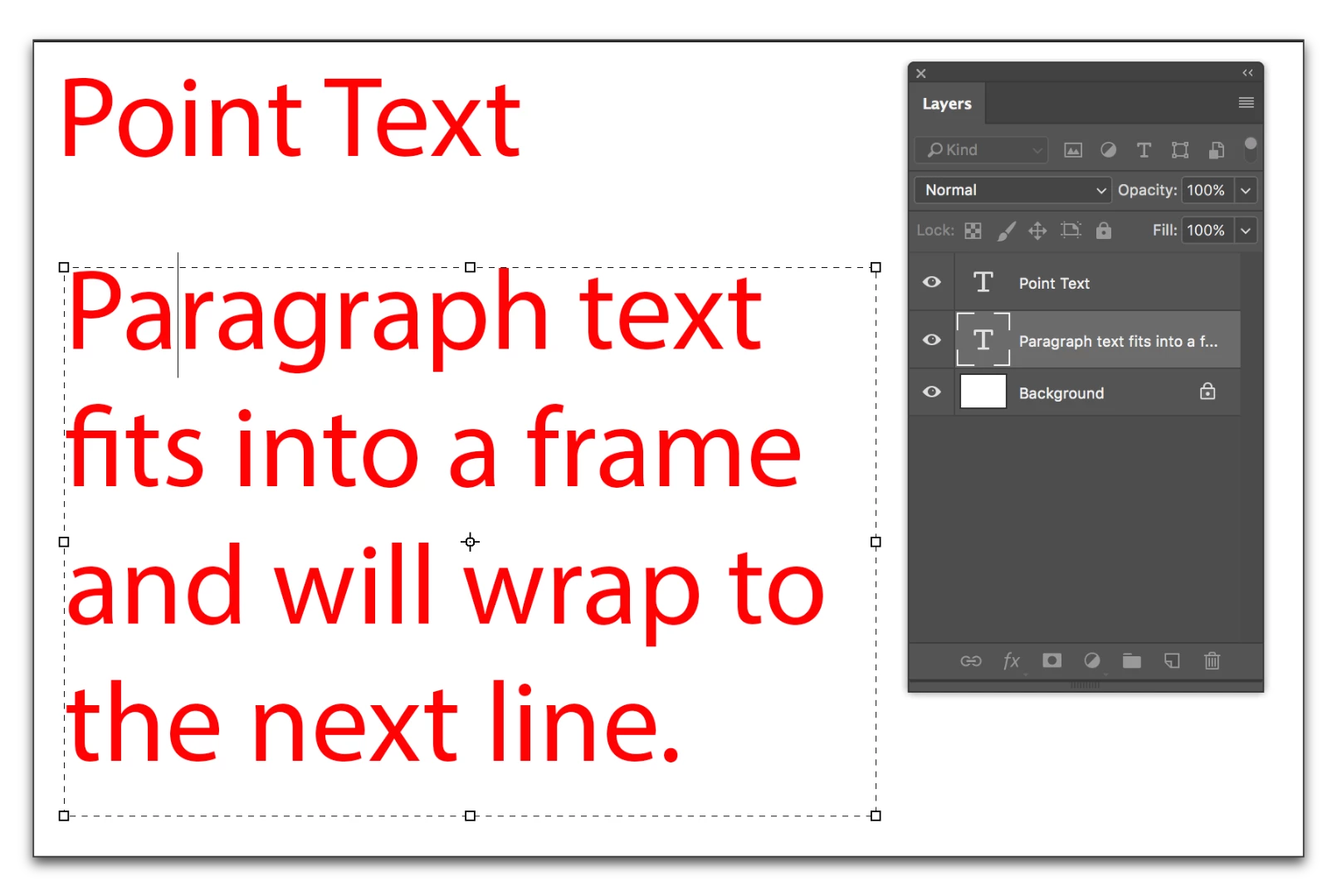
The layers look the same, so you can't tell which one it is until you click on the text with the Type tool. Illustrator has a feature that allows you to convert one to the other and back, but Photoshop does not have that feature, so I really don't think it's converting itself. I'm guessing that you are alternating between the two entry techniques, but hadn't really focused on it. I certainly see my students doing that prior to talking about the text features.

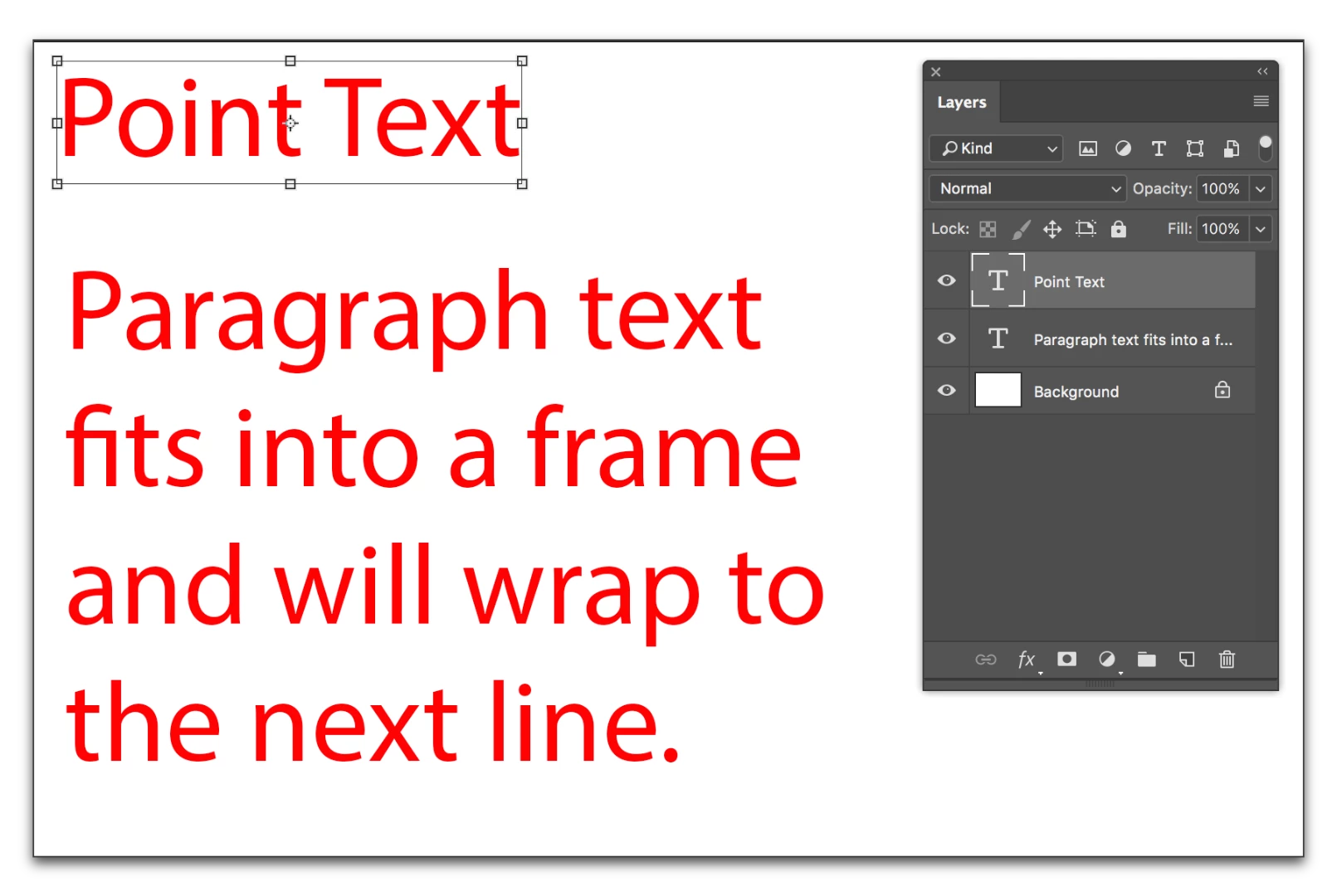
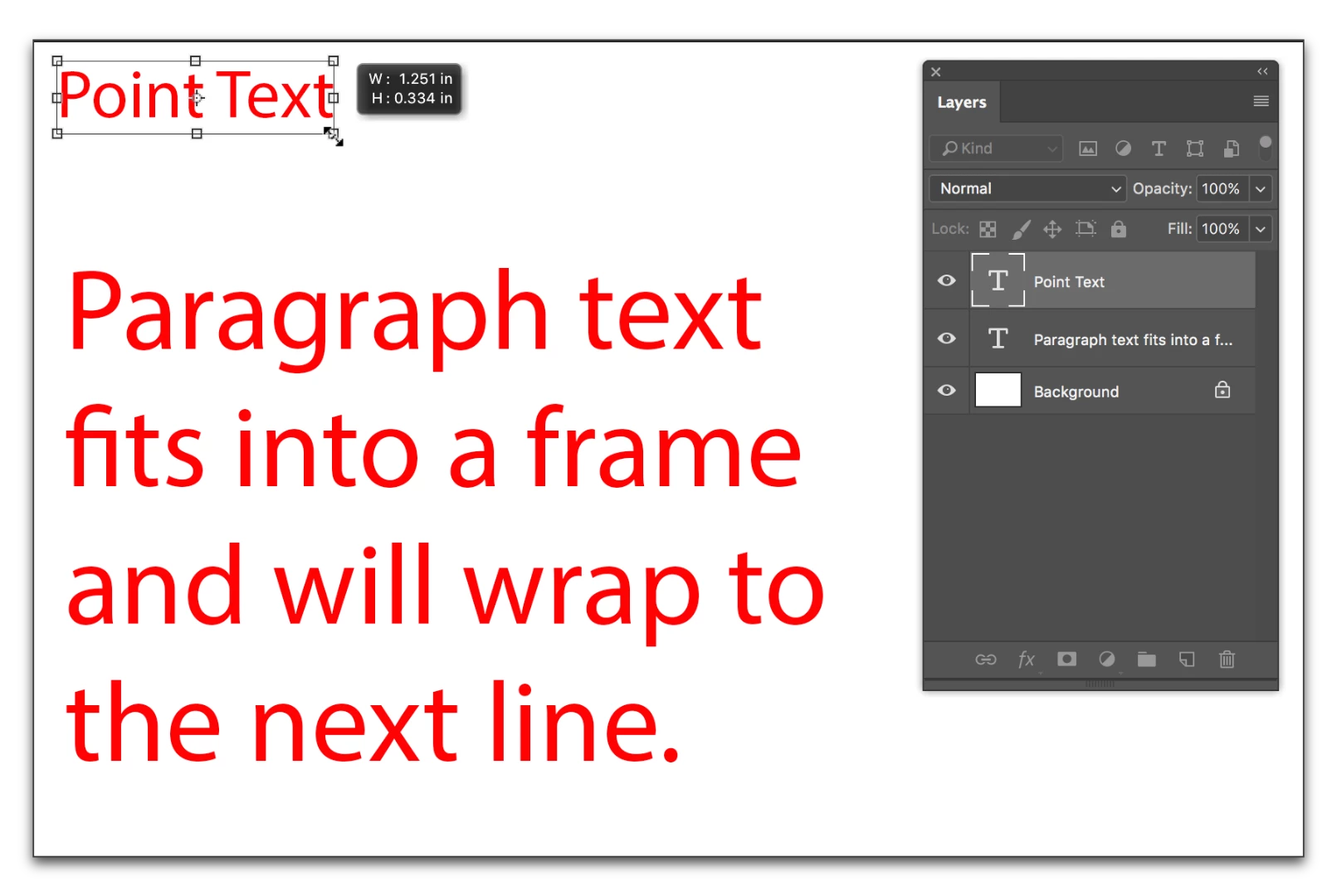
Your first screen shot has paragraph text, the second one has point text. You can resize the frame for paragraph text, and the text will readjust within. To resize point type, select the layer and choose Edit > Free Transform and resize. Press Enter when you are done.
One more thought... you can convert one to the other yourself with a cut and paste. Before you paste, either click or drag out the frame.

1 reply

Barb Binder
Community Expert
Barb BinderCommunity ExpertCorrect answer
Community Expert
June 8, 2017

Photoshop supports two types of text: point text and paragraph text.

Point text is used for short lines of text. To add it, you click once on the page and start typing.

Paragraph text can hold multiple paragraphs in a text frame, and changing the size of the frame, changes the word wrap. To add it, you press your mouse down on the page and drag out a frame, and then start typing.

The layers look the same, so you can't tell which one it is until you click on the text with the Type tool. Illustrator has a feature that allows you to convert one to the other and back, but Photoshop does not have that feature, so I really don't think it's converting itself. I'm guessing that you are alternating between the two entry techniques, but hadn't really focused on it. I certainly see my students doing that prior to talking about the text features.

Your first screen shot has paragraph text, the second one has point text. You can resize the frame for paragraph text, and the text will readjust within. To resize point type, select the layer and choose Edit > Free Transform and resize. Press Enter when you are done.

One more thought... you can convert one to the other yourself with a cut and paste. Before you paste, either click or drag out the frame.
~Barb at Rocky Mountain Training
Participating Frequently
June 8, 2017

Thanks Barb. I'm amazed Photoshop does not have the ability to convert Point Text to Paragraph Text. Hopefully it is something they will add in the future.

Barb Binder
Community Expert
Community Expert
June 8, 2017

I agree with you, and you can make a feature request here: Photoshop Family Customer Community .

I do want to be sure you saw my final line above, You can use cut/paste to change the type after you have added it, but it's not as quick as it is in Illustrator, which lets you go between the two types with a single click.

~Barb at Rocky Mountain Training