

JJMack
Community Expert
Community Expert
October 16, 2018
Answered

CC 2019 new Frame feature scaling

  • October 16, 2018
  • 1 reply
  • 3514 views

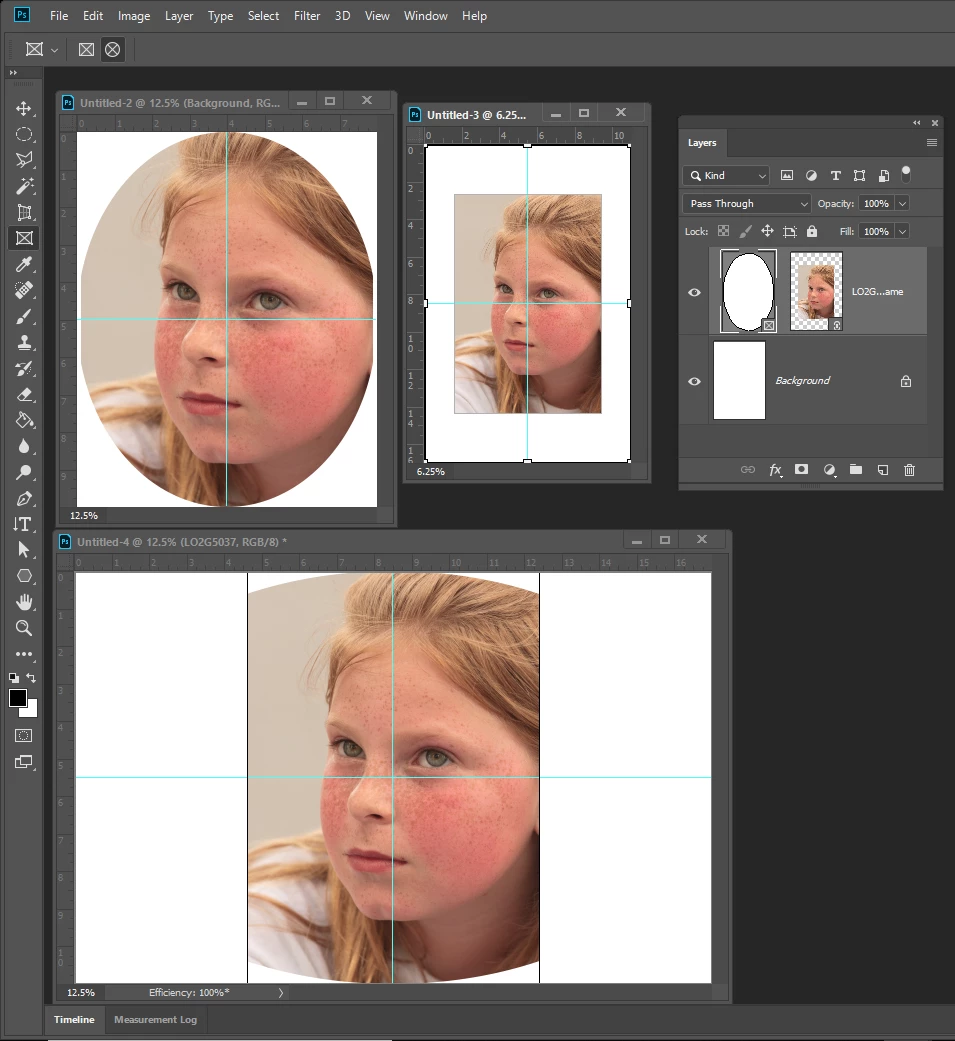
Seems to have a problem with its image scaling populating  frames. Her three example  of placing a 2:3 Portrait into a elliptical frame,  Documents have different sizes and aspect ratio.  In one the image was just not scaled to the correct width close but no cigar. In second large portrait document  the image was scaled to a rectangle the did not come close to filling the frame.  The  in the Landscape document the portrait image was not scaled to fill the frames width.   I know the portrait composition would not be acceptable if scale to fill the frame it is just as unacceptable not filling the frame.   IMO I feel Photoshop should scale the image to fill the frame area and let the user decide it the clipped composition is acceptable.
    This topic has been closed for replies.
    Correct answer JJMack

    I believe it may be Resize when place preference is messing  up your new Frame feature.  I had to deal with that in my Photo Collage Toolkit scripts in CS2.

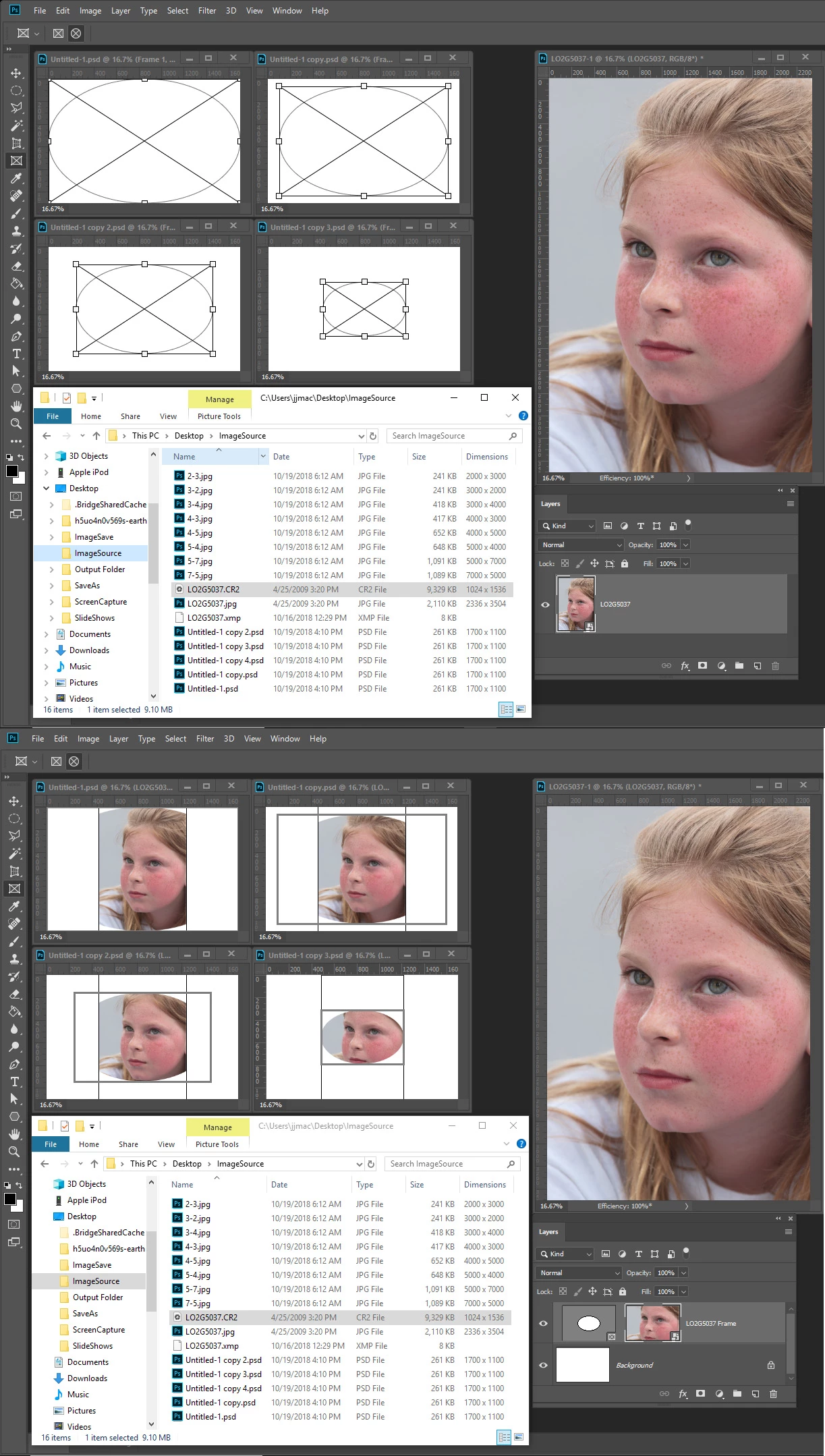
    Here I created a 1700x1100 px  100dpi  which is smaller than my portrait 8MP RAW CR2 file  2336x3505px size.  I create a full canvas size frame  17:11 aspect ratio.   I then duped the document three time and scale the frame in the duplicated documents down some while maintaining  the 17:11 aspect ratio.  I then dropped my CR2 RAW file on each frame the result show four different downsizing  one is actually correct.


    Adobe need to do a better job designing, developing and testing software.

    This is tyhe first time I ever marked one of my replies as correct.  But I believe it is somthing Adobe need to do.

    1 reply

    ChristopherButler
    Adobe Employee
    Adobe Employee
    October 19, 2018

    When placing layers in a Frame, we scale down, but do not scale up. So if the pixel dimension of the content is smaller than the Frame, we just place at native size.

    This was a feature design decision. Unfortunately, The Frame Tool drag and drop behavior is being pitched as "fill the Frame" behavior.

    Is the request to automatically scale up as well? Or have a gesture that does that?

    JJMack
    Community Expert
    JJMackCommunity ExpertAuthor
    Community Expert
    October 19, 2018

    The only reason I'm looking at the new Frame feature is to see if I can use them the in my Photo Collage Toolkit.   My toolkit has two short comings IMO.  It is limited to 53 image because Photoshop  Alpha channel limit is 53. The other is rotation and perspective.  From My testing I can easily see I can use Photoshop Frames to remove the 53 Image  limit.

    However Photoshop Frame scaling you tell me will not scale small image up.  Currently I also see like my toolkit it  also does not place in image with rotation and perspective distortion. 

    IMO it not worth changing my package if all I can do is lift the 53 Image limit at the cost of complicating  my template design and covering all existing template to use Frames instead of Alpha channels.

    I do not feel the 53 limit is that bad for my toolkit has a script that tile out as many image as you want to up to Photoshop 8,000 layers limit. That script does not use smart object layer to cutout the overhead required for embedded smart objects the Place image filse size to reduce load place places on  Photoshop.

    My package main function is automatic population of Collage template.   Though one script has interactive Collage assisted population like  Photoshop new frame tool.  Template are normally Batch populated or populate automatically and left open in Photoshop so the user can tweak the placed smart object image adjust their composition, add rotation and perspective etc.

    If Adobe add support for rotation and distortion I would most likely op for using frames layer.  I don't see frames as a great addition.  I started automatically populating Collage in CS2.

    The Frame tool should work as documented IMO.  I opened a Adobe preset 11x17 300dpi document a was using it Portrait and Landscape orientation  testing to see how mismatch Aspect Ratio would be handled  and was surprised when a 8.2 Raw File was not resize like documented.  I had no problem correcting the scaling.

    I expect the Portrait to Landscape composition to be bad . I did not expect the portrait to be scaled down in size when it should have been scaled up in size. I believe Place resize  when placing option is messing Frame implmentation.

    JJMack
    JJMack
    Community Expert
    JJMackCommunity ExpertAuthor
    Community Expert
    October 20, 2018

    Let me try to be a little more clear:

    There are two issues in play here. They conspire against each other.

    PS-21236. This is a bug. The image being imported is being represented at a size smaller than it really is. So in the case of your 2336x3505 pixel image (at 300 ppi), it seen by the sizing code as 779px x 1168px (at 100 ppi). When placed in the 1700x1100 pixel Frame (at 100ppi), that smaller size is being used for the calculation. That's wrong.

    PS-21222. This is a feature request to scale the image data to fill the frame, even when the image data is declared to be smaller than the frame. So - allow upscaling beyond 1:1 when placing. I think it's reasonable, but it is a change in design. There are good reasons to not do it by default, but I can see the value for some workflows, so perhaps it could be an option.


    Ok let be clear  some where there is a log you have access to and it has issues PS-21236 and PS-21222 how do we mere morale see this log. So we can  provide feedback?

    Looking at it from afar a document has as canvas size that  is  some X pixels wide and some Y pixel high.  As does an Image file.

    I fully support that Image quality should be preserved images pixels should not be altered by things like interpolation when possible. Smart object layer do that for the object contain a copy of the image file or a link to the file, and Photoshop renders all the pixels in the image for the smart object layer content and these pixels can not be changed with Photoshop tools.  When DPI resolution do not match Photoshop will scale and try to resize the image for scale of the document.  That works to a point.  For image are captures with object at different distances from cameras, different focal length lens with different resolution sensors..  You normally  need to adjust image so object appear relatively the correct size relative to object in other image  when relative size is an important issue.

    All smart object layers have an associated transform that can scale and distort the pixels rendered for the layer. So the layer composite view  can be scale and warped from the layers actual rendered  pixels.  The transform can effect the image quality of only the smart object  layers composite.  The Actual original quality of the image is still preserved in the pixels rendered for the smart object layers.  You can change the smart object layers associated transform over and over again without compromising the quality of the pixels rendered for the image.

    The problem is the the new frame feature does not change the smart object layers associated transform to fill the frame and mask the layer  to the frames shape. That is what I have been doing since CS2 in my Photo Collage Toolkit  for my template image frames using Alpha channels.  It is not rocket science.

    JJMack