
Inspiring
May 23, 2020
Answered

CC 2020 Shapes Options Not Available

  • May 23, 2020
  • 2 replies
  • 3451 views

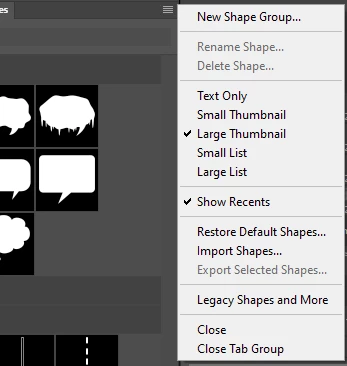
Seeing lots of posts regarding SHAPES in latest PS CC 2020 (21.1.3) but no joy. I have grayed out shapes and nothign I do solves the issue. I have copied the shapes files to multiple different spots with no resolution.
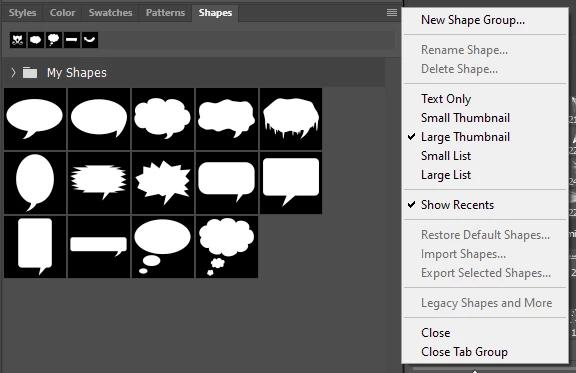
 

I am just trying to use my shape files. Some new ones and some old ones I have had for many years. 

1. What should be the proper folder location (Windows 10) for the shapes files? 

2. How should I be loading these shape files? 

3. Custom Shapes vs Non Custom Shapes? I am confused. 


Thanks for the help and support. A call to Adobe Support yielded a :35 minute wait time and I had to bail.  
This topic has been closed for replies.
Correct answer gonzalu

Thank you, PECourtejoie


My issue was loding net new custom shapes... While your tips did not directly address the issue, I did find out what was going on. Perhaps others have a similar issue. 

Photoshop will NOT tell you that there is a maximum number of shapes you can have loaded. Nothing complains there are too many. I found out by double-clicking the Shapes .CSH file and Photoshop displayed an error saying too many shapes were already loaded. 

Deleting the shapes from the folder and restarting does not change things. You have to manually DELETE the Shapes or Shape Groups in the panel. 

Once enough room is made, your grayed out options re-appear. You can then re-load any shapes including the legacy ones. 


Thanks all once again for the help. 

2 replies

Participant
January 11, 2021

Hello Pierre --I have three problems, I can't download new shapes into presets, I can't download historical presets, and I can't delete duplicated presents.  For example,  I find all 4 presets duplicated at least once, some three times. The delete button is grayed out in all cases.

PECourtejoie
Community Expert
Community Expert
September 16, 2021

Hello, are you using the Shapes panel when you try to delete, load and save them?

PECourtejoie
Community Expert
Community Expert
May 23, 2020

Hello, the main issue is people trying to get the legacy shapes, but you won't find them in the menu of the option bar, but in the shapes panel, it seems that you found them.

Are you doing something like cropping? It could prevent the menu to be active.


The presets you create should be placed there:

Users/[user name]/AppData/Roaming/Adobe/Adobe Photoshop [version]/Presets/[feature name]

The default presets are located in the presets folder next to the application.

More info here (but disregard the part about the presets manager, it needs to be updated) : https://helpx.adobe.com//photoshop/using/presets.html


gonzaluAuthorCorrect answer
Inspiring
May 23, 2020

Thank you, PECourtejoie


My issue was loding net new custom shapes... While your tips did not directly address the issue, I did find out what was going on. Perhaps others have a similar issue. 

Photoshop will NOT tell you that there is a maximum number of shapes you can have loaded. Nothing complains there are too many. I found out by double-clicking the Shapes .CSH file and Photoshop displayed an error saying too many shapes were already loaded. 

Deleting the shapes from the folder and restarting does not change things. You have to manually DELETE the Shapes or Shape Groups in the panel. 

Once enough room is made, your grayed out options re-appear. You can then re-load any shapes including the legacy ones. 


Thanks all once again for the help. 

PECourtejoie
Community Expert
Community Expert
May 23, 2020

Hi, how many shapes did you have? Or was it only in a given shapes folder. Also, all these presets can slow Ps down, and eat scratch space...