
emilythecapricorn
Participant
October 13, 2019
Question

Change Darker Color to Lighter Color, Keep Texture

  • October 13, 2019
  • 3 replies
  • 6162 views

Hi all,


Couple questions. Firstly, I want to change the color of the dark green dress in this photo to a lighter, banana yellow. I have been working with Photoshop since last April, and know how to change colors using blending modes, hue/saturation, color fill layer, etc. But whenever I try to use those methods on any darker color and change it to a lighter color, like black to tan, or dark red to orange, the result never comes out naturally. For this photo in particular, the new colors either turn out too dark and ugly, like a pickle yellow, and if I change the blending mode to make the color lighter naturally, it looks even weirder.  I'm tired of succumbing to these methods and have to believe there's a better way to do this. 
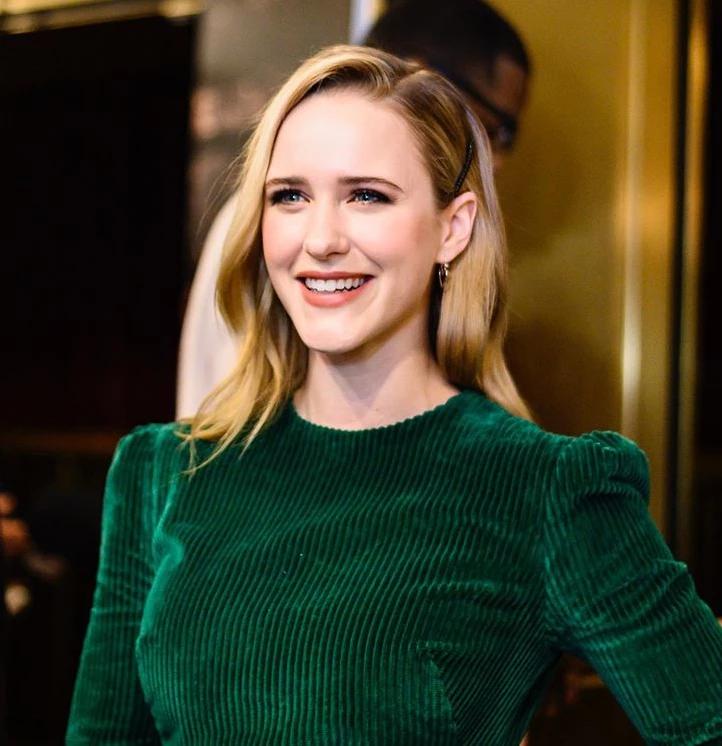
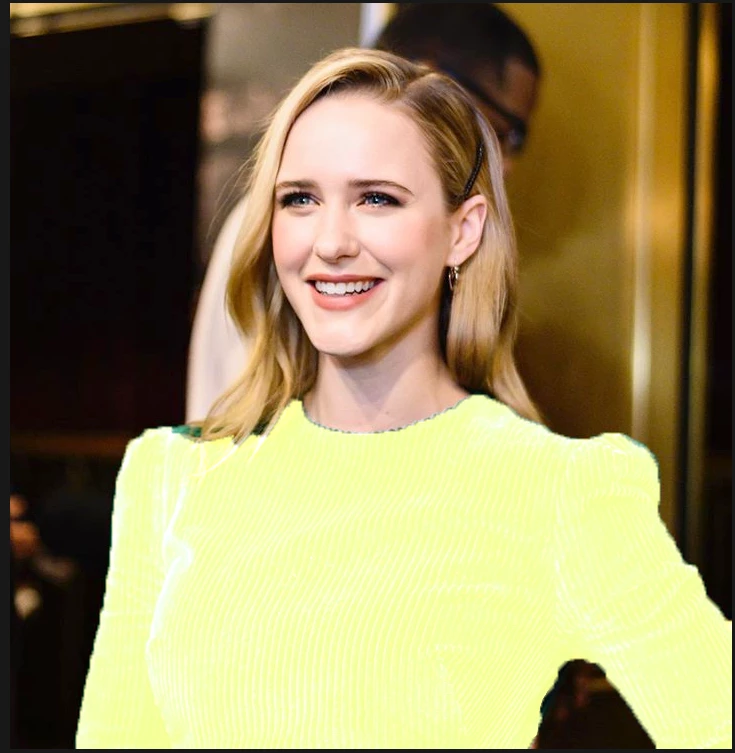
 

I also need to keep the texture of the color change the same as the original image. So for this photo, I'd like to have the green be yellow but still keep the lines and velvety texture to the dress the same. Any help? 

3 replies

davescm
Community Expert
Community Expert
October 15, 2019

Nice job Chuck - and the technique is a new one on me.


As an alternative - the more usual Lab method - convert to Lab and add a curve adjustment layer. I tweaked the shadows under her arm slightly painting with grey on a layer set to multiply

Dave


Chuck Uebele
Community Expert
Community Expert
October 14, 2019

You put the grayscale at the bottom of the stack, and only the have it selected for the color you want to change, hence the layer mask, on the group. The top layer is for color, and it is a solid fill layer, set to color,  but you could likely use a hue/saturation layer set to colorize. Whatever works best. Kind of doing this from past memory,  as I have never found this technique, by Jim, online I have it somewhere in a manual I got from a brief class that I took with him. It does require a lot of tweaking, but I think you might get the best results doing it this way

 I actually prefer to use a L*A*B* method, but this other one might be better for drastic luminosity changes.

Chuck Uebele
Community Expert
Community Expert
October 14, 2019

There are lots of ways to change the color, but changing from light to dark or dark to light is more challenging. The late Jim DiVitale had a method that he called ".com". You separated the area that you wanted to change. turn a base layer into a grayscale layer, then duplacated those layers 3 times. I instead used curves layers, to let you have more control. The top layer of the .com was the color layer, the "o" layer is overlay, and the "m" layer is multiply or screen. by adjusting the opacity of these various layers you can control the color, contrast and density of the output. Here is how my file is set up with the screen layer showing, including some adjustments to the curves to brighten the image even more. It takes a bit of tweaking to get it right, but Jim was a comercial photographer, who did a lot of this.


emilythecapricorn
Participant
October 14, 2019
Thank you for introducing me to this method. I think I understand the idea of what you're saying, but am having some trouble doing it myself. Do I put the grayscale layer over the entire image, or just the selection? And do I duplicate the selection as a layer, or the grayscale layer instead? Also, how did you get the color adjustment icon on the top color layer if it was a curves layer?