
March 8, 2018
Answered

Clipping mask MAJOR color Problem

  • March 8, 2018
  • 2 replies
  • 8457 views

Hello, and thank you in advance for your reply... My native language is French so I apologize for the poor explanation.

I've started to learn to use photoshop a couple of months ago and one of the feature that I use the most are the clipping masks. However I've been encountering a recurring problem that is slowly driving me crazy.

When I use a clipping mask, the colors that I use appear differently than the colors I selected. This problem doesn't always happen... In fact, it comes and goes and I really don't know from where it's coming.

Here's two pictures to show you what I mean:

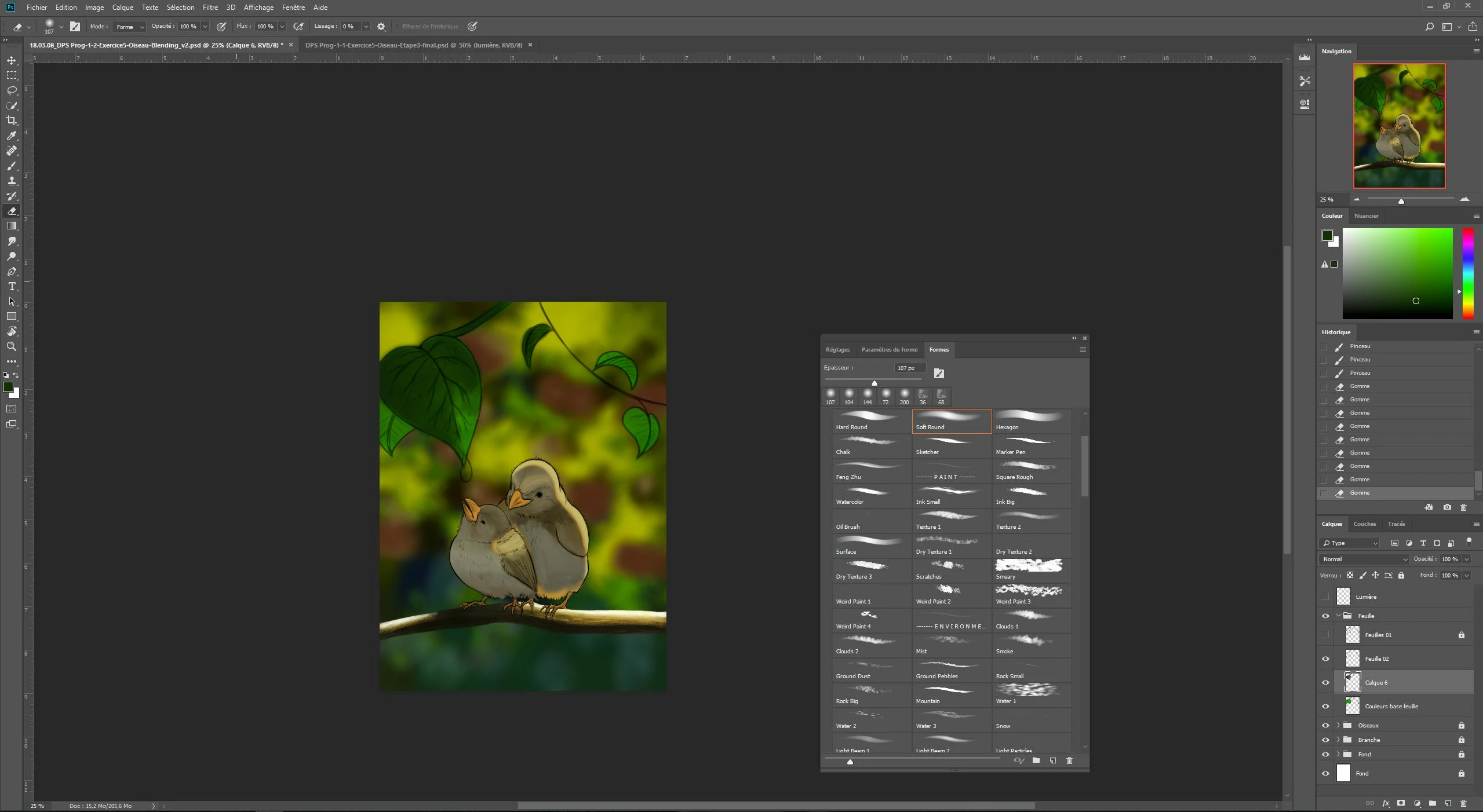
In this first capture, you can see the mask to do the shadows on the leaves is not clipped... Leaves, branch and birds are in separate groups. The colors of the branch and the birds  were done using clipping mask:. One for the flat colors, and others clipped on the basic one for the effects. in the case of the bird and the branch, the clipping masks worked properly. However... the color problem restarted with the leaves...
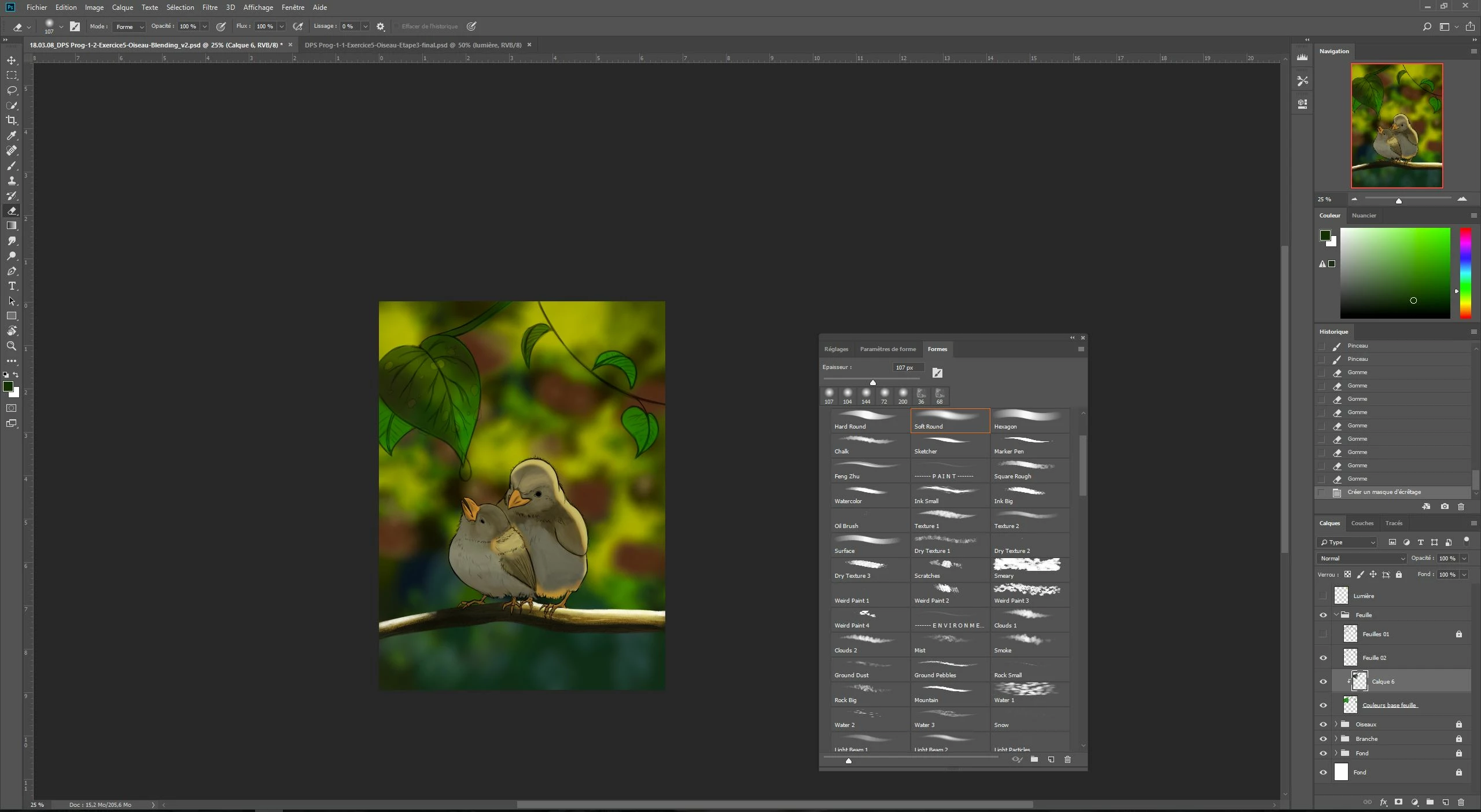
Below, you can see a capture of the same leaves. Now, in this one the shadow mask is clipped. That is the ONLY DIFFERENCE with the first image I posted but here's what I get in terms of colors:
I've encountered this problem on several occasions. I installed and uninstalled photoshop several times, changed versions, checked and rechecked if there was a special filter I had applied or maybe a button I had pushed without knowing, I've also checked the layers and channels/overlays ( it's calque and couches in french so I'm not about the translation sorry) but I'm really at a loss here.

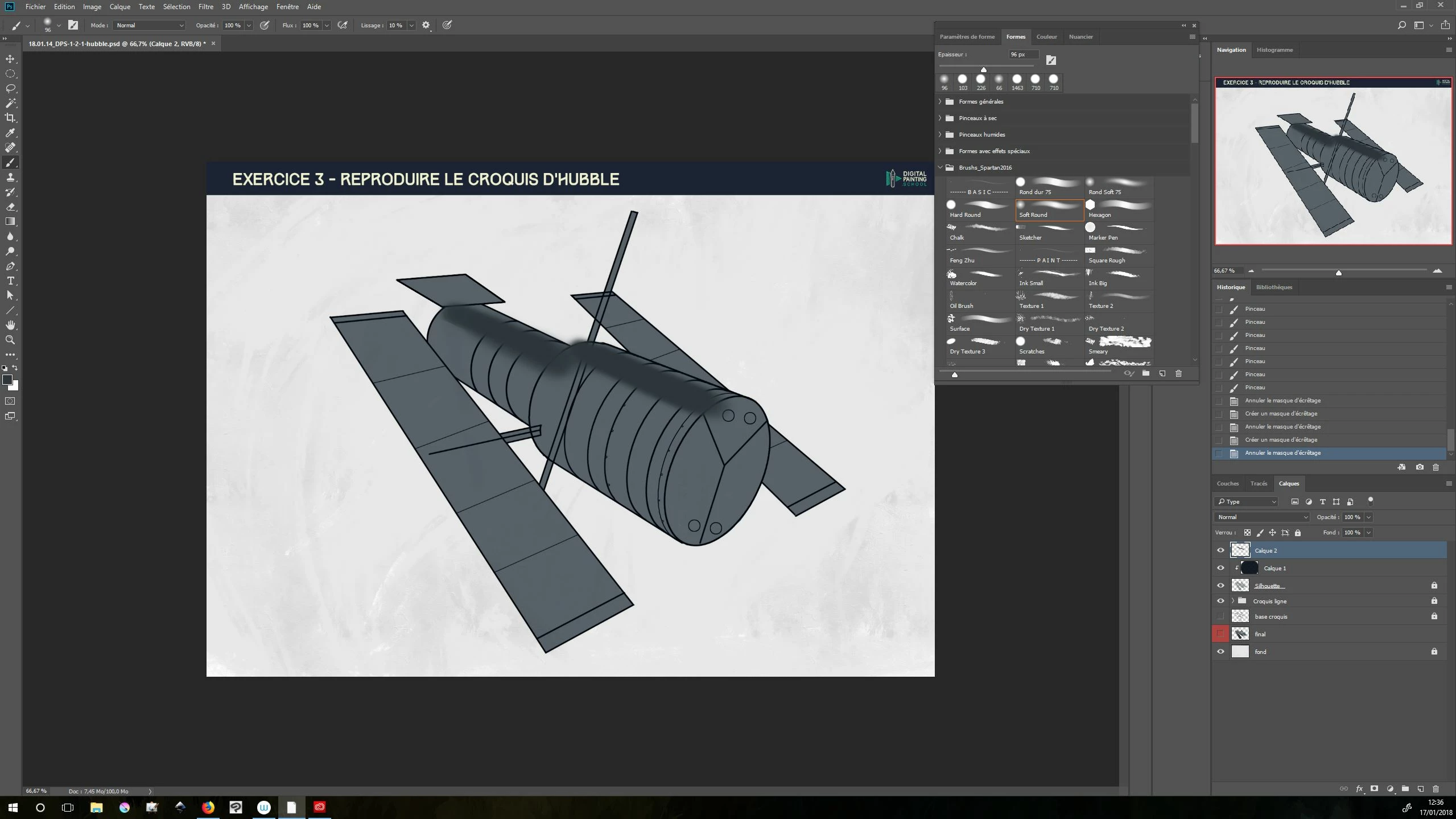
Here's another example:

Without clipping mask:
With clipping mask:
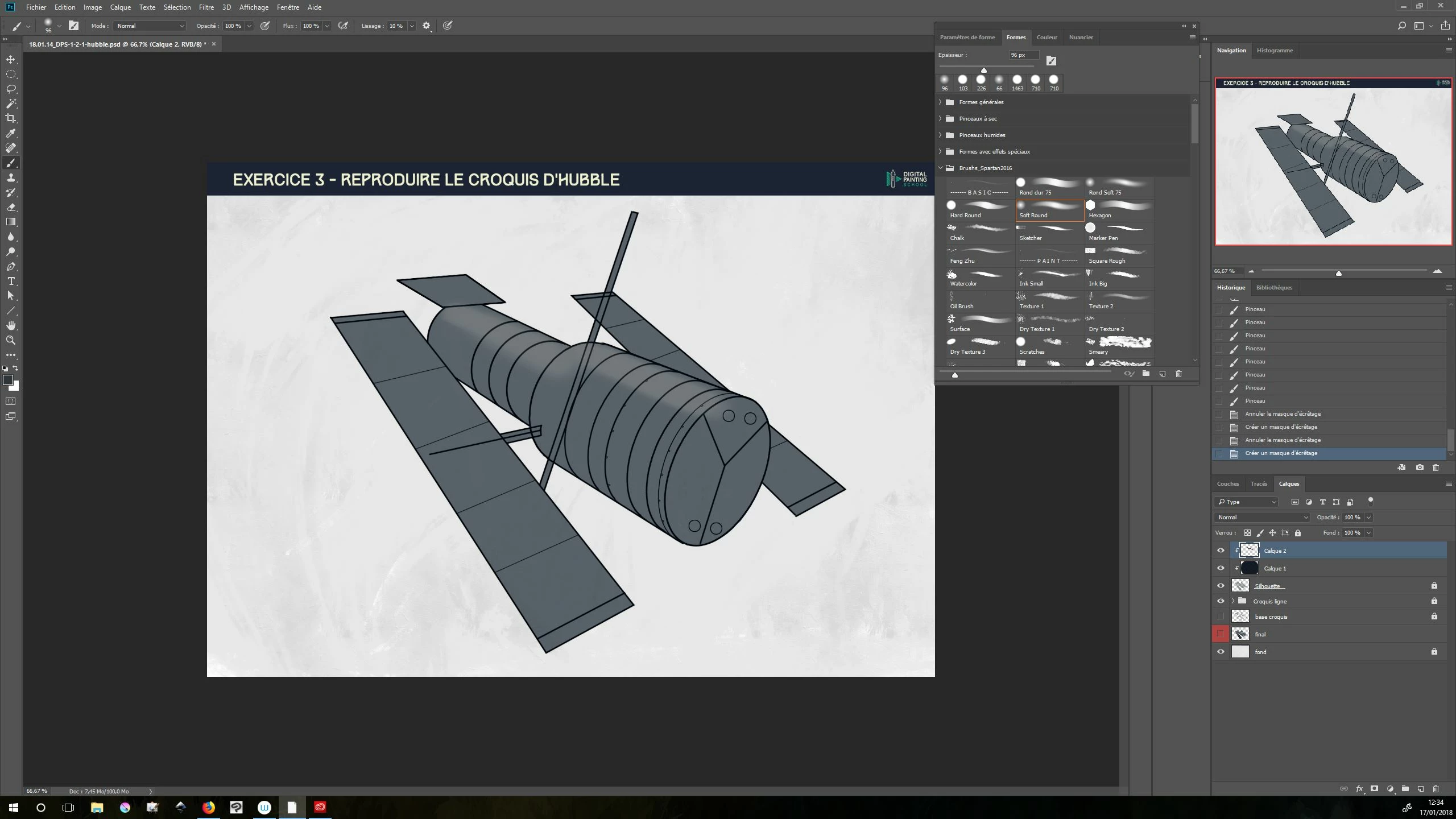
Depending on the color, the difference is striking. Even worse, if it's not clipped, I'll get a darker color while passing several times on the same spot... but once clipped, it doesn't change at all, it's like it's set on one color no matter the opacity of the brush chosen.

I've posted on the technical forum of the website I'm learning from, but nobody knew what to make of this. I insist, I've checked and rechecked, the only difference between both pictures as far as I know is this: the clipping.

You're my last hope guys, so I really hope somebody will know from where it's coming. It's already difficult to learn so when you add problems like these, honestly it's discouraging.

Again, Thank you very much in advance for the kind reply.

Hoping you give me back some hope.

Artistically.

This topic has been closed for replies.
Correct answer rayek.elfin

Thanks again for your quick reply...

Unfortunatly, that is true... But still the problem occurred on other files where the opacity of the base layers was 100%...

Did you do the test? I just did and it didn't work for me. I turned it off on both layers but the colors are still different when the layer is clipped and unclipped.


Ah sorry, I forgot to mention: to make this work you should use a Fill of 70% instead of an Opacity setting of 70%.

Set the base layer to a Fill of 70% and the Opacity to 100%. Then turn off that "Blend Clipped Layers as Group".

Is that what you want?

2 replies

Omar.Fathy
Community Expert
Community Expert
March 8, 2018

Can you give a screenshot but select the base layer (the layer that used to be a clipping mask) in the layer panel to see what is the problem?!

March 8, 2018

First, thank you for your quick replies....

In both screenshots, the clipping masks are already selected although in the picture of the satellite, you can see two  clipping masks and both actually have the same problem.

I wish I still had the file with the satellite ( these were screenshots I originally posted on another forum but I got so frustrated I ended up doing something in flat colors and erasing the problematic file) because the problem happened on every clipped masks... unlike the bird layer in which as I said above, the problem occurred for the leaves but not for the branch nor the birds.

So here's the file of the bird. Note that I'm still working on it and I'm currently trying to do the work with a layer mask... That's not the most effective.

For the purpose of this demonstration, I clipped the layer in question (the result is awful as you'll see).

The clipping mask is named "Calque 6" and is in the "Feuille" folder:

https://ufile.io/4lw32

Note: It seems I can't upload directly a file on the forum so I uploaded it on another website, but the link here is psd so rest assured.

Hope it helps you find some clue....

rayek.elfin
Legend
March 8, 2018

I looked at the file (thank you for sharing it with us!) - the reason for the colour change is simple: your base layer (Couleurs Base Feuille) has an opacity set to 70%. When you use a clipping mask the "child" layers become part of it, and the entire clipping group becomes transparent.

To prevent this, double-click on the Couleurs Base Feuille layer, and turn OFF the "Blend Clipped Layers as Group. It will work as you want then.

rayek.elfin
Legend
March 8, 2018

That's interesting. I tried to reproduce the problem. but no luck so far. Clipping masks have some buggy behaviour as far as I am aware (for example, color overlay layer effects don't work as they should), and perhaps you encountered another one.

Could you share a file with us which demonstrates this issue?