Participant
August 27, 2016
Answered

Color changes when saving from PSD to JPEG

  • August 27, 2016
  • 9 replies
  • 88777 views

Hi all,

When i export the image bellow from psd to jpeg the color changes.

The pink becomes purple!
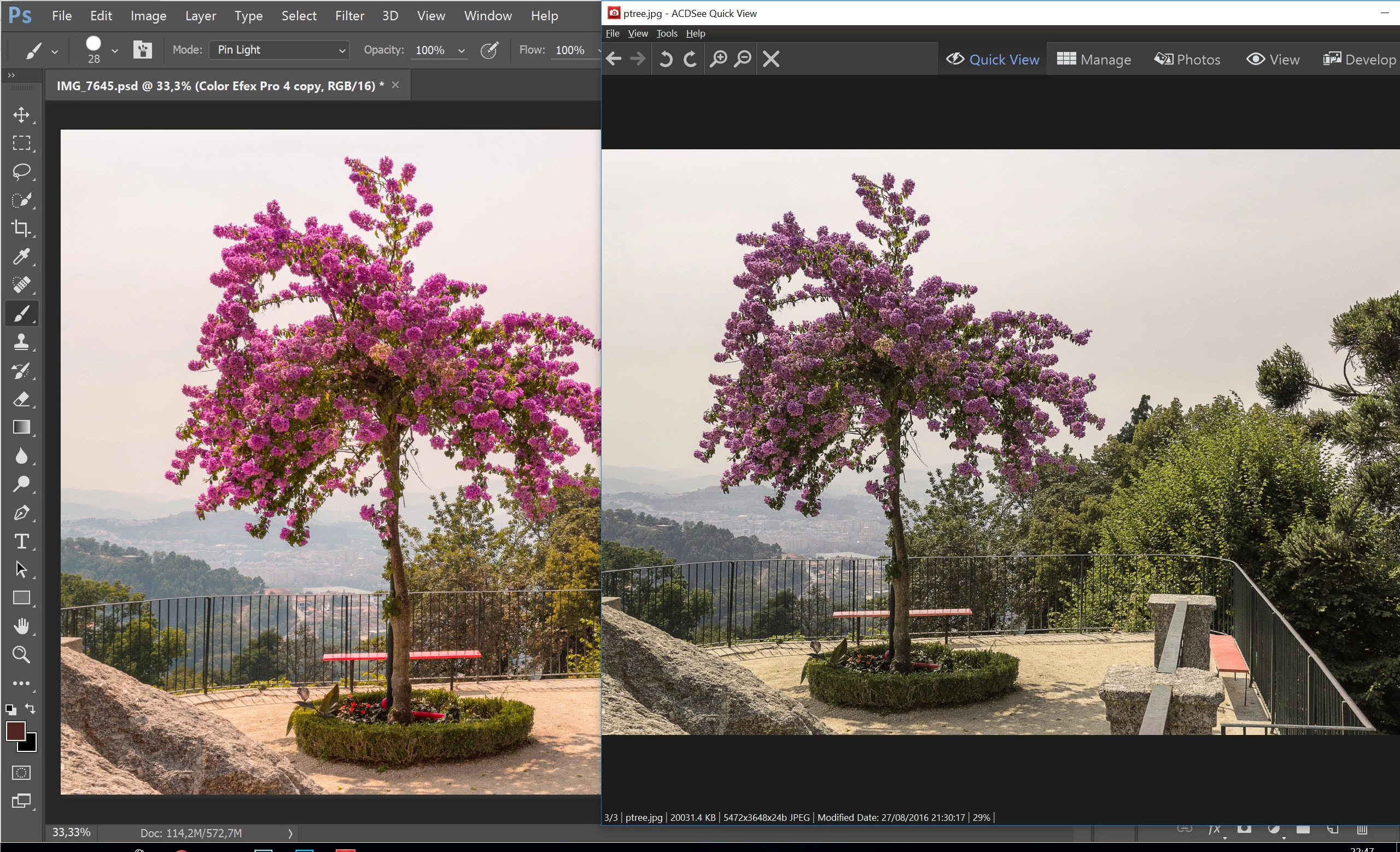
Any help would be appreciated

This topic has been closed for replies.
Correct answer D Fosse

Just to be absolutely clear on this - the problem here is that the file is in ProPhoto RGB.

Windows "Photos" is not color managed and cannot represent a ProPhoto file correctly. Nor will any other application without color management.

Convert to sRGB. That is the correct answer to your question (which is a very common beginner's mistake, BTW).

In Photoshop, go to Edit > Convert to Profile > sRGB IEC61966-2.1.

If you are Using "Export As" or "Save For Web", just check the Convert to sRGB box.

9 replies

NB, colourmanagement
Community Expert
Community Expert
June 5, 2022

For decent universality you need to save out images in sRGB.

You may like to make a copy and archive the original in it's original colour space.

Then flatten the copy and convert  to sRGB.

Save with the ICC profile embedded. 


This can't "fix" image appearance for non colour managed viewing applications, but since sRGB is a reasonably widespread screen characteristic using sRGB should help.

Users of Wide gamut screens (e.g. claiming 98% Adobe RGB, or perhaps P3) MUST use colour managed software for viewing. 


I hope this helps
neil barstow, colourmanagement net :: adobe forum volunteer:: co-author: 'getting colour right'
google me "neil barstow colourmanagement" for lots of free articles on colour management

Participant
June 1, 2022

 images in photoshop look great but not anywhere else

Legend
June 1, 2022

So, don't use anywhere else...

Participant
October 5, 2020

I have the same issue but the answer is not working.

davescm
Community Expert
Community Expert
October 5, 2020

@sus4mee  No that is not the same issue.

It looks like your "issue" is that you are seeing a change in your image when flattening. The answer is to view before and after flattening at 100% zoom.
The preview when zoomed out is not accurate. In most images it is close enough that it goes unnoticed but on some, with fine noise or certain combinations of blending, it is very noticeable indeed.

So adjust your image at 100% zoom and the flattened version will look the same.


Dave

Participant
October 5, 2020

@davescm 

Thank you for your kind reply. But it is sure that it is not about Zoom, I think. Coz I checked in a different view, even in 200% to make sure. 

NB, colourmanagement
Community Expert
Community Expert
January 22, 2020

Hi Mary

you wrote: We are also seeing a difference in image appearance between our main computer and the new laptop. (Same document is on both) On the laptop, (HP Windows 10)


Display screens need calibration and profiling, For this you need a measurememnt device and good software. 

Adobe applications will then use the screens ICC profile to send adapted data to the monitor screen to produce correct appearance.

you may notice, though, that tilting a laptop screen or m=ving your head uop and down can give significant changes to on-screen appearance, so - how can we know - which positiion is right?

That "feature" of many laptopo screens can mean that for serious image judgement use you may have a hard time using the laptop screen. In whiuch case you need to plug in a decent second screen like an Eizo Coloredge - some of those are even self calibrating and make their own ICC profile.


have a read up here about what icc profiles do:

https://www.colourmanagement.net/advice/about-icc-colour-profiles/


I hope this helps

if so, please "like" my reply

thanks

neil barstow, colourmanagement.net

[please do not use the reply button on a message in the thread, only use the one at the top of the page, to maintain chronological order]

Participating Frequently
January 19, 2020

I am experiencing the same problem. When I copy and paste or "place" my photoshop images into the InDesign document, which is a booklet I will have printed, these images are much lighter, less saturated and even appear pixellated.  The solution, as I understand it, lies in color management and that I should convert to the "sRGB 1966"...that is mentioned in this thread and other ones as well. BUT I believe the print company wants the images in CMYK. Or is this outdated info? thank you very much!

D Fosse
Community Expert
Community Expert
January 20, 2020

Save out as RGB from Photoshop, and make sure the color profile is embedded when you save the file. For the purposes of this discussion it doesn't matter which profile, as long as it's there.


Make sure the InDesign color settings preserve embedded RGB profiles. By default it will, so don't change any settings here unless you know what you're doing. The images will now match Photoshop.


If the printer wants CMYK, they want what is known as a press-ready PDF. You export this PDF from InDesign, and this is where everything is converted to final destination CMYK. Here's the important thing: you must always ask the printer which CMYK they want, which specific CMYK profile you should use. There is no worldwide standard here and the Photoshop/InDesign default is probably wrong! The default, US Web Coated (SWOP), is not used anywhere outside the Americas, and isn't always inside either. 


InDesign can handle both RGB and CMYK content in the same document. Images should always be placed as RGB, while graphic elements are usually best created in final destination CMYK.


Participating Frequently
January 22, 2020

Thank you...we are learning...slowly! One thing we discovered is that the photoshopped images we were having trouble with had not yet been "linked" into our InDesign document. When we did that, that got rid of the pixelation. We are also seeing a difference in image appearance between our main computer and the new laptop. (Same document is on both) On the laptop, (HP Windows 10) the Photoshop images appear to much better match the exported InDesign images in color hue and saturation. However there's still a discrepancy between the two on our Lenovo Windows 10 desktop computer. We will follow your instructions per above.  Thank you,


Participant
October 27, 2019

Not sure if this is scientifically correct, but when I print photos from my Samsung 8 into online albums or home printer, they print dull. When I print photos from my Nikon 5200 or other Nikon cameras the color comes out true to what I see on my screen. Printing online with different companies is tricky...but I never resolved that issue with print media. So now, when taking photos I want to print, I use my bulky, less convenient Nikons. Correct me if I'm wrong, but I think there is a tech difference between what we see on our phone/computer screens and what we print on papers. Printing is complex and frustrating but I've been doing it for decades. There is backlight on screens. There is no backlight on paper...so the colors are muddy. You could try a different profile in Photoshop for messing with photos for print. That doesn't change the light in print photos for me. I have never printed directly from my phone to my printer to see if that prints true, but then I can't use photoshop and dicker with it. My problem might be that way back when my techy refused to set me up with Apple due to cost and other issues like it crashed all the time, and I got used to PC and it's cost effective for me. He came free. Maybe if you have a home printer you could experiment using different profiles in Photoshop with camera pics and phone pics. One album I did, I had a mix  of photos from phone and Nikon...from a trip and I noticed a consistent muddiness from my phone pics compared to the sharp true color from the Nikon. I like to travel with phone for pics...my Nikon is a pain re charging batteries overseas and carrying the heavy stuff...but next time I'm taking phone for phone and Nikon for photos!!! Good luck with printing. It's complex.

davescm
Community Expert
Community Expert
October 27, 2019

Printing is not complex and a good match from screen to print is achievable (within the obvious limitations of inks). But it requires :

a. A calibrated and profiled screen (a phone screen is not calibrated or profiled)

b. Software which uses colour management (guess what - neither iOS or Android support colour management). Photoshop is colour managed

c. Documents having an embedded profile that matches their content (this can be sRGB, Adobe RGB, Pro Photo etc)

d. A printer profile which describes your printer + ink + paper combination.


You do not experiment with colour profiles , you use the right one for the device or document it describes.


With those four in place, printing is simple


Dave

D Fosse
Community Expert
D FosseCommunity ExpertCorrect answer
Community Expert
August 28, 2016

Just to be absolutely clear on this - the problem here is that the file is in ProPhoto RGB.

Windows "Photos" is not color managed and cannot represent a ProPhoto file correctly. Nor will any other application without color management.

Convert to sRGB. That is the correct answer to your question (which is a very common beginner's mistake, BTW).

In Photoshop, go to Edit > Convert to Profile > sRGB IEC61966-2.1.

If you are Using "Export As" or "Save For Web", just check the Convert to sRGB box.

Participant
August 28, 2016

Yes, i did that and worked.

Thank you very much.

D Fosse
Community Expert
Community Expert
August 27, 2016

Convert to sRGB.

Your original is ProPhoto, which only displays correctly in a fully color managed environment.

Mohammad.Harb
Community Expert
Community Expert
August 27, 2016

You need to know more about bit depth, Color space and Color management

your psd is 16-bit .. so when exporting to jpg , the image previewer could not preview the 16-bit  correctly

Switch to 8-bit and make sure your color space is the same as the

image -> mode -> 8 bit

more about color management:

Set up color management

NB, colourmanagement
Community Expert
Community Expert
June 5, 2022

Hi Mohammad, 


actually this is, unfortunately, not a bit depth issue but a colourspace issue.


I hope this helps
neil barstow, colourmanagement net :: adobe forum volunteer:: co-author: 'getting colour right'
google me "neil barstow colourmanagement" for lots of free articles on colour management

Participant
November 13, 2023

Why did his answer then finally solve the issue for me? 


I converted to sRGB before saving, while saving whatsoever it never worked. I got suspicious when i saved as webp which supports 16bit and it worked. So pretty much, it seems a depth issue and not a color space issue.