TWO FISHES
Inspiring
March 13, 2018
Answered

Color Managment?

  • March 13, 2018
  • 3 replies
  • 1637 views

When I open an image in Windows photo viewer it looks fine, but when I open it in Photoshop, it looks vastly different. Why does this happen?

    This topic has been closed for replies.
    Correct answer D Fosse

    Okay, I might have messed up the policies (?) because I tried many different things inside the profile compartments of Photoshop and Windows...Thanks!


    This looks like a broken monitor profile to me.

    But first of all, reset all Color Settings to defaults. Just pick one of the "general purpose" presets.

    Next, to keep things simple, make sure your document has sRGB embedded. Open "Convert to Profile" and look at source profile. If it's already sRGB, close out. If it's not, convert.

    Then replace your current monitor profile with sRGB IEC61966-2.1. That's not entirely accurate, but close enough for most people. It should also ensure consistency with other non-color managed applications (insofar as that's desirable).
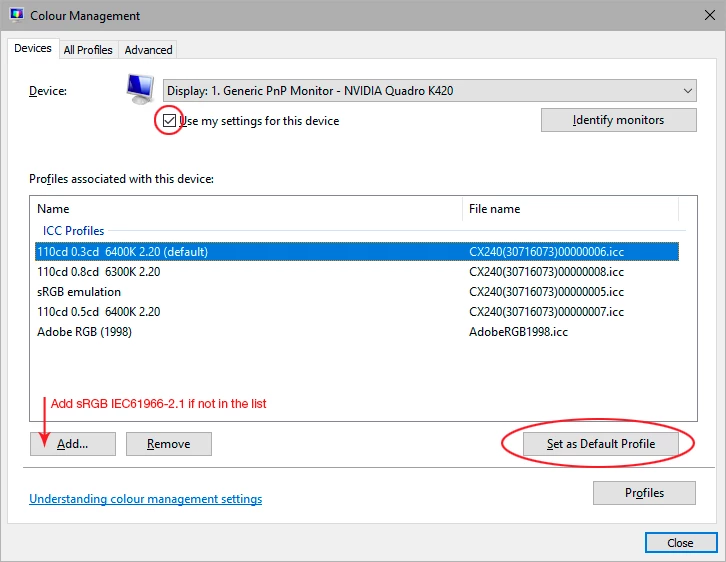
    Relaunch Photoshop when done, it needs to load the monitor profile at application startup.

    If you really want accurate color, you need to buy a calibrator. This will create a custom monitor profile for your specific monitor. Photoshop will use that to correct for the monitor's inaccuracies, and this goes far beyond simple color balance issues.

    3 replies

    Omar.Fathy
    Community Expert
    Community Expert
    March 13, 2018

    In the image viewer you see your image in a color profile but in photoshop you see it in another color profile.

    First, If you are using CMYK color mode in photoshop, It is the nature of it so you will see that your image is different.

    Second, If your are using RGB color mode and seeing a difference it is beacuse of the color profile, you can change the Photoshop color profile from Edit>Color Setting.

    D Fosse
    Community Expert
    Community Expert
    March 13, 2018

    It's not about one color profile versus another. It's about a color profile versus no color profile. And you don't change document profile in Color Settings. You do it with Convert to Profile. The document profile will override the working space (or it should if you haven't messed up the policies).

    But that's just half the picture. The other half of the equation is the monitor profile. In this case it can be one or the other, or both. That's why I asked for a screenshot. That will establish exactly where the problem is here.

    TWO FISHES
    Inspiring
    March 13, 2018

    Okay, I might have messed up the policies (?) because I tried many different things inside the profile compartments of Photoshop and Windows...Thanks!

    Legend
    March 13, 2018

    Because only Photoshop does colour management (assuming Windows 10). Chances are all your images show wrong but you’ve adjusted so they look ok. It’s also possible you need to calibrate your monitor.

    TWO FISHES
    Inspiring
    March 13, 2018

    Nope, it is Windows 7 pro. Thanks

    D Fosse
    Community Expert
    Community Expert
    March 13, 2018

    Because Windows "Photos" doesn't support color management, and ignores both the embedded document profile and your monitor profile.

    But if the Photoshop version is obviously wrong, you most likely have a defective monitor profile, probably distributed through Windows Update. This happens a lot. Only Photoshop will be affected by this.

    Can you post a side-by-side screenshot?

    TWO FISHES
    Inspiring
    March 13, 2018

    The one on the right is photo viewer and the one on the left is from Photoshop. And when printed, it is A LOT worse! (Canon ink loves me!) Thanks