bartonlew
Legend
October 30, 2018
Question

copying from one layer to another

  • October 30, 2018
  • 3 replies
  • 360 views

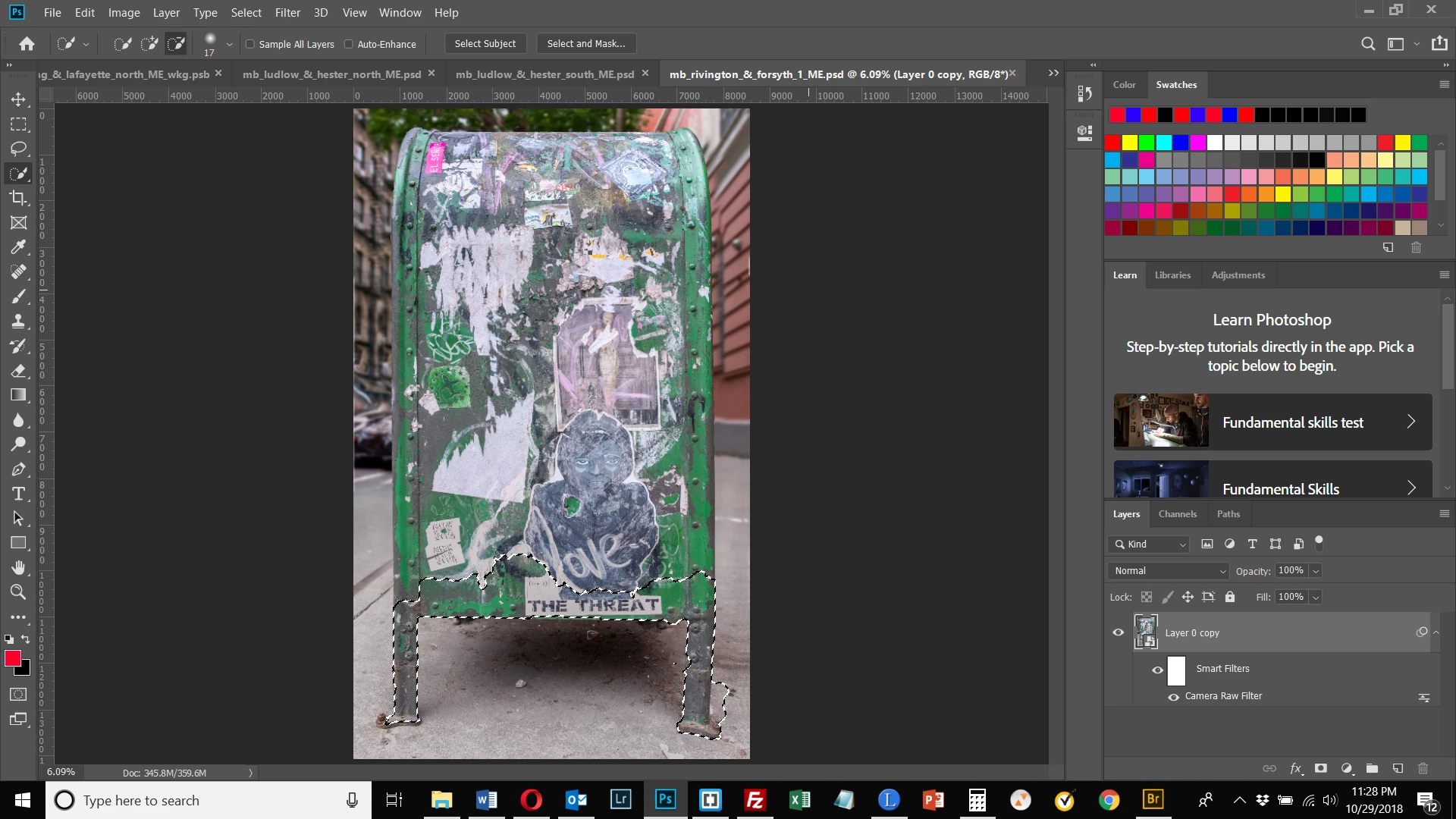
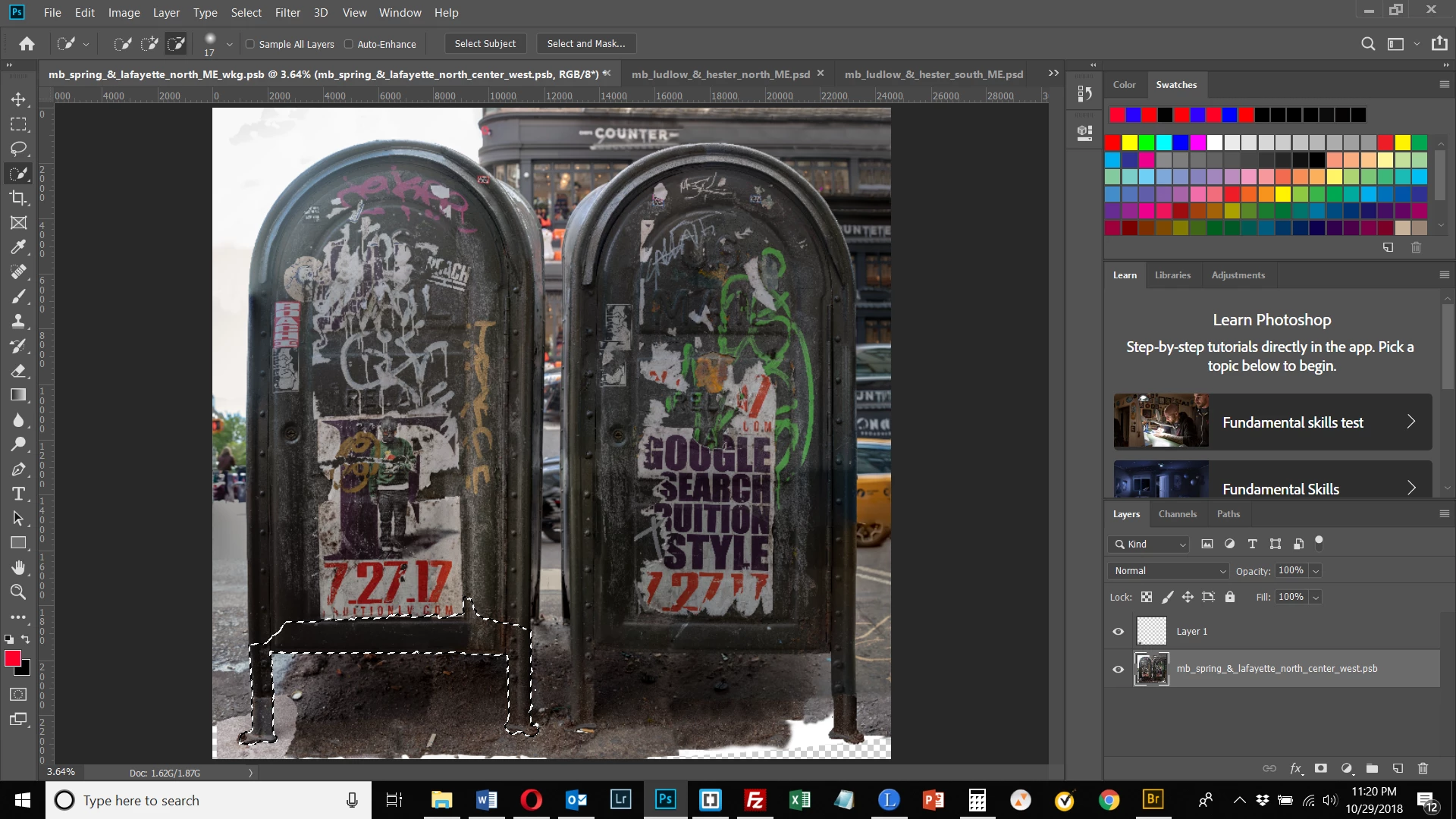
I need to replace the ground area of the 1st image with that of the 2nd.  I have made a selection of the bottom of the box in both images.  I had hoped to Clone from the 2nd image and then by choosing Select>Inverse, copy the ground area to the 1st.  I brought in the bottom left foot and some of the ground from the 2nd image as a new layer, and hoped to continue cloning.  But I don't know if you can have multiple selections going at the same time and between layers.  Is this the way to do this?  I have a feeling I should be using a mask but have not used them much and find them intimidating.  I guess if that's the way to go I need to really embrace them.  Thanks for any help.
This topic has been closed for replies.

3 replies

Theresa J
Community Expert
Community Expert
October 30, 2018

You need to embrace layer masking for this. Put the first image into the second image and then use a layer mask to show just the legs. Use free transform to position it to fit.

bartonlew
bartonlewAuthor
Legend
October 31, 2018

OK.  I came up with the following solution (after watching videos all day on the topic - mainly the ones at the link which chanaart sent- they are excellent).

I brought the layer I wanted to clone from into the layer I wanted to clone to and positioned it.

I made a selection of the area I wanted to clone - the feet and the cement ground underneath and around them.

I selected Select>Inverse and Alt+Add Layer Mask.  This made the rest of the layer I was cloning from black.

I painted around the selection I had cloned with black so that the outline of the mailbox in the main layer would be revealed.

I still need to tidy up the left side, do the same thing to the other mailbox on the right and blend the feet into the legs and also the more of the ground in both layers.  But is this the idea?

Whew! What a workout.

Trevor.Dennis
Community Expert
Community Expert
October 30, 2018

That's not a great workflow.  Generally speaking, it is usually best to use multiple layers so you have overlap.  So the foreground element needs to be on its own layer at the top of the layer stack. Then have the background on a lower layer. This avoids artefacts (areas of bad looking pixels) where fills are not working well, and allows you to position the foreground element   I added a soft black line at the bootom of the wall, because corners tend to be a bit darker

chanaart
Community Expert
Community Expert
October 30, 2018

Best is to use a clipping mask or a paste into. This will give you the freedom to fix the Selection and update anything you need.

Combine images in creative ways |

bartonlew
bartonlewAuthor
Legend
October 31, 2018

Thanks for those video links - they are awesome!  So much information covered so efficiently!