Inspiring
October 2, 2018
Answered

Creating a bump map effect

  • October 2, 2018
  • 1 reply
  • 11425 views

Hi

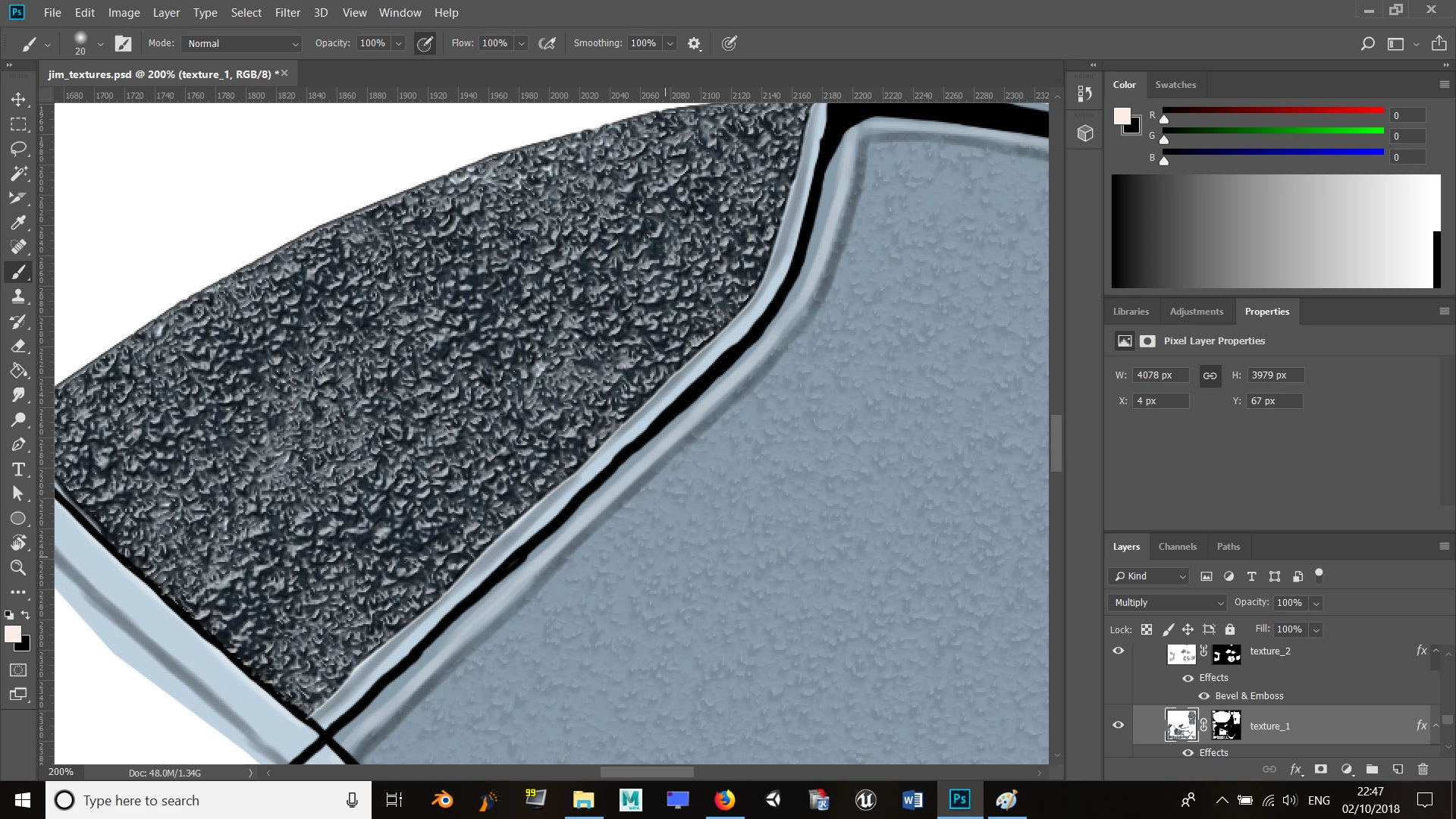
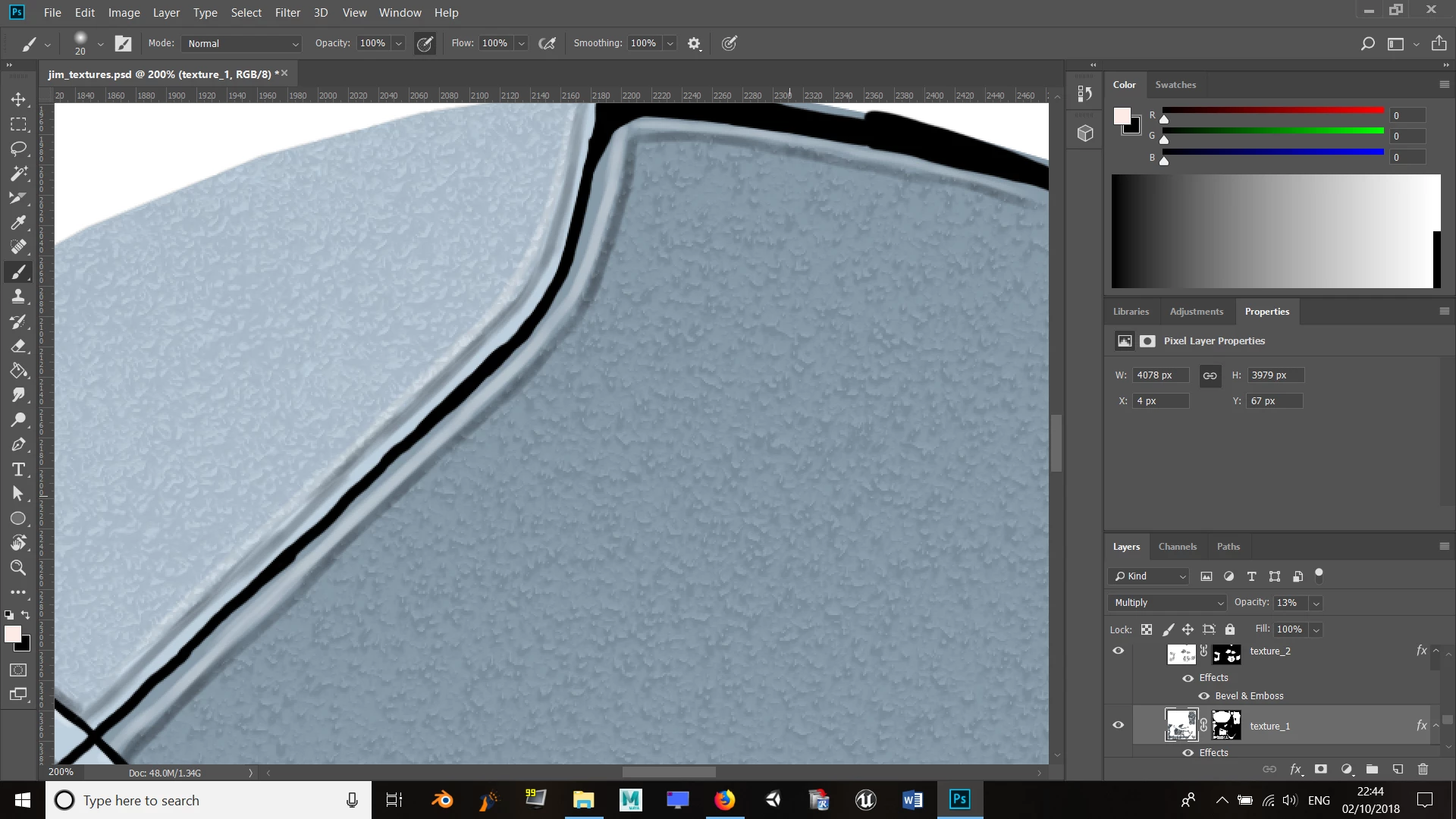
I'm in the process of creating specular, roughness, hardness and bump map textures for a 3D model. I'm following a book, but it doesn't explain the process of texturing, so I'm having to figure things out for myself. I'm unsure how this effect was created though. It looks like the same texture you used to get on wallpaper... The original is black and the opacity was turned down to 10%. How do you do apply this effect?

Thanks

This topic has been closed for replies.
Correct answer davescm

Thanks for replying, Dave. I see. I’m still new to all this, so I’ve most likely made a mistake. I figured it was a bump map or normal map due to that sense of depth the texture gives on the outfit. The author’s example texture I downloaded doesn’t list them as bump maps, just as textures under an ’added/extra detail’ folder.

Either way, I want to replicate and learn how the author made these textures so I can apply them to my model. He made four - diffuse, which I’ve done, a specular, a hardness and a roughness. These textures come under his diffuse texture as extra details. I just want to figure out how he achieved this effect.

Thanks


OK

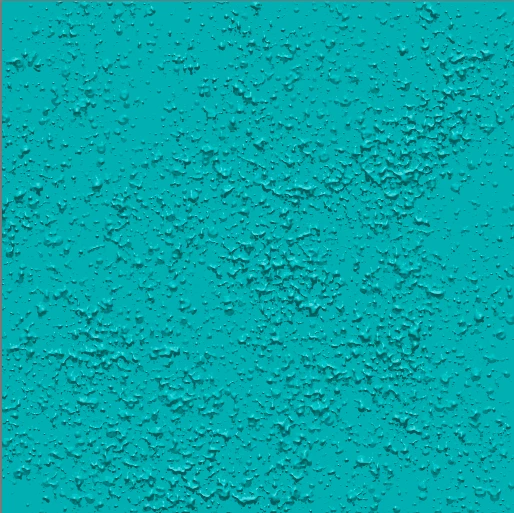
The disadvantage of applying this to the diffuse texture is that when you apply it to a 3D model, the shadow detail will not match the 3D lighting on the model.

But to simulate that effect :

On an empty layer paint with a "splatter "brush (you can download one free in Kyles Mega pack if you are using Photoshop CC)
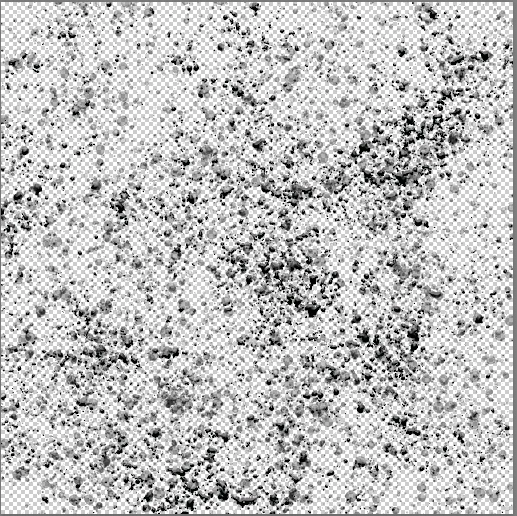
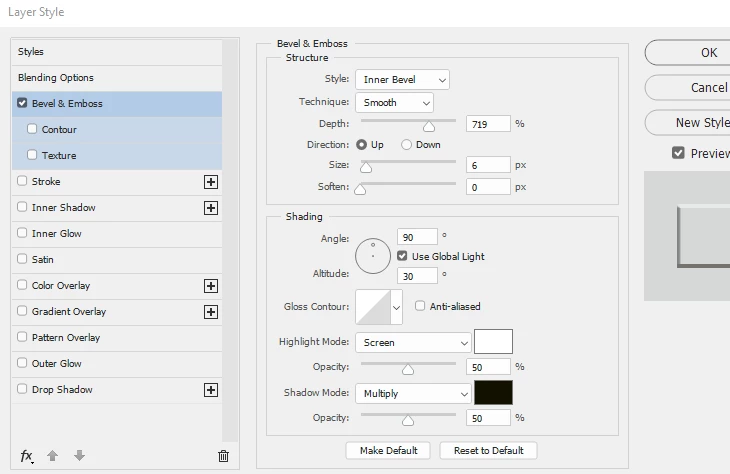
Right click the layer in the layer panel and in Blending options add a bevel and Emboss effect
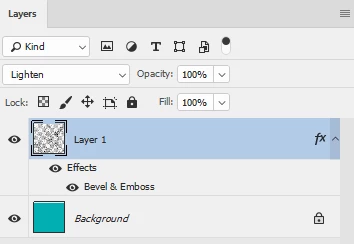
Adjust the blending mode and opacity to get the effect you require (I've used "Lighten")
Dave

1 reply

Silkrooster
Legend
October 2, 2018

Looks like the only thing you did not change was the layers opacity. Top image it is 13% and the bottom it is 100%.

Inspiring
October 3, 2018

No, these are both from the author of the book. I was just showing what the effect looks like before they applied the opacity.

Inspiring
October 3, 2018

OK

The disadvantage of applying this to the diffuse texture is that when you apply it to a 3D model, the shadow detail will not match the 3D lighting on the model.

But to simulate that effect :

On an empty layer paint with a "splatter "brush (you can download one free in Kyles Mega pack if you are using Photoshop CC)

Right click the layer in the layer panel and in Blending options add a bevel and Emboss effect

Adjust the blending mode and opacity to get the effect you require (I've used "Lighten")

Dave

Excellent! Thank you, Dave. As soon as I’be attempted it I’ll upload the results.