
Shape Design
Participant
February 5, 2019
Answered

Define Brush - Way to stop auto center for brush tip

  • February 5, 2019
  • 1 reply
  • 1832 views

I'm trying to create a brush that is hard on one side and soft on the other side. I've created a brush like this in other apps but I'm having issues in photoshop.

I'm using a stylus so want it to rotate with tilt from the hard edge side. Here's some images to show what I mean:
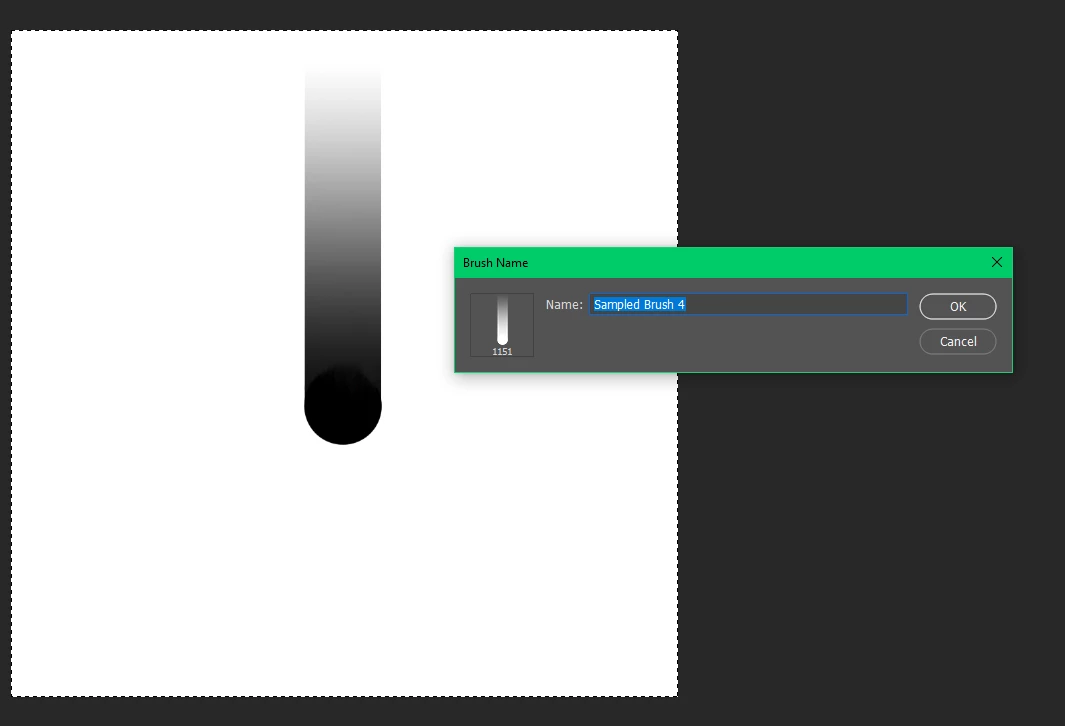
See the brush I'm trying to define. and see how photoshop is recentering it.
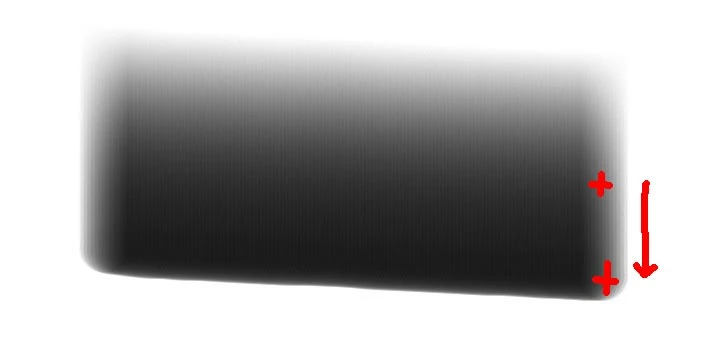
The top crosshair on this image shows where the center is. The bottom one shows where I would like it.

Is there a way to stop photoshop centering when defining a brush? It there another way for me to get this result.

Thank in advance for any tips.

This topic has been closed for replies.
Correct answer c.pfaffenbichler

I tried a super light border on the edge by this ends up ad a dark line in the brush

Try adding just one pixel of the lightest non-white value.

1 reply

mglush
Community Expert
Community Expert
February 5, 2019

Am I understanding correctly, that you want the brush to draw from the bottom edge and not the center of the image?

I have looked through the online help for creating a brush, and I can't find anything that will allow you to change the control point of the brush to allow you to do what you want to do.

There is a possible work around that may help... If you place your brush stroke on a layer by itself, you can use the Transform function to move that control point of the brush to the end.

Once you have your first brush stroke in place. Duplicate the layer and move the point to where you want the center to be. Drag one of the corner handle bars to the angle you want the brush stroke to change to and hit enter.

To get that same angle again, duplicate the layer and Choose Edit>Transform>Again -- Cmd-Shift-T or Ctrl-Shift-T. If you keep duplicating the layer and hitting Cmd-Shift-T it will continue fanning your brush stroke around in a circle.

I know this isn't ideal, and I look forward to if any of the other ACPs have a better answer, but I thought at least this might help.

Michelle

Shape Design
Participant
February 5, 2019

Hi Michelle, thanks for your reply. This is specific to the way photoshop defines brush tips. I'm trying to create a brush for highlights and shadows for digital painting.

It seems like the way photoshop parses the image when the 'define Brush preset' is done and automatically trims/centers it. My guess it is also gets converted to a greyscale/alpha channel at this time.

I'm hoping there's a trick to stop it doing the auto trims/centers... I tried a super light border on the edge by this ends up ad a dark line in the brush

Below are more examples of the current brush, blue show current center line, green show where I would like the center point. Red shows the stylus tilt direction. This is all the same brush.

c.pfaffenbichler
Community Expert
c.pfaffenbichlerCommunity ExpertCorrect answer
Community Expert
February 5, 2019

I tried a super light border on the edge by this ends up ad a dark line in the brush

Try adding just one pixel of the lightest non-white value.