
Drop Shadow no longer works correctly
Tried applying other advice I found when googling this and nothing worked (and those threads were years old).
I work using drop shadow heavily. In the past 2020 and previous version of photoshop all I'd have to do is click drop shadow (in styles) and was good to go. Just one drop shadow, no stroke, looked crisp and fine. If I wanted to be more precise I could go into the layer fx and fiddle with it and any changes showed up in real time on the file.
But now with 2021 all drop shadows are fuzzy and it automatically creates 3 identically useless drop shadows and a stroke outline layer. If I go in to fx and fiddle with things it doesn't really show any difference and seems like sometime broke or got changed between 2020 and 2021. This happens wether the layer the drop shadow is applied to has a mask or not (the other day it wouldn't work AT ALL with a mask on a layer, which never was an issue before and completely ruins my work process).
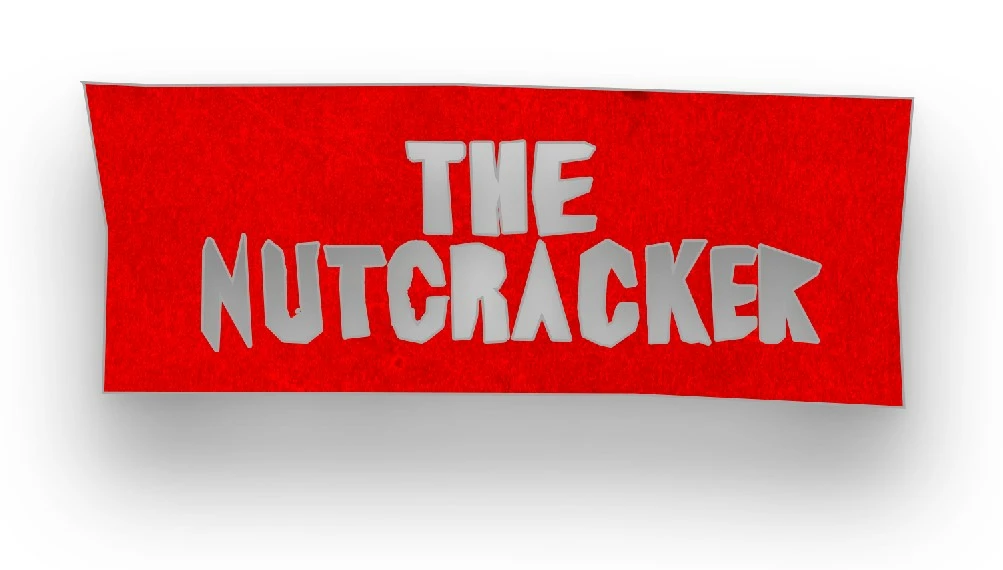
Here's the outcome (what previously on the first click would've been a crisp drop shaodw in dark grey or black is now a fuzzy mess...there's something there without a mask, but only if the layer doesn't have a mask and even then doesn't keep my settings once I fiddle with them so need to adjust every single layer manually)
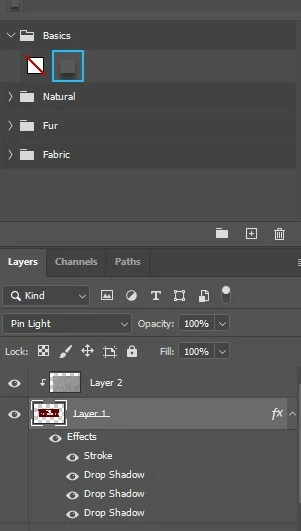
and the second picture is a picture of my layers and how with just clicking drop shadow once it creates 3 and a stroke. Even if I go in and delete these it still seems to be a new default for when I click drop shadow.
 AdChoices