
Cauptain
Known Participant
August 12, 2019
Question

Fix a single dark brightness area in the photo!

  • August 12, 2019
  • 1 reply
  • 2881 views

Hi guys, I'm having a hard time fixing this photo.

It has a darker part on the neck/hair and even with all the corrections I can not match leaving the picture uniform in brightness and contrast.

How to fix it?

Thanks.
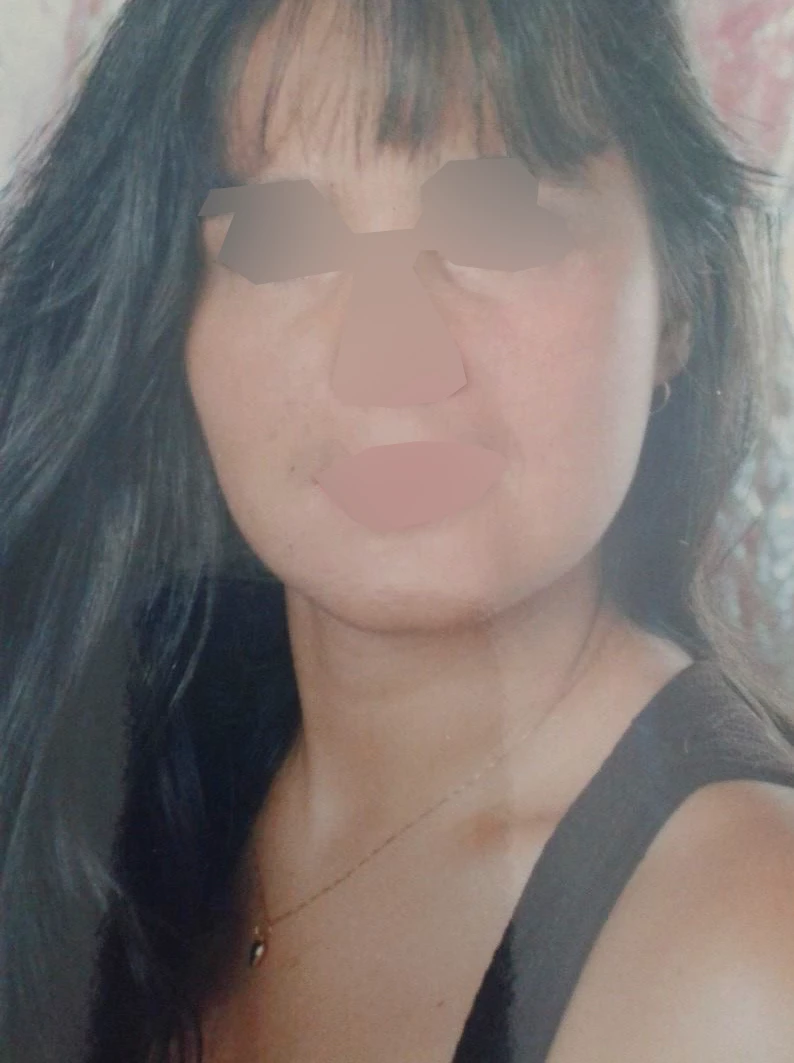
Claudio

    This topic has been closed for replies.

    1 reply

    Derek Cross
    Community Expert
    Community Expert
    August 12, 2019

    Is this the pic you want to correct or have you disguised it for posting purposes?

    There are a number of methods, the way I darken or lighten parts of an image is:

    Insert a blank Layer above the image and Fill it with 50% gray (Edit > Fill.. select 50% Grey from the Contents dropdown menu). I then set the blending mode to Overlay (you can then see the image under the grey). Set the Strength to around 10%. You can then use the Dodge tool to brush to lighten areas of the image (choosing a soft edge and size to suit) and the Burn tool to darken areas (all non destructively) you can then use the Opacity slider in the Layers palette to fine tune the effects. If you prefer, you can use two Layers – one for darkening and one for lightening.

    Cauptain
    CauptainAuthor
    Known Participant
    August 12, 2019

    This pic only.

    Im trying using level, color correction, hue/saturation...My best goal is this:

    But the neck part is horrible color match...and disform some chin in process.

    Claudio

    Derek Cross
    Community Expert
    Community Expert
    August 12, 2019

    OK, select Dodge/Burn.

    Claudio


    Change the Blend mode in Layers to Overlay (you'll see the image then)

    Select the Dodge tool (to lighten) ensure the exposure is set to around 10% and you have a soft brush set to a convenient size and careful brush the areas you want to lighten then choose the Burn tool to darken this arias that you feel are too light.