
Participant
March 6, 2018
Answered

Frosted glass filter turns layer black

  • March 6, 2018
  • 2 replies
  • 600 views

I have previously used the 'frosted glass' in the Filter Gallery intermittently for a specific purpose (depicting jet engine exhaust!) with no problem. Suddenly, after the latest OS and PS upgrades, it doesn't work. It comes up with my regular settings, but instead of making the layer crinkly as expected it simply turns it black, with a few scattered paler artefacts around the edges.

Anyone encountered this or got a clue what's going on?

Gary

Photoshop CC 19.1.1 running on Mac OS X High Sierra. 
This topic has been closed for replies.
Correct answer davescm

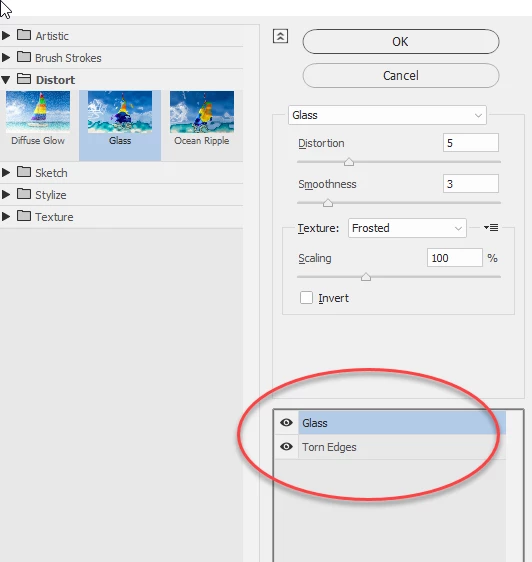
Can you check that you just have the glass filter enabled and don't have a second filter enabled with it (e.g. torn edges in the example below)

Dave

2 replies

davescm
Community Expert
davescmCommunity ExpertCorrect answer
Community Expert
March 6, 2018

Can you check that you just have the glass filter enabled and don't have a second filter enabled with it (e.g. torn edges in the example below)

Dave

Participant
March 7, 2018

That's it! Thank you very much. (In my case it was Photocopy).

Until now I had not realised you could run more than one filter at a time like that, so that's something else I have learnt!)

Gary

gener7
Community Expert
Community Expert
March 6, 2018

I'm running the same 19.1.1/MacOS 10.13.3 combination on a Mid 2012 Macbook Pro, which is a bit old, but I do see Frosted glass without a problem.

First idea is to hold down the Alt/Opt key and look at the Cancel button in the filter dialog. It should change to a Reset. You can click on that to restore default settings.

If not, it could be something in your graphics card. Go to Photoshop Preferences > Performance > and uncheck Use Graphics Card to see if it goes away. (Be sure to restart Photoshop).

I'll wait for your response. Also  go to Help > System Info and click on the Copy button. Paste the results in your reply.

Gene