
Participating Frequently
April 22, 2019
Question

fusion level [How to remove the background?]

  • April 22, 2019
  • 6 replies
  • 2433 views

Hi everyone,

I'm new to the forum and the use of photoshop (I prefer Lightroom) I wanted to ask how I could take advantage of the images I download from "Adobe Stock" to merge them with my own.

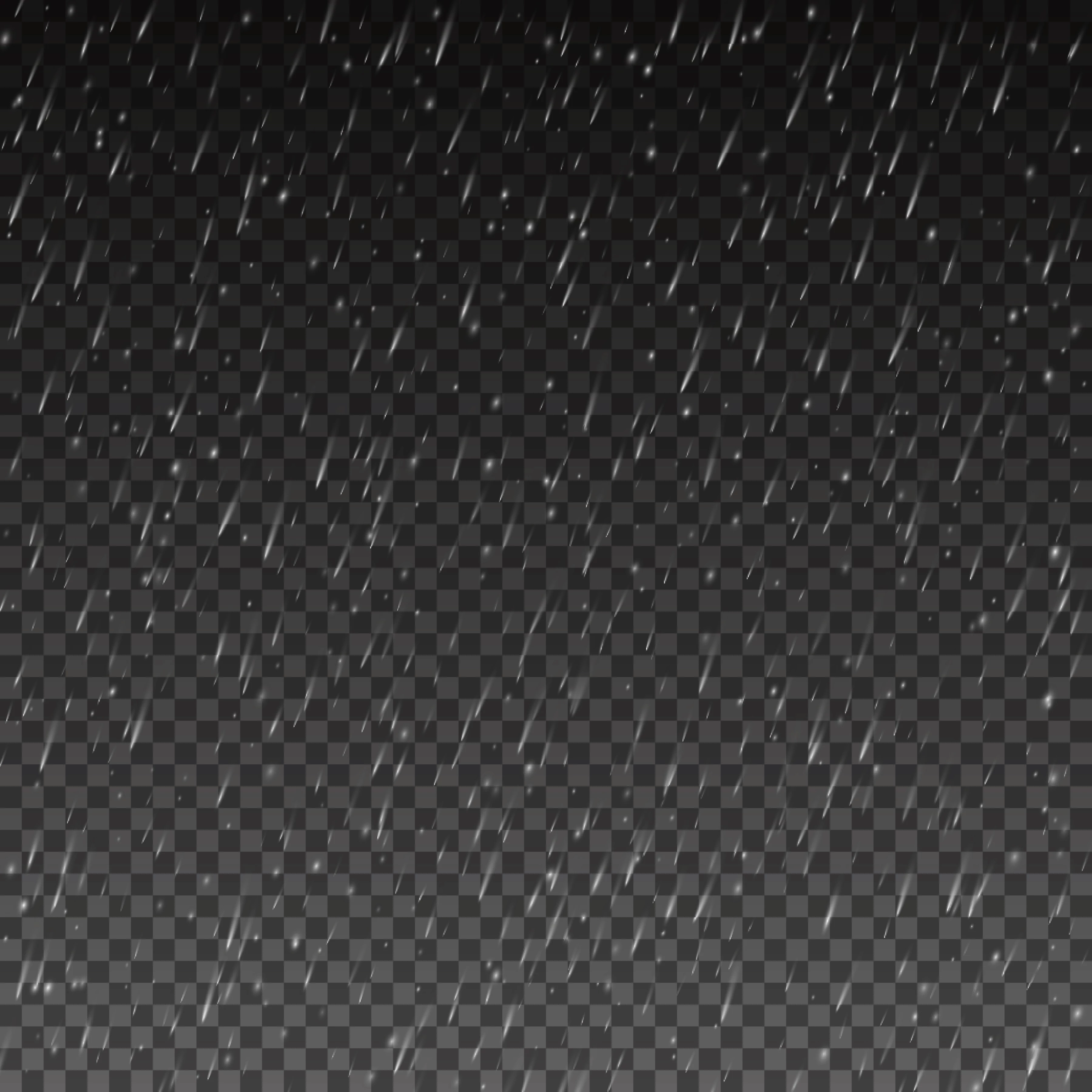
In detail I downloaded this image to give more importance to the rain, but I can't remove the background in paintings. Can anyone help me. Thank you

This topic has been closed for replies.

6 replies

Norman Sanders
Legend
April 22, 2019

Bottom line: Are you asking us to help you violate a copyright?

(Please. see my previous post)

Participating Frequently
April 23, 2019

The file was downloaded after I subscribed. There are no copyright violations. the file downloaded is this: https://stock.adobe.com/it/Search?filters%5Bcontent_type%3Aphoto%5D=1&filters%5Bcontent_type%3Aillustration%5D=1&filters%5Bcontent_type%3Azip_vector%5D=1&filters%5Bcontent_type%3Avideo%5D=1&filters%5Bcontent_type% 3Atemplate% 5D = 1 & filters% 5Bcontent_type% 3A3d% 5D = 1 & filters% 5Binclude_stock_enterprise% 5D = 0 & filters% 5Bis_editorial% 5D = 0 & filters% 5Bcontent_type% 3Aimage% 5D = 1 & order = relevance & safe_search = 1 & search_page = 1 & limit = 100 & serie_id = 171 200 008 & get_facets = 0 & ASSET_ID = 140 301 724. When I open it in photoshop the file has a single complete level of everything.

Myra Ferguson
Community Expert
Community Expert
April 22, 2019

It's likely the stock image was created in Illustrator. There are a number of posts in the Illustrator forum that talk about how to remove the checkboard background that simulates transparency. Here's one Re: Border with Transparent Background

If that one, in particular, doesn't help, you might search that Forum. I think the key for you is to edit the image where it was created.

So, you could place it in your Photoshop document as a smart object so that you can open it up in Illustrator by double-clicking. Once in Illustrator, see where you can turn off the checkerboard. If the rain uses a blend mode, you might need to replace the checkerboard with a solid black rectangle. Save in Illustrator. Return to Photoshop, and use the blend modes there to set it to lighten.

Norman Sanders
Legend
April 22, 2019

In order to come up with a method for eliminating the background gray and transparency pattern we would need to see the Layers panel for the file. One possibility is this:

Background layer is the gradation of black to gray.

Center layer is a screen grab of a transparent layer (possibly as an image security measure)

Top layer would be the raindrops,  white on transparency

If the original post is a flattened version of this, the Layer Style > Blend If command should solve the. problem of isolating the white.

Wild Guess Department: If you paid for the file it would be provided without the middle layer and there would be no problem.

jane-e
Community Expert
Community Expert
April 22, 2019

Hi Fabio,

What is the number of the Adobe Stock? What format is it in?

This one, for instance, is an Adobe Illustrator file and may or may not be transparent with a checkerboard layer that can be turned off.

Rain. Background with rain. Rain drops on the transparent background. Rainy weather - Buy this stock vector and explore …

~ Jane

Participating Frequently
April 22, 2019

Hello,
these are just these files,
do you know where you can turn off the checkerboard level?
Thank you Jane

Myra Ferguson
Community Expert
Community Expert
April 23, 2019

That the file is just what you found yourself


Jane


The issue is that it's a vector graphic. I don't think there's a concern with copyright. The creator of the stock art has added a checkered background to simulate transparency. You should use Illustrator to remove the checkered background. Above I included a link to one of many other forum posts addressing the issue on the Illustrator forum in case you have any issues removing the checkered background using that application.

Michael Bullo
Community Expert
Community Expert
April 22, 2019

I agree with Trevor in that you want to play with blend modes.

If this doesn't work you may have another issue.

  1. Have you downloaded a PNG file that has transparency and the checkerboard pattern we are seeing in your image is the result of you taking a screen capture? OR
  2. The JPEG image you supplied is large in terms of both file size and pixel dimensions. Is this the original image that you downloaded? If so, you have an issue as it doesn't contain transparency (JPEG doesn't support it) and the checkerboard pattern is burned into the image.
Participating Frequently
April 22, 2019

The original image downloaded is in AI (adobe illustrator) format. The Jpeg format derives from the export because in the forum it cannot be loaded in many formats.
The downloaded file does not contain levels of any kind. I also thought it was a background transparency level.

Michael Bullo
Community Expert
Community Expert
April 22, 2019

That's good news. If it's an Illustrator file hopefully the background is transparent by default.

How are you getting this Illustrator file into Photoshop? Try starting with your background image already open and from the menu choosing File > Place Embedded to get the Illustrator file on top of your background. Then, as suggested earlier by Trevor, play with the blending mode.

Trevor.Dennis
Community Expert
Community Expert
April 22, 2019

Set the layer blend mode to lighten or screen.

Participating Frequently
April 22, 2019

Unfortunately, in the parts in light we can still see