
Participant
September 28, 2017
Answered

getting an exact subtraction from images

  • September 28, 2017
  • 2 replies
  • 4839 views

So, I have an OFFICAL background and an OFFICAL frame from the intro of Spongebob Squarepants. I want to subtract the background from the frame to get a transparent picture of spongebob. However, when I do the subtraction in Adobe Photoshop, it shows like this which is not correct, and there is no way to remove the black without messing up the shoes. so, is there a way to get the transparent picture? I know you can just select it from the original frame, but I want to try to do this on a massive scale to get the full foregrounds of the Spongebob intro. Thanks!
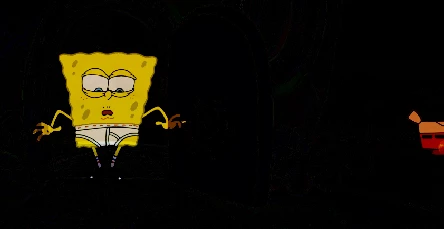
This topic has been closed for replies.
Correct answer jharsem

Hiya,

Like you said there's a number of in-depth threads about how to best go about this like this one here:

Selecting the difference between two images

but you end up with the issues like you have shown your image - I believe that is because Photoshop does the calculation using the gray values - you should be able to generate a selection by using the  image-> calculations functions.

I think (trying to think logical with only one coffee in me) that it wouldn't be possible to do this as an automatic process due to the possibility of same colour values overlapping: if we're processing the image pixel by pixel and remove those with the same colour values we would essentially destroy the ones where the subject matches or is close to the background colour. So while in your samples it *should* work - for some of your other frames it may not.

2 replies

jharsem
jharsemCorrect answer
Participating Frequently
September 28, 2017

Hiya,

Like you said there's a number of in-depth threads about how to best go about this like this one here:

Selecting the difference between two images

but you end up with the issues like you have shown your image - I believe that is because Photoshop does the calculation using the gray values - you should be able to generate a selection by using the  image-> calculations functions.

I think (trying to think logical with only one coffee in me) that it wouldn't be possible to do this as an automatic process due to the possibility of same colour values overlapping: if we're processing the image pixel by pixel and remove those with the same colour values we would essentially destroy the ones where the subject matches or is close to the background colour. So while in your samples it *should* work - for some of your other frames it may not.

mglush
Community Expert
Community Expert
September 28, 2017

Is Spongebob on a layer or a background layer?

Can you show us a screenshot of the beginning image in context of your Photoshop window with all the panels (especially the layers panel)?

If SB is on his own layer (not Background), when you cut him out you will see the transparency grid in the layers panel. Are you cutting him out using a layer mask?

Michelle