
jacksonc51175464
Participant
June 3, 2017
Answered

Grid lines show up over menus

  • June 3, 2017
  • 1 reply
  • 466 views

So I just bought a subscription for school and have been messing around in photoshop and I was working on something last night and the app was fine, then, I got home and opened up my laptop and now the gridlines are showing up over the menus on the right and left of the screen. Even weirder, I just took a screenshot to try and show in this post and you cannot see the lines on top of the menus in the screenshot. Additionally, if I bring up the action center (On Windows 10) these lines show up over that menu overlay. Does anyone know what's going on here or has seen this before?
    This topic has been closed for replies.
    Correct answer Terri Stevens

    try these changes under Edit/Preferences.

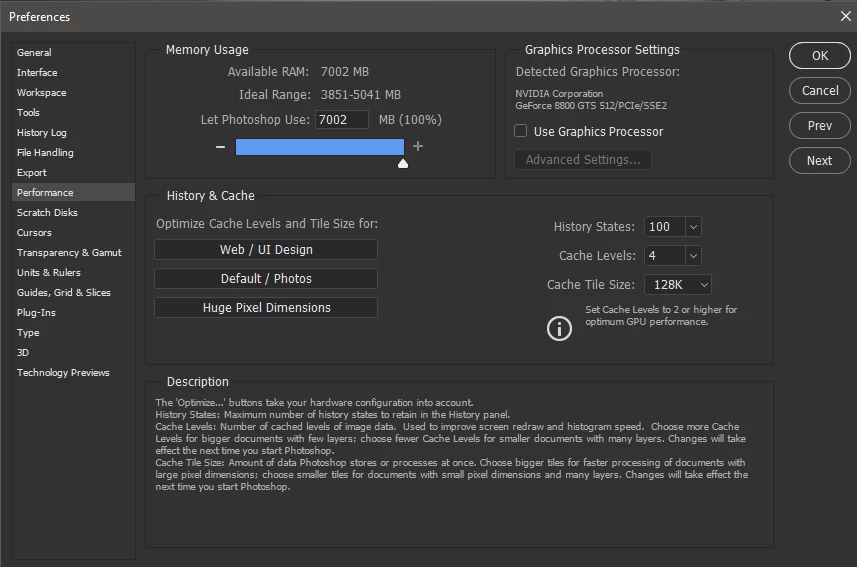
    First simply switch off the GPU and reboot. Below is a similarly specified machine to yours. Just uncheck the 'Use Graphic Processor' box

    The trouble with doing that is it will effect the performance, but if the grid lines disappear at least you know it's graphics related.

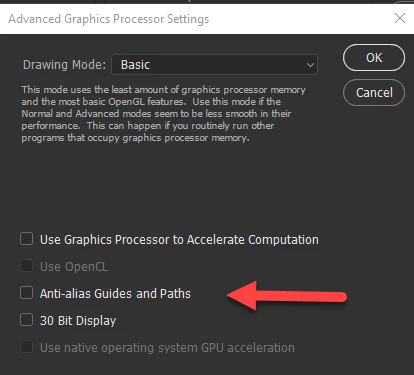
    Now you could try this. Re-enable Use Graphic Processor and press the Advanced button. Set the Drawing Mode to Basic and uncheck all the boxes beneath it. As you can see there is an anti-alias guides and paths setting which is on by default and could be causing problems. Again restart the computer.

    1 reply

    Terri Stevens
    Legend
    June 3, 2017

    Does this problem go away if you reboot the laptop? Screen capture programs usually work by talking to the graphics card so I would first look at this as a graphics problem causing screen corruption. Photoshop can be very demanding on a computer and laptops in particular can get very hot-are the fans whirring away? Heat can sometimes cause the graphics subsystem to create screen artefacts. Alternately your graphics card driver might be out of date. What I would do first is reboot and see if the problem recurs , which it probably will. Then try making changes in the preference settings to change a few things about the GPU. First things first though just reboot.

    To be honest there are a number of things that could be wrong including memory problems because some laptops don't have a physical graphics card , but instead a chip on the motherboard that uses system memory. It would be helpful to see the exact specification of your machine.

    jacksonc51175464
    Participant
    June 3, 2017

    I've rebooted the laptop a few times and I didn't see any changes, I'm currently reinstalling PS to see if it was something with the preferences and the GPU settings I might have changed that broke it. I'm not sure if it's a problem with the laptop itslef, as PS was running fine previously, but anyway, in the meantime, here are my specs:

    Intel i5 6200U @ 2.3GHz

    8GB DDR3

    Integrated Intel HD Graphics 520

    Terri Stevens
    Terri StevensCorrect answer
    Legend
    June 3, 2017

    try these changes under Edit/Preferences.

    First simply switch off the GPU and reboot. Below is a similarly specified machine to yours. Just uncheck the 'Use Graphic Processor' box

    The trouble with doing that is it will effect the performance, but if the grid lines disappear at least you know it's graphics related.

    Now you could try this. Re-enable Use Graphic Processor and press the Advanced button. Set the Drawing Mode to Basic and uncheck all the boxes beneath it. As you can see there is an anti-alias guides and paths setting which is on by default and could be causing problems. Again restart the computer.