Participant
April 20, 2018
Answered

[HELP] forgot steps.[to make glowing smoke]

  • April 20, 2018
  • 2 replies
  • 908 views

First of all. Im sorry asking this question knowing that i am beginner.

I created a photo design as pic 1

    :  Pic 1 - Album on Imgur

as you can see. It has 3 items,

-the glowing smoke at the back,

-text : nswa

-text : production

Now i don't remember the steps how i make the glowing smokes. what i can remember is . It is a layer with white and gold gradient overlay and a couple clicks of smoke brush

and when when i tried to recreate it, it's come different ( refer pic 2 )

       : Pic 2 - Album on Imgur

i have no idea how i made the center glowing bright like pic 1.

please help.

Thanks in advance.

    This topic has been closed for replies.
    Correct answer Trevor.Dennis

    Here's another approach

    I've used a cloud brush and stamped it down one on a new layer.  I've set up some guides so I can repeat things in the same place.
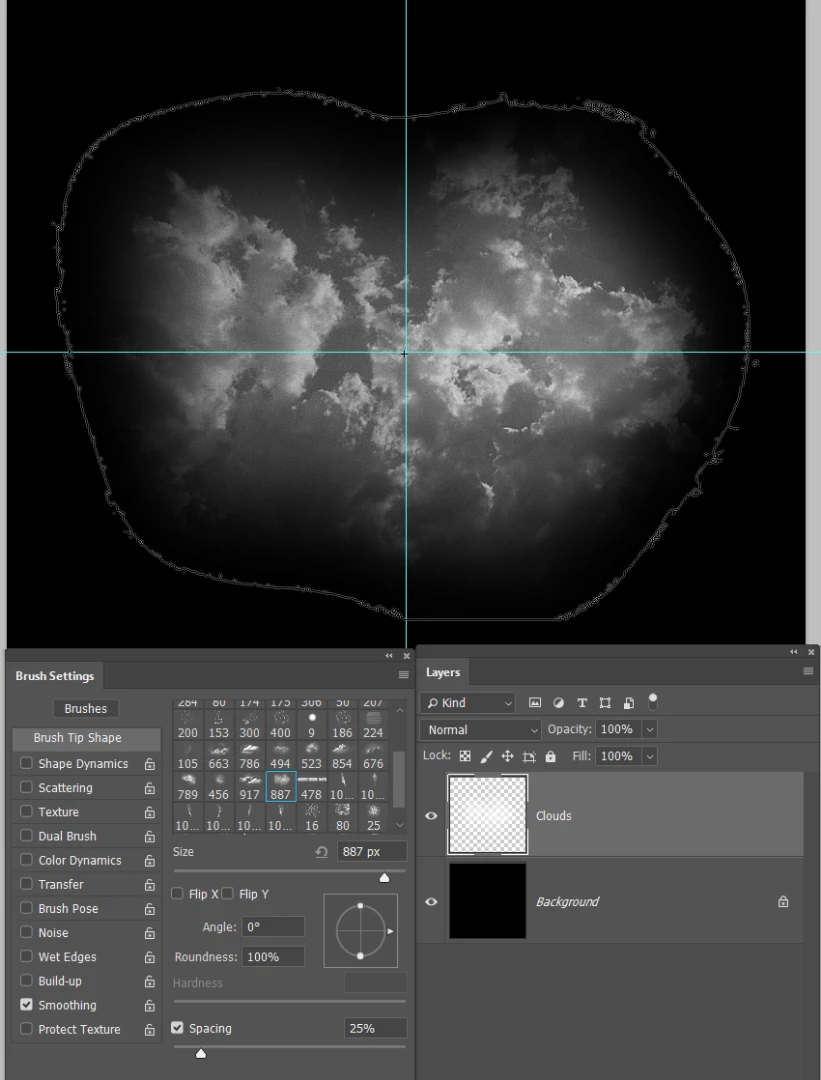
    I want to get a more circular pattern, so I am going to rotate the brush in the Brush Settings panel, and stamp it down again in the same place.
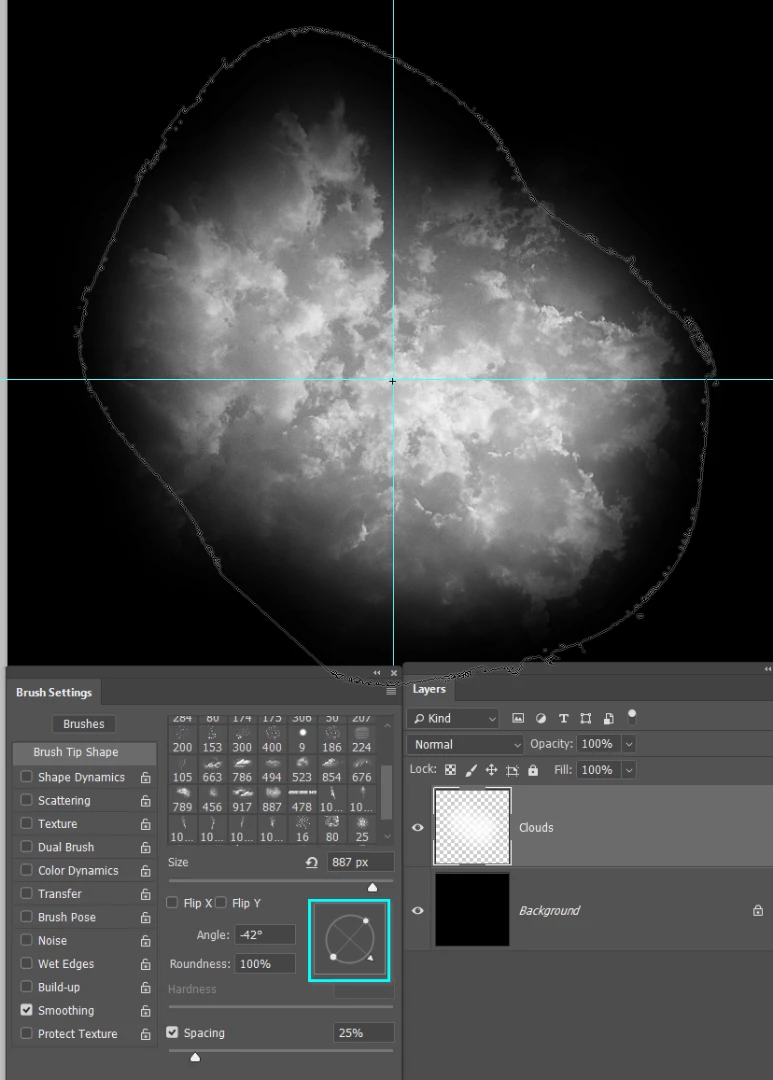
    I'll repeat that a few times with different brush angles.

    That gives me a roughly circular texture, but I am left with too much fully white in the centre, which means it will be flat and uninteresting
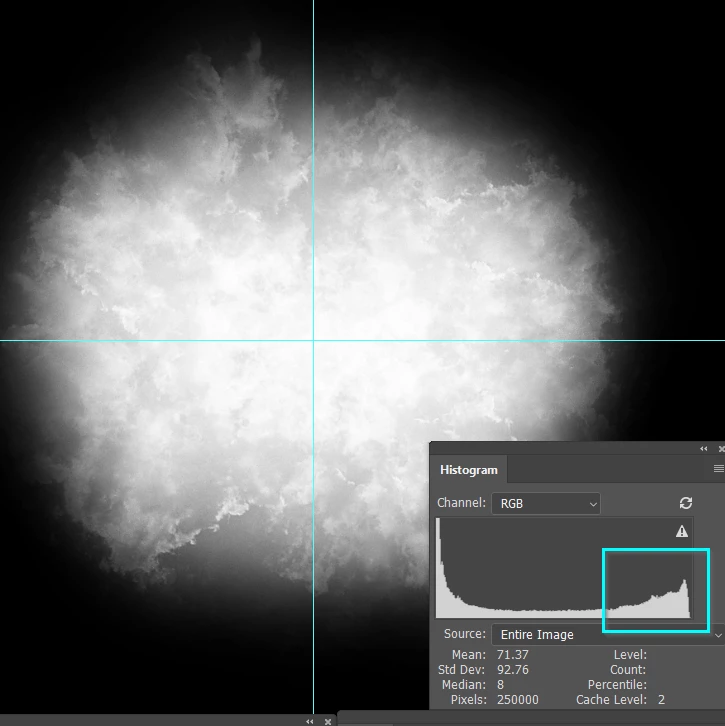
    So I reduced the brush size a bit, and reduced its opacity to 20% and stamped down with black.

    Now we have texture throughout.
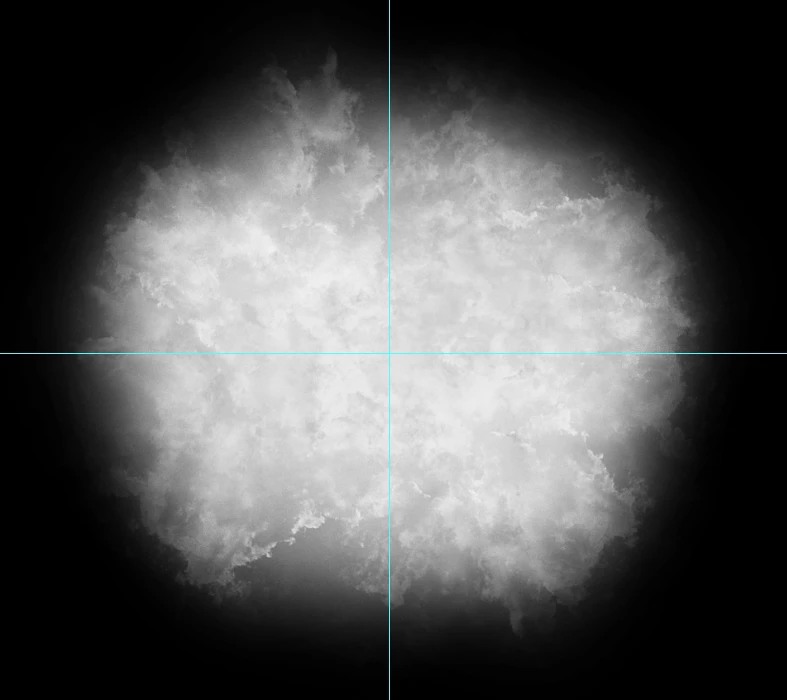
    Make a new layer and select the colour you'd like to use.  If you get it wrong first time, you can keep changing and trying again, because this step is non destructive.

    Select the gradient tool, and from the from the drop-down, select the second option which is Foreground to Transparent

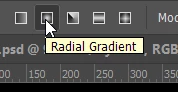
    Set the type to Radial Gradient and drag a gradient from the center of the canvas to the outside.  The great thing about using Foreground to Transparent, is that you can build it up, But lay down your first gradient, and then move to the next step after the screenshots.
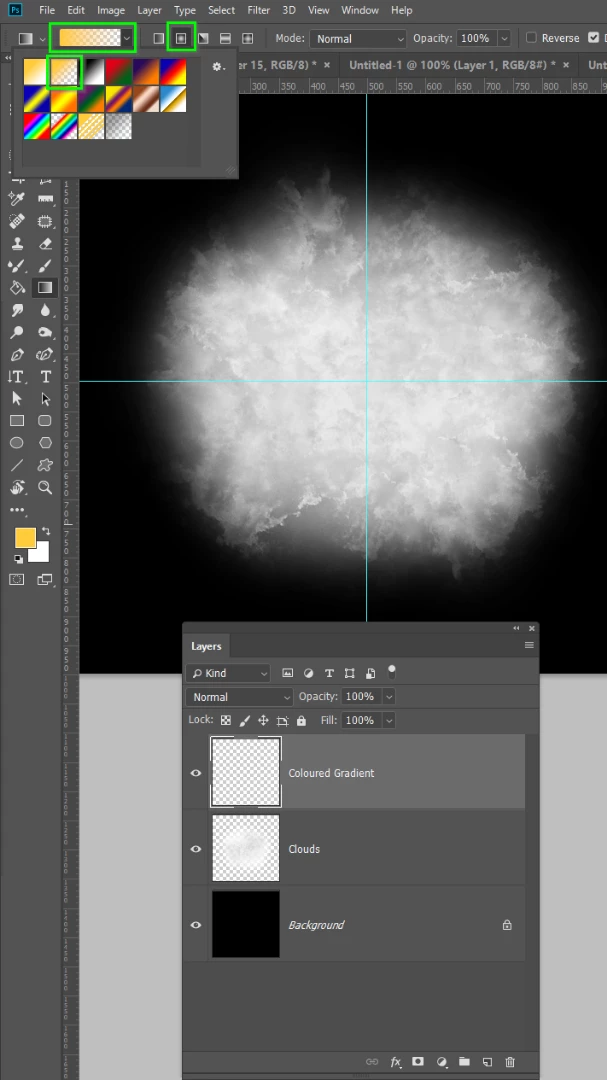
    You can see that the gradient is covering the texture in the centre, which is not what we want.
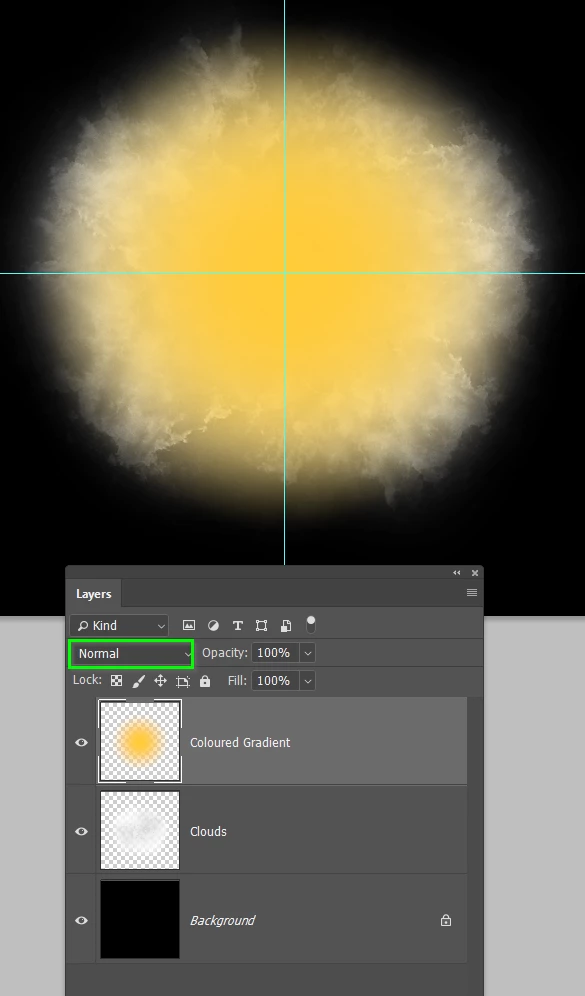
    So set the gradient layer's blend mode to Color and the texture will show through.

    Lay down more and long gradients to get the effect you want.

    Reduce the layer opacity a bit if it better suits your intended end effect.
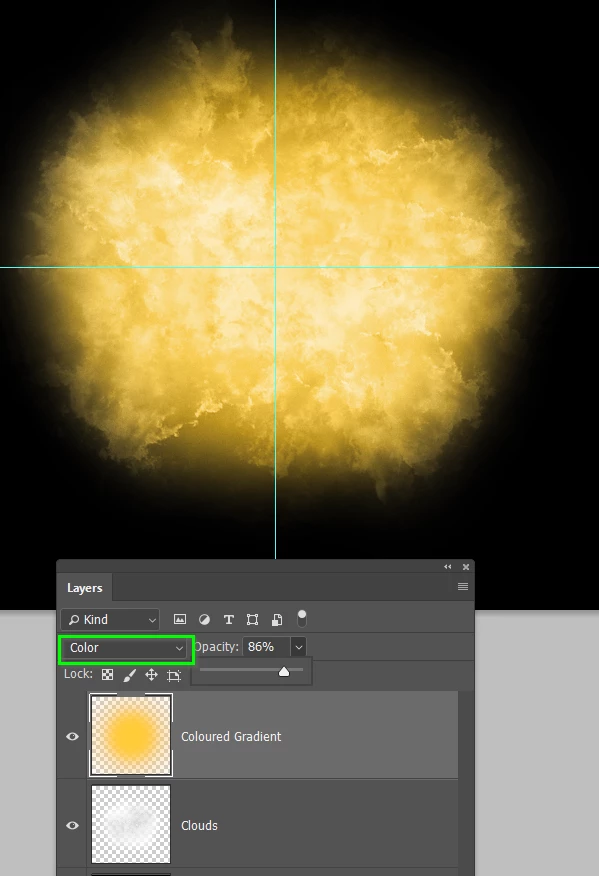
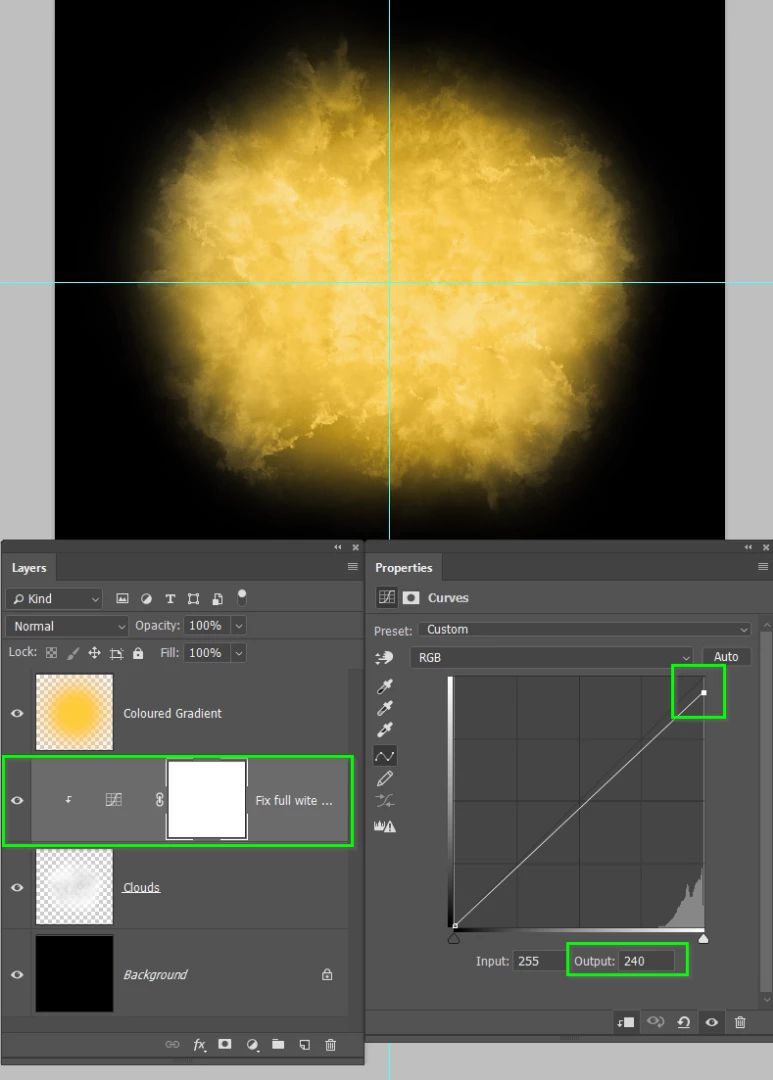
    Now we still have some full blown white pixels which don't take the colour well, so I have added a Curves Adjustment Layer

    above the white clouds layer, and dropped the White Point ever so slightly from 255 to 240.  In fact that might be a touch too

    much, but it's fully adjustable and nondestructive.
    If that is too much texture, then use Gaussian Blur to reduce the detail.

    I'm sorry, but I don't recognise the script font.

    2 replies

    Trevor.Dennis
    Community Expert
    Trevor.DennisCommunity ExpertCorrect answer
    Community Expert
    April 21, 2018

    Here's another approach

    I've used a cloud brush and stamped it down one on a new layer.  I've set up some guides so I can repeat things in the same place.

    I want to get a more circular pattern, so I am going to rotate the brush in the Brush Settings panel, and stamp it down again in the same place.

    I'll repeat that a few times with different brush angles.

    That gives me a roughly circular texture, but I am left with too much fully white in the centre, which means it will be flat and uninteresting

    So I reduced the brush size a bit, and reduced its opacity to 20% and stamped down with black.

    Now we have texture throughout.

    Make a new layer and select the colour you'd like to use.  If you get it wrong first time, you can keep changing and trying again, because this step is non destructive.

    Select the gradient tool, and from the from the drop-down, select the second option which is Foreground to Transparent

    Set the type to Radial Gradient and drag a gradient from the center of the canvas to the outside.  The great thing about using Foreground to Transparent, is that you can build it up, But lay down your first gradient, and then move to the next step after the screenshots.

    You can see that the gradient is covering the texture in the centre, which is not what we want.

    So set the gradient layer's blend mode to Color and the texture will show through.

    Lay down more and long gradients to get the effect you want.

    Reduce the layer opacity a bit if it better suits your intended end effect.

    Now we still have some full blown white pixels which don't take the colour well, so I have added a Curves Adjustment Layer

    above the white clouds layer, and dropped the White Point ever so slightly from 255 to 240.  In fact that might be a touch too

    much, but it's fully adjustable and nondestructive.

    If that is too much texture, then use Gaussian Blur to reduce the detail.

    I'm sorry, but I don't recognise the script font.

    S_Gans
    Community Expert
    Community Expert
    April 20, 2018
    Adobe Community Expert / Adobe Certified Instructor