Known Participant
November 12, 2016
Answered

Help: Photoshop CS6 Mac Configuration Error 16

  • November 12, 2016
  • 3 replies
  • 10599 views

Help needed and appreciated.

On a Mac (10.12.1), our Photoshop CS6 workflow has ground to a halt with the [repeated] appearance of "Error:16."
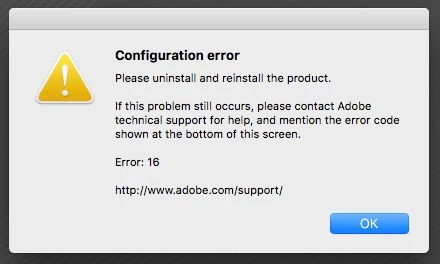
Have tried following guidelines from Program Error displays while using Photoshop Program Error displays while using Photoshop but do not appear to have either an SLStore folder nor Adobe PCD folder.

Uninstalling and reinstalling Photoshop helped, but only for about a day, after which the "Error: 16" message reappeared. 

During many years of using Photoshop, we've never experienced this problem.

Again, your assistance appreciated.

This topic has been closed for replies.
Correct answer gener7

Open Terminal.app and copy/paste the command below.

sudo chmod -R 777 /Library/Application\ Support/Adobe

Press Enter and it may ask for your password.

Restart your Mac to be sure it takes hold.

3 replies

gener7
Community Expert
Community Expert
April 17, 2021

Yes, It enables you to remove all Creative Cloud or Creative Suite apps installed on the computer.

Inspiring
April 17, 2021

Ok, I ran CC Cleaner Tool on everything and then tried to run the PS CS6 installer again and I still get the 'Installer Failed to Initialize' error message. (see attached)

gener7
Community Expert
Community Expert
April 17, 2021
gener7
Community Expert
Community Expert
April 16, 2021

Since the permissions fix did not help, a "Clean Install" is in order.


A simple uninstall will leave old configuration files around and therefore you need to use the creative Cloud Cleaner Tool for a "clean install".


Follow the instructions carefully, especially saving any presets, actions and settings. Take time to understand them and you should be fine.


https://helpx.adobe.com/creative-cloud/kb/cc-cleaner-tool-installation-problems.html

Inspiring
April 17, 2021

Sould I use the Cloud Cleaner Tool even though I am installing PS CS 6 and not CC?

gener7
Community Expert
gener7Community ExpertCorrect answer
Community Expert
November 12, 2016

Open Terminal.app and copy/paste the command below.

sudo chmod -R 777 /Library/Application\ Support/Adobe

Press Enter and it may ask for your password.

Restart your Mac to be sure it takes hold.

Known Participant
November 12, 2016

Thank you!

Appears to be working correctly.

Am hopeful that it will be a lasting fix.

SirCajunD
Participant
April 7, 2017

It permanently fixed my problem when an update mangled permissions to that folder.

I hope it stays that way as well, but run the Disk Utility First Aid to be sure nothing is going on with your boot volume.


What are other alternatives if the above doesn't work, because for me, it's never worked.

Thanks,