stevensallyra1
Participant
January 22, 2020
Answered

Histogram issue - Photoshop

  • January 22, 2020
  • 3 replies
  • 4189 views

On the histogram. The black values are on the right hand side, and white on the left, how do I get it back to what it should be, i.e. black on the left?


Thanks

Steve


{Thread renamed by moderator}

This topic has been closed for replies.
Correct answer Conrad_C

What is the color mode of your document?


The display of the values in the Histogram panel depends on the color mode. For RGB, CMYK, and grayscale modes, the left side always means minimum and the right side always means maximum. For example:

  • For RGB, the left side is black (luminance level 0) and the right side is white (luminance level 255).
  • For CMYK and grayscale, the left side is white (0% ink) and the right side is black (100% ink).


If the direction of the histogram is consistent with the color mode, it’s working correctly.


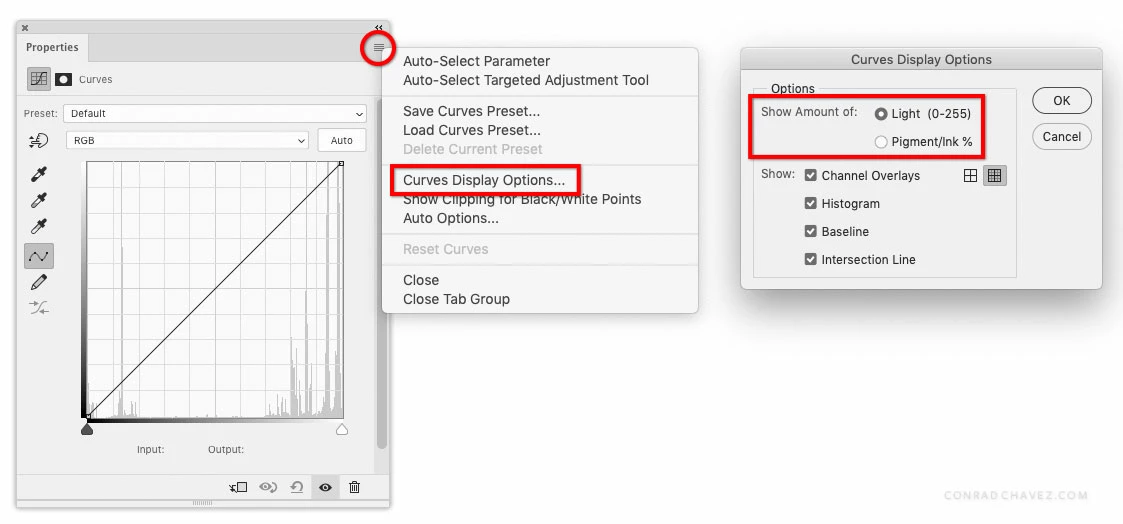
If you’re looking at the Properties panel for a Curves adjustment layer, you can use the Curves Display Options dialog box to reverse the direction of the histogram. In the “Show Amount Of” option, choose Light (0-255) or Pigment/Ink%.
3 replies

Inspiring
January 22, 2020

1. Mac: Photoshop>Preferences>General or PC: Edit>Preferences>General

2. Click on the button that says Reset Preferences On Quit

3. Choose OK

4. Restart Photoshop

Conrad_C
Community Expert
Conrad_CCommunity ExpertCorrect answer
Community Expert
January 22, 2020

What is the color mode of your document?


The display of the values in the Histogram panel depends on the color mode. For RGB, CMYK, and grayscale modes, the left side always means minimum and the right side always means maximum. For example:

  • For RGB, the left side is black (luminance level 0) and the right side is white (luminance level 255).
  • For CMYK and grayscale, the left side is white (0% ink) and the right side is black (100% ink).


If the direction of the histogram is consistent with the color mode, it’s working correctly.


If you’re looking at the Properties panel for a Curves adjustment layer, you can use the Curves Display Options dialog box to reverse the direction of the histogram. In the “Show Amount Of” option, choose Light (0-255) or Pigment/Ink%.

stevensallyra1
Participant
January 23, 2020
Hi,
Color mode is RGB and its black on the right hand side when you open curves from new adjustment layer/curves see attached?
Regards
Steve
Conrad_C
Community Expert
Community Expert
January 23, 2020

If you attached a picture, it didn’t show up on the forum web page. If you attached it via email, pictures can be attached only on the forum web page.

Also, make sure you look at my reply again (on the forum web page), if you haven’t seen it since I updated it to show how to reverse the histogram in the Properties panel for a Curves adjustment layer. I added that before you posted your last reply.

Sahil.Chawla
Adobe Employee
Adobe Employee
January 22, 2020

Hi Steve,

As the Histogram is not displayed properly in Photoshop, please try restoring the preferences of Photoshop and see if it helps.

https://helpx.adobe.com/photoshop/using/preferences.html


Note: Make sure that you back up all your custom presets, brushes & actions before restoring Photoshop's preferences. Migrate presets, actions, and settings


Regards,
Sahil