Participant
January 16, 2020
Answered

How do I mask/lighten dark bra color under a slightly see through sweater?

  • January 16, 2020
  • 4 replies
  • 3493 views

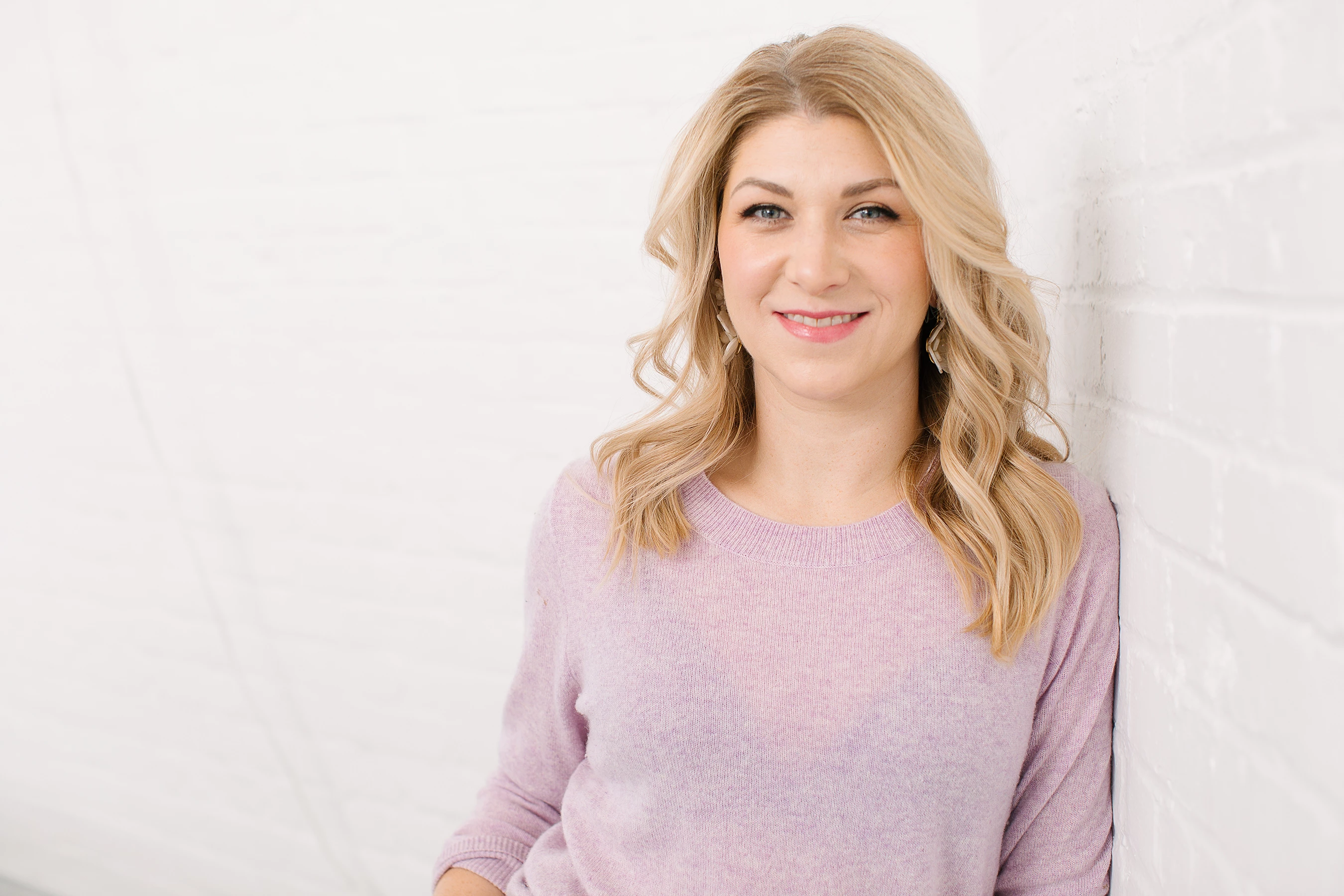
Hi, what steps would I take to lighten this bra color to match the sweater? 
 

{Thread renamed by moderator}

This topic has been closed for replies.
Correct answer davescm

Hi

I would use frequency separation


Make two duplicate copies of the image layer

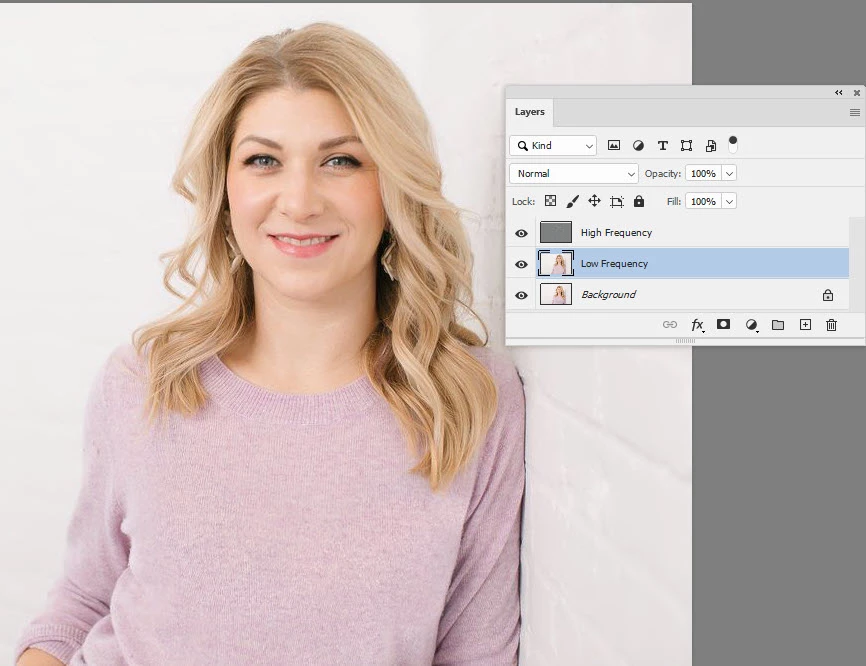
Name the lower copy "Low Frequency" and the upper copy "High Frequency"

Select the lower layer and use Filter Gaussian Blur - with a value around 6.0

Select the High frequency layer and go to Image - Apply Image

In the apply image dialogue set the layer - to "Low Frequency", the Blending to Subtract , Scale to 2 and Offset to 128
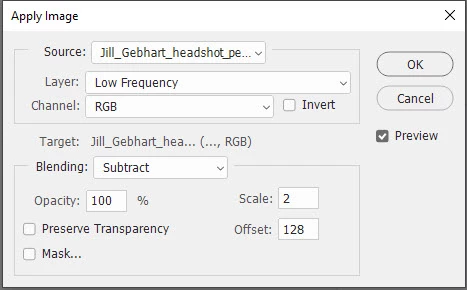
Click OK

Change the Blending mode of the high frequency layer to Linear Light


You now have the fine detail on the high frequency layer and the general colour on the low frequency layer

So select the low frequency layer and alt click with a brush to pick up the wanted colour and brush in where you want to change
 

Note : The Apply image values are for an 8 bit image . If working in 16 bit, check "Invert" next to the channel and use Blending "Add" , scale 2 , offset 0


Dave


4 replies

Ussnorway7605025
Legend
January 16, 2020

very nice Dave... it should be said that match colour is a good option for some images but I think your way is the best in this case mate

davescm
Community Expert
Community Expert
January 17, 2020

Thanks mate. It's always good to have a range of options, so that you can find one that works for the image 🙂

Dave

davescm
Community Expert
davescmCommunity ExpertCorrect answer
Community Expert
January 16, 2020

Hi

I would use frequency separation


Make two duplicate copies of the image layer

Name the lower copy "Low Frequency" and the upper copy "High Frequency"

Select the lower layer and use Filter Gaussian Blur - with a value around 6.0

Select the High frequency layer and go to Image - Apply Image

In the apply image dialogue set the layer - to "Low Frequency", the Blending to Subtract , Scale to 2 and Offset to 128

Click OK

Change the Blending mode of the high frequency layer to Linear Light


You now have the fine detail on the high frequency layer and the general colour on the low frequency layer

So select the low frequency layer and alt click with a brush to pick up the wanted colour and brush in where you want to change


Note : The Apply image values are for an 8 bit image . If working in 16 bit, check "Invert" next to the channel and use Blending "Add" , scale 2 , offset 0


Dave


sewensAuthor
Participant
January 16, 2020

Thanks all!

Ussnorway7605025
Legend
January 16, 2020

I would use the spothealing tool instead mate

this tool uses your Cpu power to auto-sample the area and the key is to drag your brush {don't do dots}

[edit take two]

Sahil.Chawla
Adobe Employee
Adobe Employee
January 16, 2020

Hi there,

As you want to match clothing color in Photoshop, please have a look at this article and let us know if it helps: https://www.photoshopessentials.com/photo-editing/match-color/

Regards,
Sahil