
7ABAZA
Participant
September 10, 2018
Question

How do I substitute all text areas and prevent font change?

  • September 10, 2018
  • 4 replies
  • 334 views

Hello all.

Actually I did my best to find the answer of this question, but unfortunately, I didn't!

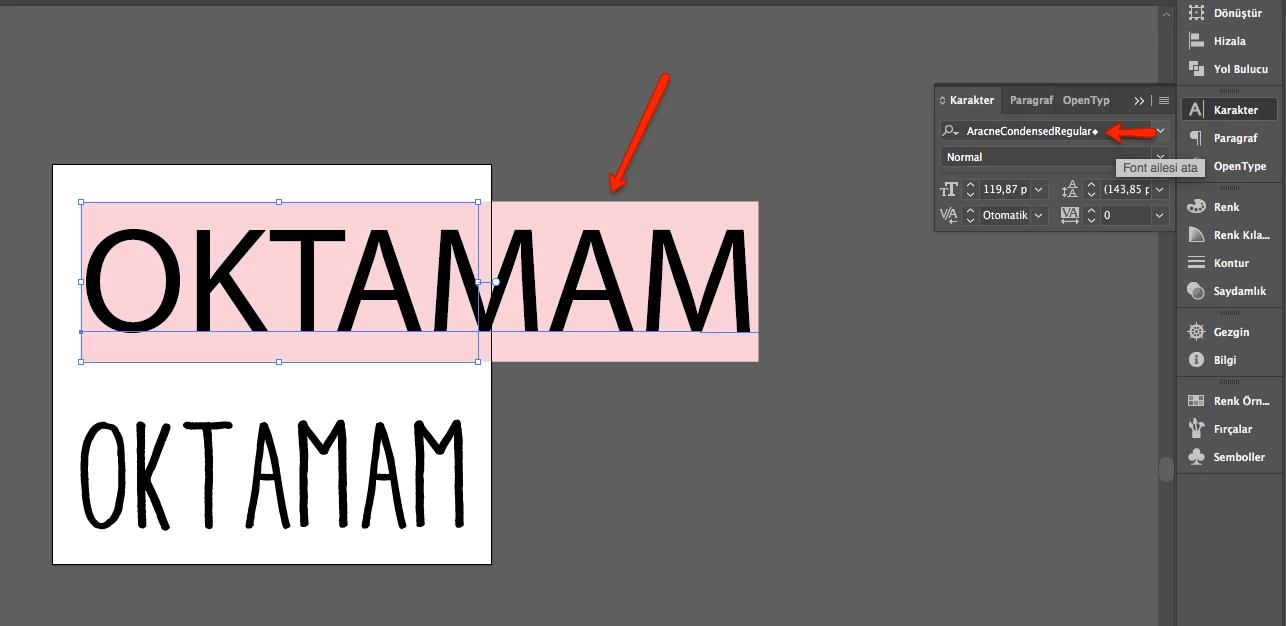
The print guy always asking me to lock the text from font changes, because he doesn't have the fonts installed on the computer and prefer to not install them and sent me an example as shown below.

I want to know how can I do that.

Example:
This topic has been closed for replies.

4 replies

Community Expert
September 10, 2018

as Melissa said,  that looks like Illustrator you're working in.  If so, like she said, create outlines for the text.  Its an easy fix.  I would say that after that,  to save as a copy,  so you still have the original copy in case you need to edit the text.  But if it is Photoshop,  just flatten the image as JJMack said.

JJMack
Community Expert
Community Expert
September 10, 2018

Do not send them a layered file.    Sent them a none layers tiff files if they want 16bit color or send them 8bit jpeg files.  Save your work in layered file so can make additional changes in the future without needing to redo all processing.  Your Printer will never get a text layer. They will just get a raster pixel layer.

JJMack
melissapiccone
Community Expert
Community Expert
September 10, 2018

You posted in the Photoshop forum, but from your screenshot you are actually working in Illustrator. You can outline your text. Duplicate you text layer and hide a copy in the layers panel - just turn the eyeball off. Select the visible text, Then go to the type menu and choose create outlines.

Melissa Piccone | Adobe Trainer | Online Courses Author | Fine Artist
Participant
September 10, 2018

You could rasterize it, but he would lose the ability to edit the words.