Pratibha Bibyan
Known Participant
May 21, 2018
Question

How to Cut Out Hair in Photoshop cc 2018

  • May 21, 2018
  • 9 replies
  • 12197 views

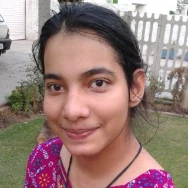
i want to cut hair in this photo but i don't know How to Cut Out Hair in Photoshop cc 2018. please help

    9 replies

    melissapiccone
    Community Expert
    Community Expert
    February 4, 2019

    Then make a tutorial that you seem to think is so simple to make... I'm not an Adobe employee, I don't get paid or make any money off the tutorials I create. I don't get compensation for answering questions in these forums. Most people asking questions are beginners and need direction, a starting point. There are plenty of online classes and experts who do get paid for training out there where you can find more involved answers. I'm here to help beginners. If training is needed, I happen to do that for a living and teaching someone how to do this "professionally" requires a little more time and effort than answering questions in the forum.

    Melissa Piccone | Adobe Trainer | Online Courses Author | Fine Artist
    Participant
    February 4, 2019

    Missed my point completely. Good day to you. Good luck to the rest of us in finding an easier way to do something that should have been solved ages ago by adobe...big surprise there.

    angie_taylor
    Legend
    September 6, 2018

    There is an easier way than what has been suggested here. In fact two methods.

    the first is to select the Quick Select tool and select the background with it. If you accidentally select the foreground, just hold down the alt key to remove areas. Once you have a rough selection, Click on the “select and Mask” button in the control panel. Click on the Invert button to invert the mask so that  person is selected rather than the BG.

    in here you can refine the selection and you can see the selection more clearly. Down the right hand side you’ll see a menu for the display, choose to view it against white or black to more clearly see your selection. Or choose Overlay to see it more clearly.

    use the Quick selection tool in more detail (on the left) to add or remove more detail, make sure all the hair is selected but don’t worry too much if you have some of the BG incorporated into the hair as we can remove that in the next step.

    choose the Refine Edge tool from the left, make it  enough to cover the edges of the hair where there’s still BG showing. Paint over these edges with Refine edge tool to remove traces of BG.

    on the right you’ll see various other options for refining the mask. Decontaminate colours is at the bottom, used this to remove and “bleeding” color from the subject.

    when you are finished, select “New Layer with Layer Mask“ in the Output menu.

    ‘’To further refine the mask, alt-click on the layer mask thumbnail in the layers panel To make it visible. Choose your brush tool. Change it’s mode to Overlay. Use black paint to strengthen the BG areas and white paint to strengthen the hair. Toggle back to viewing the layer by alt-clicking again on the LM.

    Photoshop Tutorial: REFINE EDGE & QUICK SELECTION - YouTube

    The second method involves using channels, calculations, minimum  maximum effects and hand-painting. It’s more effective but more complicated and I don’t have enough space to write it all down here but I think there are tutorials on Lynda.com that can help you with this.

    here’s a quick link to a tutorial showing the Refine edge tool. It’s specifically for selecting hair. I’m surprised nobody else has suggested it.

    Participant
    September 6, 2018

    Thank you for taking the time to give such a detailed step by step set of instructions. I believe it’s people like you that make these forums so helpful to people like myself, who are fairly new to photoshop. I, along with others have great respect to the helpful people on these forums, as we look up to the ‘gurus’ and strive to one day to be good enough at this artform to help others. Thanks again.

    Sent from Mail for Windows 10

    angie_taylor
    Legend
    September 6, 2018

    Thank you so much, that has made my day! :-) Im very happy to help. Good luck with it all :-)

    Pratibha Bibyan
    Known Participant
    August 6, 2018

    please tell me, other ways to solve this because previous ways u tell me it's not working for me. please help me .i still waiting for u reply.

    melissapiccone
    Community Expert
    Community Expert
    August 8, 2018

    Please stop creating more posts asking the same question. The answers you have been given are sufficient. If you can’t make the solutions work for you then perhaps you should consider taking a class to learn Photoshop. What you are trying to do is not a beginner task and requires some skill and experience in Photoshop.

    Melissa Piccone | Adobe Trainer | Online Courses Author | Fine Artist
    Pratibha Bibyan
    Known Participant
    August 8, 2018

    How to make this image look like an image below? please tell me. How to change the background from the image like the image below is showing?

    roses91211073
    Participant
    June 27, 2018

    Generally, while a complex background, you could try to take some advanced techniques to remove a background from the image. I think you can choose one from here.  Remove the background from an image containing hair

    Trevor.Dennis
    Community Expert
    Community Expert
    May 21, 2018

    Out of interest, did you take the photograph?  Only that is as difficult a selection as I have seen in a while.  The texture of the peacock feather is very similar to the hair, and is going to confuse things.  The colour differential might have helped, but I have jut looked at the Channels and they are not a great deal of help.

    If you absolutely need a result from this image, then I would do the best I can, but exclude any fly away hair, and then paint in new hair.  Have  look at this brush set:

    Skin and Hair Texture Brushes by castrochew on DeviantArt

    The trick is to lay down darker tones to start with, and build up with multiple strokes using lighter tones. 

    melissapiccone
    Community Expert
    Community Expert
    May 21, 2018
    Melissa Piccone | Adobe Trainer | Online Courses Author | Fine Artist
    Martin_Bns
    Inspiring
    May 21, 2018

    Cutting out hairs is very complicated.
    It depends a lot on your starting image my friend.

    What I can suggest you is a technique that is very effective but requires some time and also...time and...brush skills.

    1) Apply a layer mask

    2) Use the brush tool in order to cut out most of the hair (do not mind the small hairs around the head)

    3) Now paint back the hairs (yes, one by one)

    4) Use the smudge tool to paint more hair again.

    Here is an example of one of my persona projects made just for fun: Behance

    You can see how a complex situation like that is close to impossible to do in any other way.

    This is the best technique you can possibly master,

    Cheers,
    Martin

    ceyhun_akgun
    Legend
    May 21, 2018

    Graphic Designer Educator / PrePress Consultant
    Participating Frequently
    May 21, 2018
