
Participant
July 30, 2017
Question

How to easily edit out black lines in image?

  • July 30, 2017
  • 2 replies
  • 12651 views

Is there an easy way to remove these black lines (showing the borders of the country) ?

I can do this manually (using clone, spot healing, patch tool) but it takes a lot of effort, and I need to do this to several similar images.

I've been using photoshop for several years and can't figure this out.
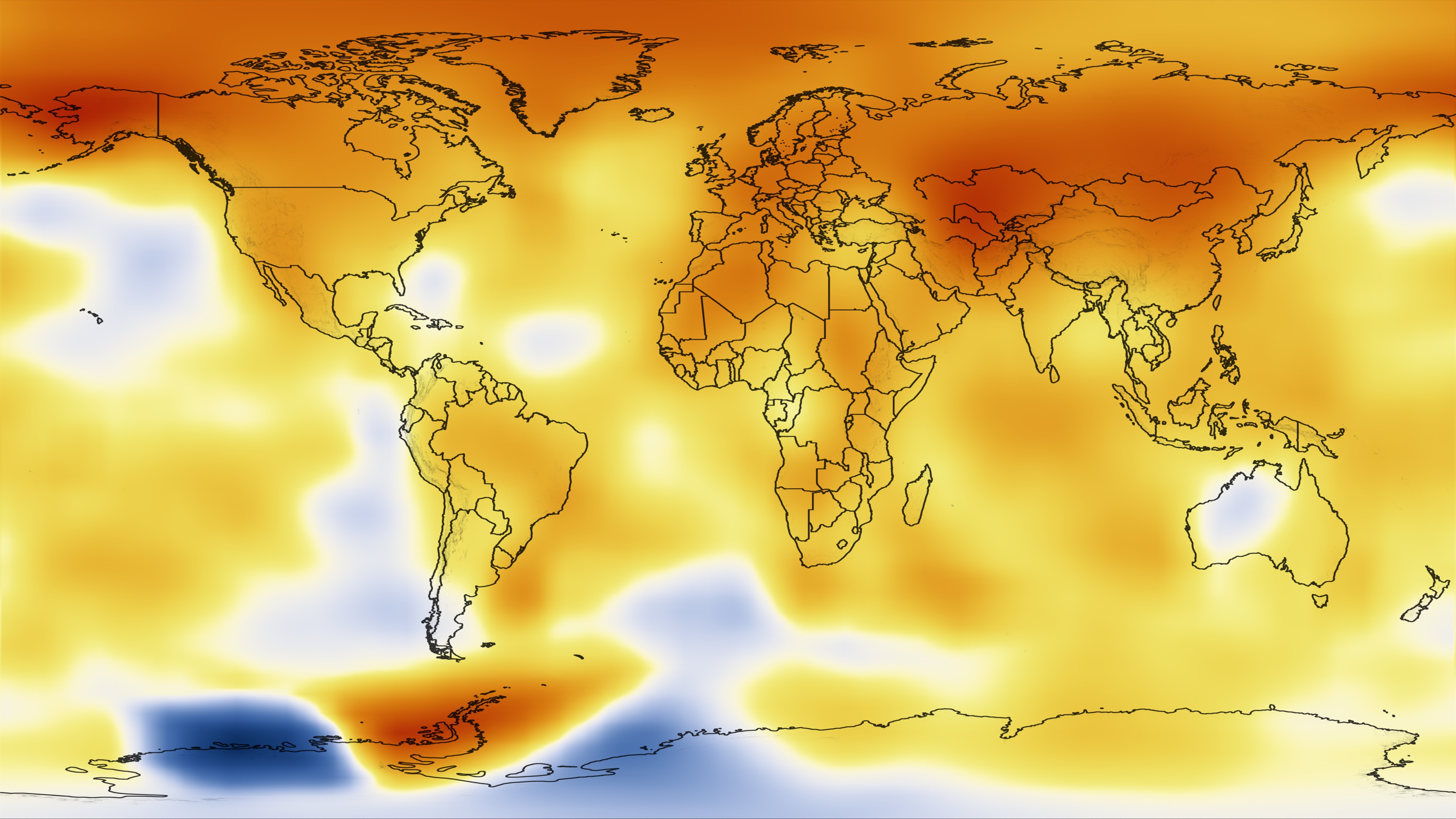
2000temperatureAnomaly.0137.jpg

This topic has been closed for replies.

2 replies

Norman Sanders
Legend
July 31, 2017

For reasons I still can't figure out, the original image did not display on my Mac but did come up on my iPhone. I used that image for the sequence above: Used Lab L channel to increase the intensity of the black, Blend if to isolate the black, Magic Wand and Border to create an avenue for the selection and Content Aware Fill. The result now needs minor retouching.

1. Duplicate the image layer  (Fig 1)

2. Image > Color > Lab Color -- Don't Merge

3. Duplicate the L channel (Lightness Copy) (Fig 2)

4. Lightness Copy: Select > All then Edit > Copy (I forgot to use Curves to increase its contest when I redid this for posting. It would have helped.)

5 Click on the composite Lab channel to return to full color image with the eye off adjacent to Lightness Copy

5. Return to the Layers panel and chose the top layer followed by Edit > Paste

6. Change the Blending Mode of the pasted layer to Multiply to strengthen black. (Fig 3). Layer > Merge Down

7. Place a blank layer below the newly merged layer

8. Image > Color > RGB Color -- Don't Merge

9. Click the eye off next to the very bottom layer

10. Return to the merged layer and double click to bring up Layer Style (Fig 4)

11. In the Blend If section at the bottom, Set the Blend If to RED, (Fig 5)

12. Move the top right slider to there left until the value reads about 115

13. Layer > Merge Down

14. Choose the Magic Wand. Sample: 3x3 avg, Tolerance 0, Contiguous: Off.

15. Ciick on the transparent area and then Select: Invererse

16. ßelect > Modify > Border --  4 px

17. Turn off the eye on the top layer and turn on the eye of the bottom layer

18. Choose the bottom layer and Edit > Fill > Content Aware Fill

19. Select > Deselect the the selection (Fig 6)

Chuck Uebele
Community Expert
Community Expert
July 30, 2017

Use magic wand to select the black lines. Use Select>Modify>expand to expand the selection beyond the black lines. Then use content aware fill to fill them. Some extra touch up will be needed.

Norman Sanders
Legend
July 30, 2017

Great job, Chuck.  Did you intend to write Select > Modify > Border rather then Expand?

Chuck Uebele
Community Expert
Community Expert
July 30, 2017

Yea, I meant expand.